About the examples: Examples and screenshots in this guide use BEAT, a demo company in a Dynamics 365 test environment. Use your own company's codes and values instead of copying them.
Setup steps on this page
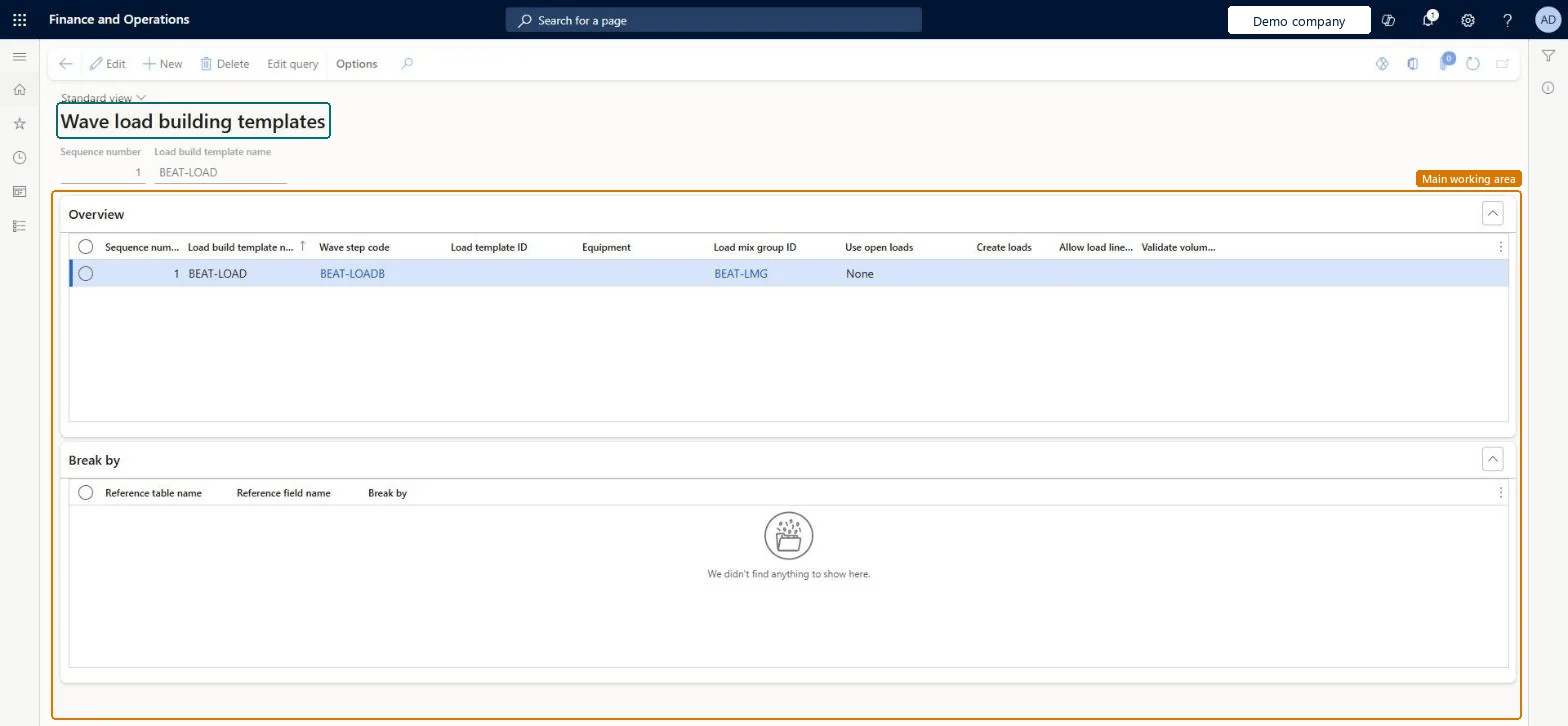
Set up Wave load building templates
Use this page to set up the templates that advanced wave load building uses to combine or separate shipments on loads.
Steps from Microsoft
Go to Warehouse management > Setup > Load > Wave load building templates.
Select New to add a row to the grid.
Set the sequence number, the load build template name, the wave step code and the load template ID.
Set the equipment, load mix group ID, use open loads, create loads, allow load line split and validate volumetrics options as the template requires.
Select Save, then select Edit query to define the sorting rules.
On the Break by FastTab, set the rules that control how your loads are split up.
At least one template per load building wave step code, linked to the buildLoads method on the wave template, with a load template and load mix groupAdvanced wave load building needs a wave template with the buildLoads method and at least one load build template linked to it by wave step code.
Turning on Allow load line split to keep loads within weight or volume. It splits only on a quantity limit, not on volume or weight.
To set it up or change itTransportation coordinator TMSTransportationCoordinatorTo use itWarehouse planner WHSWarehousePlannerWarehouse manager WMSWarehouseManagerLogistics manager TMSLogisticsManagerGive people one of these roles. On this system, 4 roles can open this page.Checked in Dynamics 365
Actions on the page
(Action Pane without tabs): Edit queryChecked in Dynamics 365