Product designer, Quality control clerk, Quality control manager and 25 more roles
Business process
Manage warehouse operations
Menu item
WHSInventStatus
Main table
WHSInventStatus
Data entity
WHSInventoryStatusEntity
Setup steps
1 on this page
Show what matters for
PAGE GUIDEWhat the page does and how to use it8 sections. Choose a role to highlight what matters to you.
Everyone
1What it is and why
What it is
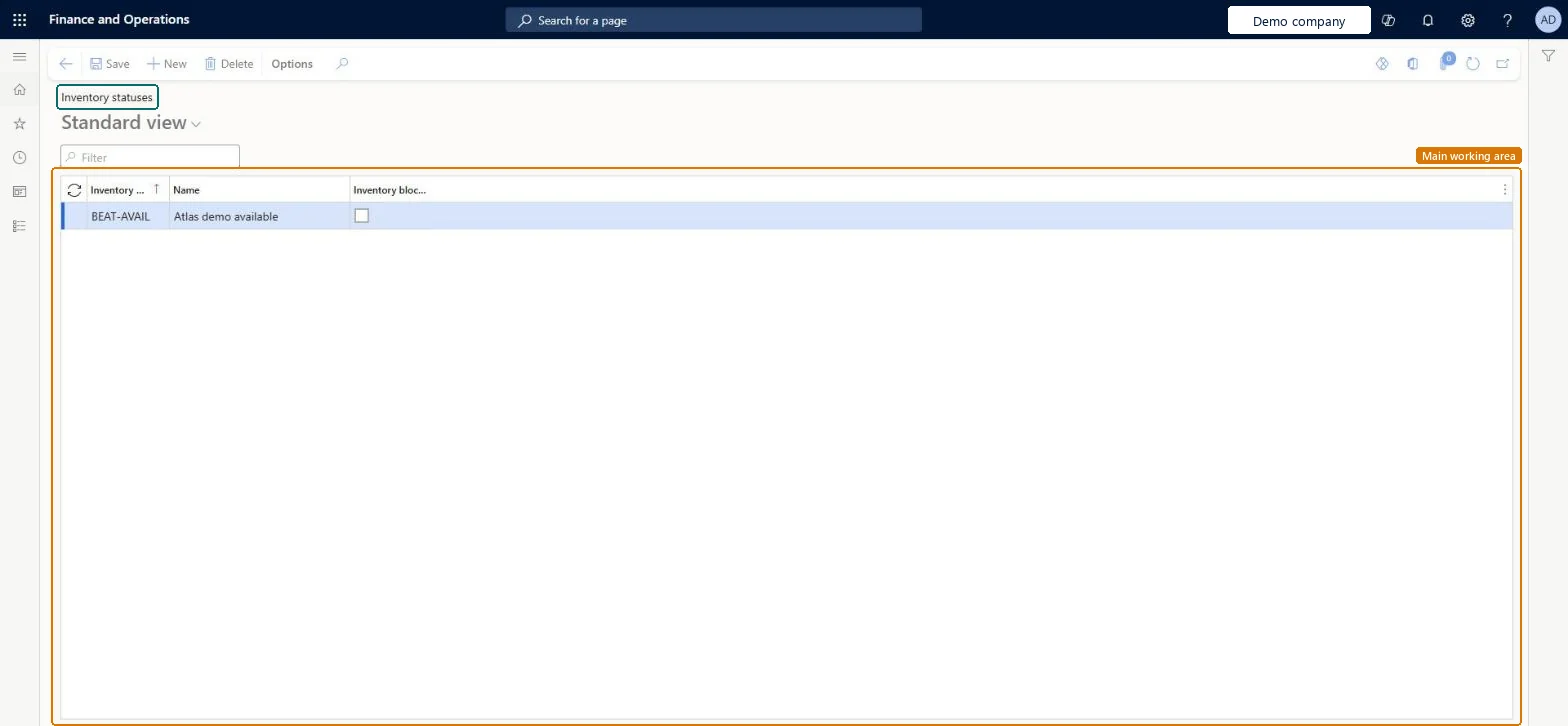
A list page that shows the inventory statuses used to categorise inventory, with the name of each status and whether it blocks inventory.
What you do here
Use this page to create and maintain the inventory statuses that warehouse transactions and on-hand inventory can carry. You can mark a status as blocking so that inventory with that status cannot be used on outbound transactions.
Example
For example, you can create inventory statuses for on-hand inventory, inbound transactions and outbound transactions.
The page in Dynamics 365. page title tab to open what to set or check
About the examples: Examples and screenshots in this guide use BEAT, a demo company in a Dynamics 365 test environment. Use your own company's codes and values instead of copying them.
Setup steps on this page
Set up Inventory statuses
Use this page to create and maintain the inventory statuses that warehouse transactions and on-hand inventory can carry. You can mark a status as blocking so that inventory with that status cannot be used on outbound transactions.
How to use it
Go to Warehouse management > Setup > Inventory > Inventory statuses.
Use the Filter box to find an existing status.
Select New to add a status, then enter the inventory status, its name and whether it blocks inventory.
Select Edit to change a status.
Select Delete to remove a status you no longer need.
Source: Checked in Dynamics 365
Fields on the page
Field
What it means
Table column
Inventory blocking
Marks a status as blocking. Items that have a blocked status count as physical inventory, but they cannot be used on a production order, sales order, transfer order or outbound transaction.Microsoft Learn
InventStatusBlocking
Common errors and fixes
Message
What to do
Physical on-hand Site=%1, Warehouse=%2, Inventory status=Available, Batch number=%3, Owner=%4: %5 cannot be reserved because only 0.00 are available in the inventory.
Usually caused by open work. Complete the work or receive without work creation, and check that no quality order, inventory blocking or output order is physically reserving the quantity. Microsoft Learn
Test checklist
Create an available and a blocking status.
Set the available one as the default in Warehouse management parameters.
Receive one line as the blocking status and one as available.
Try to reserve both on a sales order and check only the available quantity is reserved.
One available status set as Default inventory status ID in Warehouse management parameters, plus a separate unavailable status with Inventory blocking for damaged or quarantined stockWarehouse items need a default inventory status, and a blocking status keeps stock as physical inventory that can't be used on sales, transfer, production or other outbound transactions.
Using a blocking status to block expired batches. Master planning doesn't support both batch expiry and blocking inventory status and can exclude stock twice; Learn recommends batch disposition codes for expired batches.Test: Blocking status keeps stock out of outbound orders
Hard to reverse: Inventory status is a dimension carried by on-hand stock. Changing the status of stock is blocked at locations with open work until that work is completed or cancelled. Microsoft Learn
Technical architect
6Technical
Menu item
WHSInventStatusChecked in Dynamics 365
Form
WHSInventStatusChecked in Dynamics 365
Table
WHSInventStatusShown as “INVENTORY STATUS” in Record infoKey field: InventStatusIdChecked in Dynamics 365
PrivilegesMaintain inventory status WHSInventStatusMaintainView inventory status WHSInventStatusViewDutiesInquire into related inventory status InventRelatedInventoryStatusInquireInquire into inventory status InventStatusInquireRecord warehouse planning masters WHSWarehousePlanningMasterMaintain28 security rolesProduct designer BOMProductDesignerQuality control clerk InventQualityControlClerkQuality control manager InventQualityControlManagerReceiving clerk InventReceivingClerkShipping clerk InventShippingClerkAccounting manager LedgerAccountingManagerProduction manager ProdProductionManagerProduction supervisor ProdProductionSupervisorProject assistant ProjProjectClerkProject manager ProjProjectManagerRetail service RetailServiceRetail store manager RetailStoreManagerService delivery manager SMAServiceDeliveryManagerBuying agent TradeBuyingAgentCustomer service manager TradeCustomerServiceManagerCustomer service representative TradeCustomerServiceRepresentativePurchasing manager TradePurchasingManagerSales manager TradeSalesManagerMaintenance clerk EntAssetMaintenanceClerkMaintenance manager EntAssetMaintenanceManagerField Service Integration User FieldServiceIntegrationUserInventory accountant InventCostAccountantInventory accountant clerk InventCostCostClerkMaterials manager InventMaterialsManagerSales representative TradeSalesRepresentativeWarehouse planner WHSWarehousePlannerWarehouse manager WMSWarehouseManagerWarehouse worker WMSWarehouseWorkerChecked in Dynamics 365
Roles to set it up and use it
To set it up or change itWarehouse manager WMSWarehouseManagerWarehouse planner WHSWarehousePlannerTo use itProduction supervisor ProdProductionSupervisorWarehouse worker WMSWarehouseWorkerField Service Integration User FieldServiceIntegrationUserShipping clerk InventShippingClerkReceiving clerk InventReceivingClerkGive people one of these roles. On this system, 29 roles can open this page.Checked in Dynamics 365
WHSInventoryStatusEntity (Inventory status): loaded for each company, in Microsoft's default template 300 - Inventory.Load order: Microsoft's default template 300 - Inventory loads Inventory status at execution unit 1, level 30, sequence 10. Lower levels load first, and entities at the same level load in sequence order.Load first: the default templates at lower levels (System setup to General ledger)Microsoft Learn