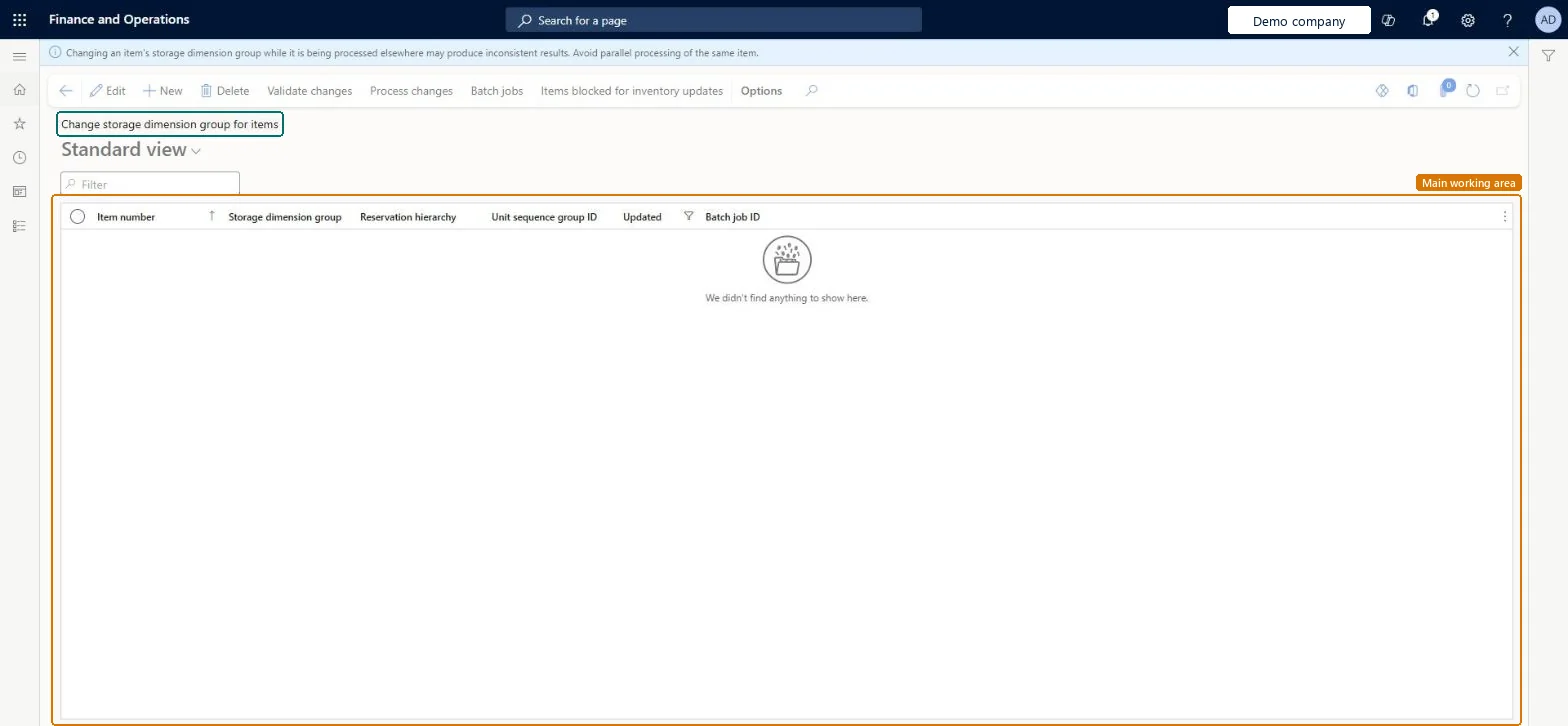
A setup page where you list items together with the storage dimension group, reservation hierarchy and unit sequence group each should move to, and then validate and process the changes.
PAGE GUIDEWhat the page does and how to use it7 sections. Choose a role to highlight what matters to you.
Everyone
1What it is and why
What it is
A setup page where you list items together with the storage dimension group, reservation hierarchy and unit sequence group each should move to, and then validate and process the changes.
What you do here
Use this page to move existing items to a storage dimension group that supports warehouse management processes.
Example
For example, after an upgrade from Microsoft Dynamics AX 2012, you use this page to unblock products by selecting a new storage dimension group for them.
The page in Dynamics 365. page title tab to open what to set or check
About the examples: Examples and screenshots in this guide use BEAT, a demo company in a Dynamics 365 test environment. Use your own company's codes and values instead of copying them.
Steps from Microsoft
Go to Warehouse management > Setup > Enable warehouse management processes > Change storage dimension group for items.
On the Action Pane, select New to add a row.
Set the Item number, Storage dimension group, Reservation hierarchy and Unit sequence group ID for the row.
The storage dimension group the item is moved to.Microsoft Learn
StorageDimensionGroup
Reservation hierarchy
The reservation hierarchy that applies to the migrated item.Microsoft Learn
ReservationHierarchy
Unit sequence group ID
The unit sequence group that applies to the migrated item.Microsoft Learn
UnitOfMeasureSequenceGroupId
Test checklist
Set a Default inventory status ID on Warehouse management parameters and create a WMS storage dimension group, a reservation hierarchy and a unit sequence group.
Add a row per item with the target storage dimension group, reservation hierarchy and unit sequence group.
Select Validate changes and fix every reported row (for example catch weight items, or reserved ordered transactions with a hole in the dimensions).
Select Process changes, follow the batch tasks, then check on the released product that the new groups are assigned and on-hand shows inventory status and license plate.
Hard to reverse: Process changes rewrites the inventory dimensions of the listed items in batch. You can change the storage dimension group even with open transactions, but going back means another validated migration run. Microsoft Learn
If you change it later
Items that use catch weight cannot be moved to a storage dimension group that uses warehouse management processes. Microsoft Learn
Technical architect
5Technical
Menu item
InventTableStorageDimensionGroupChangeChecked in Dynamics 365
Form
InventTableStorageDimensionGroupChangeChecked in Dynamics 365
Table
InventTableStorageDimensionGroupChangeRequestShown as “ITEM STORAGE DIMENSION GROUP CHANGE REQUESTS” in Record infoKey field: ItemIdChecked in Dynamics 365
Data entities
EcoResReleasedProductStorageDimensionGroupChangeRequestEntityItem storage dimension group change request Checked in Dynamics 365
Who can open it
PrivilegesMaintain item storage dimension group change requests InventTableStorageDimensionGroupChangeRequestMaintainDutiesMaintain migration to advanced warehouse management processes WMSAdvancedMigrationMaintain1 security roleMaterials manager InventMaterialsManagerChecked in Dynamics 365
Roles to set it up and use it
To set it up or change itMaterials manager InventMaterialsManagerGive people one of these roles. On this system, 1 role can open this page.Checked in Dynamics 365
Actions on the page
(Action Pane without tabs): New, Delete, Validate changes, Process changes, Batch jobs, Items blocked for inventory updatesChecked in Dynamics 365