About the examples: Examples and screenshots in this guide use BEAT, a demo company in a Dynamics 365 test environment. Use your own company's codes and values instead of copying them.
When to run it
When to run it
Before orders are released to the warehouse, so picking locations are planned and stocked for the coming demand.
How often
Recurring, ahead of each release of orders, for example once a day.
Batch settings
Run it as a recurring batch job with all three steps for automatic slotting.
What the output shows
Slotting demand per item and unit, a slotting plan with the location for each item, and replenishment work for that plan. Lines in red could not be slotted, usually for lack of a fitting location.
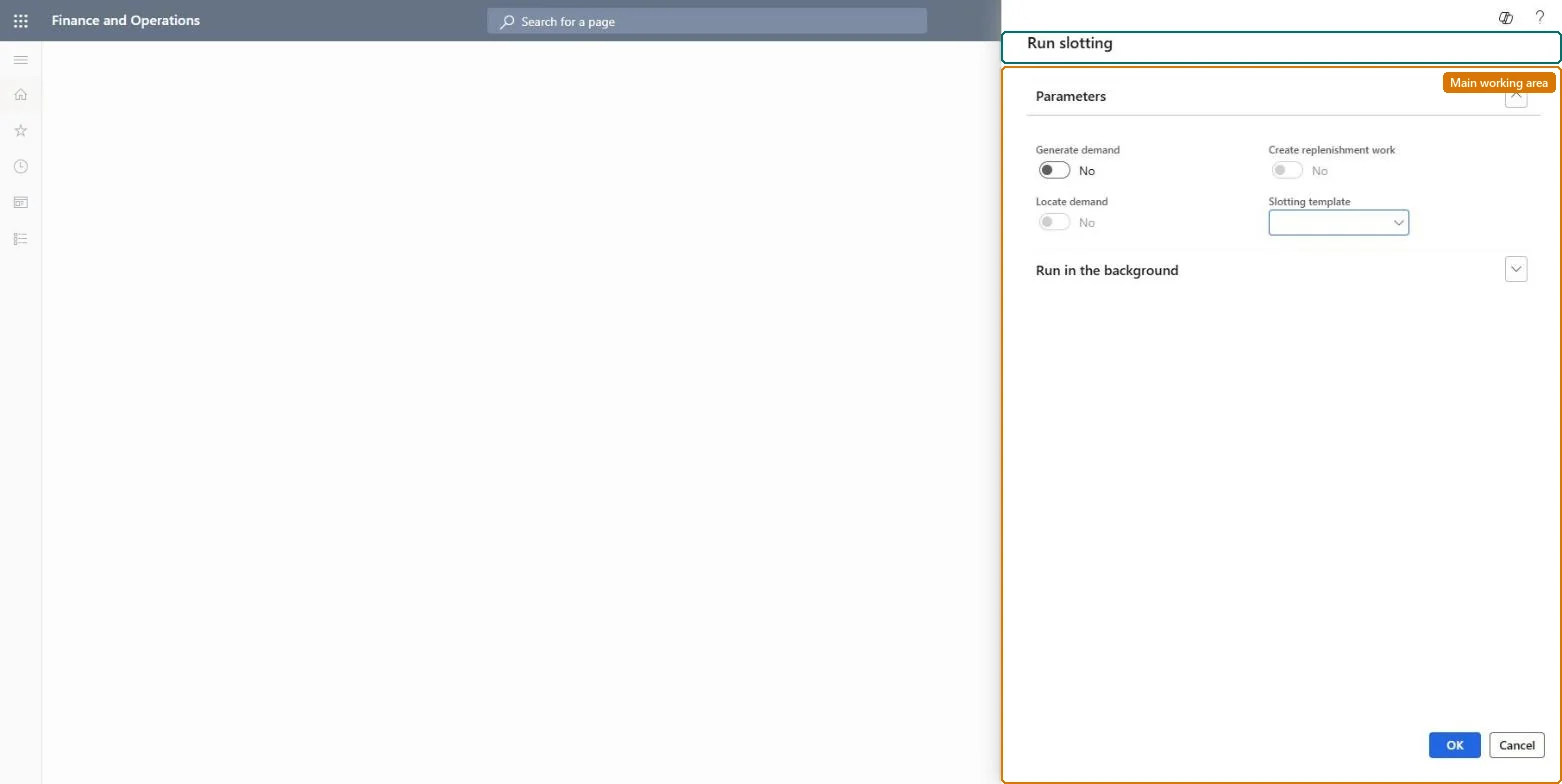
Go to Warehouse management > Replenishment > Run slotting.
Select the slotting steps to run: Generate demand, Locate demand and Create replenishment work. They are progressive, so Locate demand needs Generate demand.
Specify the slotting template, which sets the demand type, demand strategy and warehouse.
Set a recurrence if slotting should run on its own.
Review the results on the slotting template: Slotting demand shows the demand, and Slotting plan shows the location of each item; demand that couldn't be slotted is in red.
Partly: Demand and plan are recalculated in the next run; replenishment work that was created must be cancelled separately. Microsoft Learn
If you change it later
The slotting steps are progressive, so Locate demand can be selected only when Generate demand is also selected. Microsoft Learn
Technical architect
5Technical
Menu item
action:WHSSlotDemandGenerateService
Roles to set it up and use it
To use itWarehouse manager WMSWarehouseManagerProcess engineer RouteProcessEngineerGive people one of these roles. On this system, 2 roles can run this page.Checked in Dynamics 365