About the examples: Examples and screenshots in this guide use BEAT, a demo company in a Dynamics 365 test environment. Use your own company's codes and values instead of copying them.
Steps from Microsoft
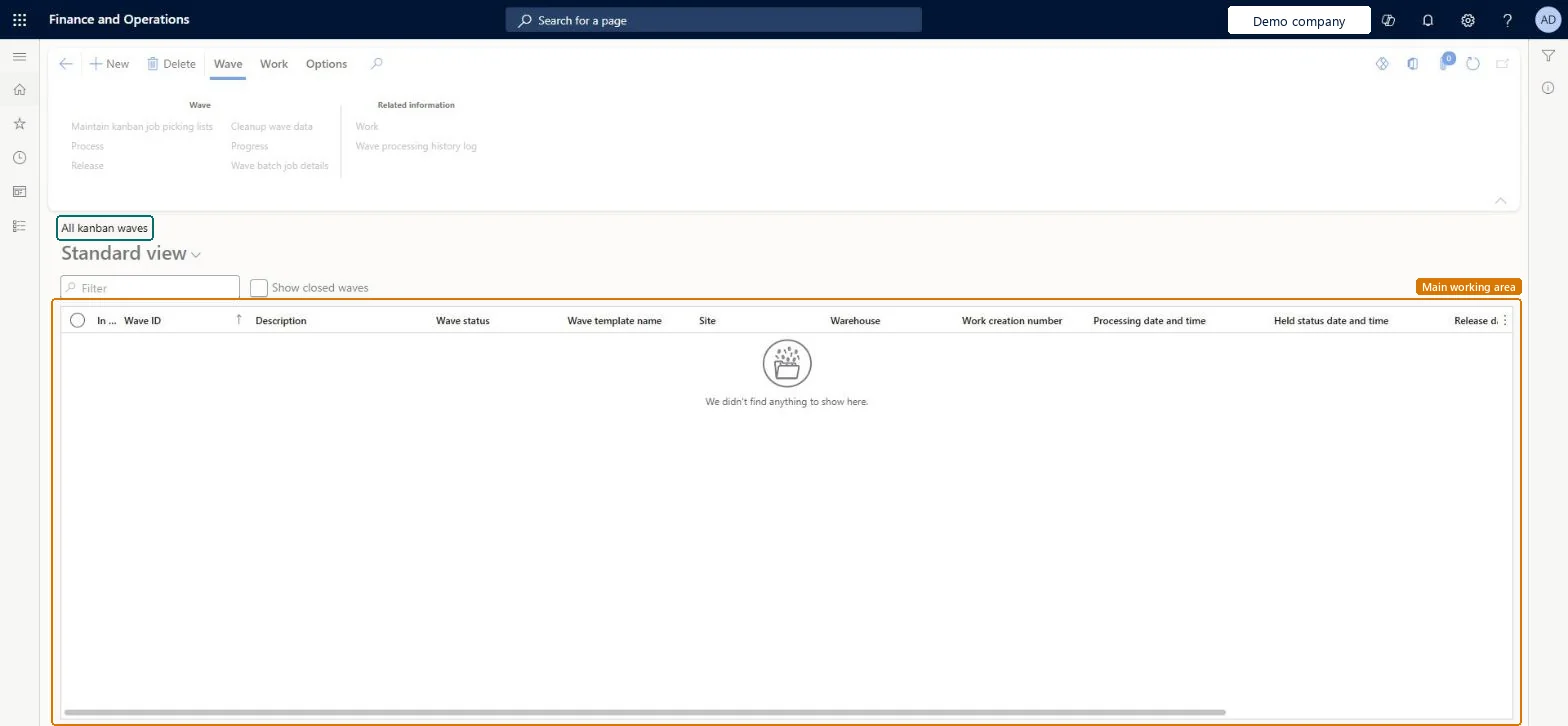
Go to Warehouse management > Outbound waves > Kanban waves > All kanban waves.
Select New to create a wave and enter a short description that says what you are processing in the wave.
In the Wave template name field, select the wave template for kanban waves.
On the Wave tab of the Action Pane, select Maintain kanban job picking lists and add the lines to include in the wave.
Select Process to create the picking work.
Select Release to make the picking work available in the warehouse.
Found invalid load lines in wave. Please remove the invalid load lines.
Review the status of each load line in the wave (Action center, or the Wave processing history log when Create wave processing history log is Yes), fix or remove the invalid lines and process the wave again. Microsoft Learn
Test checklist
Create a kanban job picking list with reserved inventory and release it to the warehouse.
If the wave template doesn't create waves automatically, select Create wave on the Action Pane, enter a Description and Wave template name, and add the lines.
Select Process and check Wave status changes from Created to Held and work is created.
Select Release wave and check the picking work is available on the mobile app.
On a test wave, select Work > Cancel and check the wave's picking work is canceled.
Hard to reverse: Lines can be added to a wave until it is released. A wave can be processed only in status Created (it then becomes Held). After release you can cancel the wave (Work tab > Cancel, which cancels the picking work) and add lines, but you can't change the lines already on it. Microsoft Learn
Technical architect
5Technical
Menu item
WHSKanbanWaveTableListPageChecked in Dynamics 365
Form
WHSKanbanWaveTableListPageChecked in Dynamics 365
Table
WHSWaveTableShown as “WAVES” in Record infoKey field: WaveIdChecked in Dynamics 365
Who can open it
PrivilegesMaintain kanban waves table using a list page WHSKanbanWaveTableListPageMaintainView kanban waves by using a list page WHSKanbanWaveTableListPageViewDutiesMaintain kanban wave transactions WHSWarehousePlanningKanbanMaintainInquire into kanban wave operations WHSWarehousePlanningKanbanStatusInquire3 security rolesWaterspider LeanWaterspiderProduction manager ProdProductionManagerProduction supervisor ProdProductionSupervisorChecked in Dynamics 365
Roles to set it up and use it
To set it up or change itProduction supervisor ProdProductionSupervisorWaterspider LeanWaterspiderTo use itProduction manager ProdProductionManagerGive people one of these roles. On this system, 3 roles can open this page.Checked in Dynamics 365