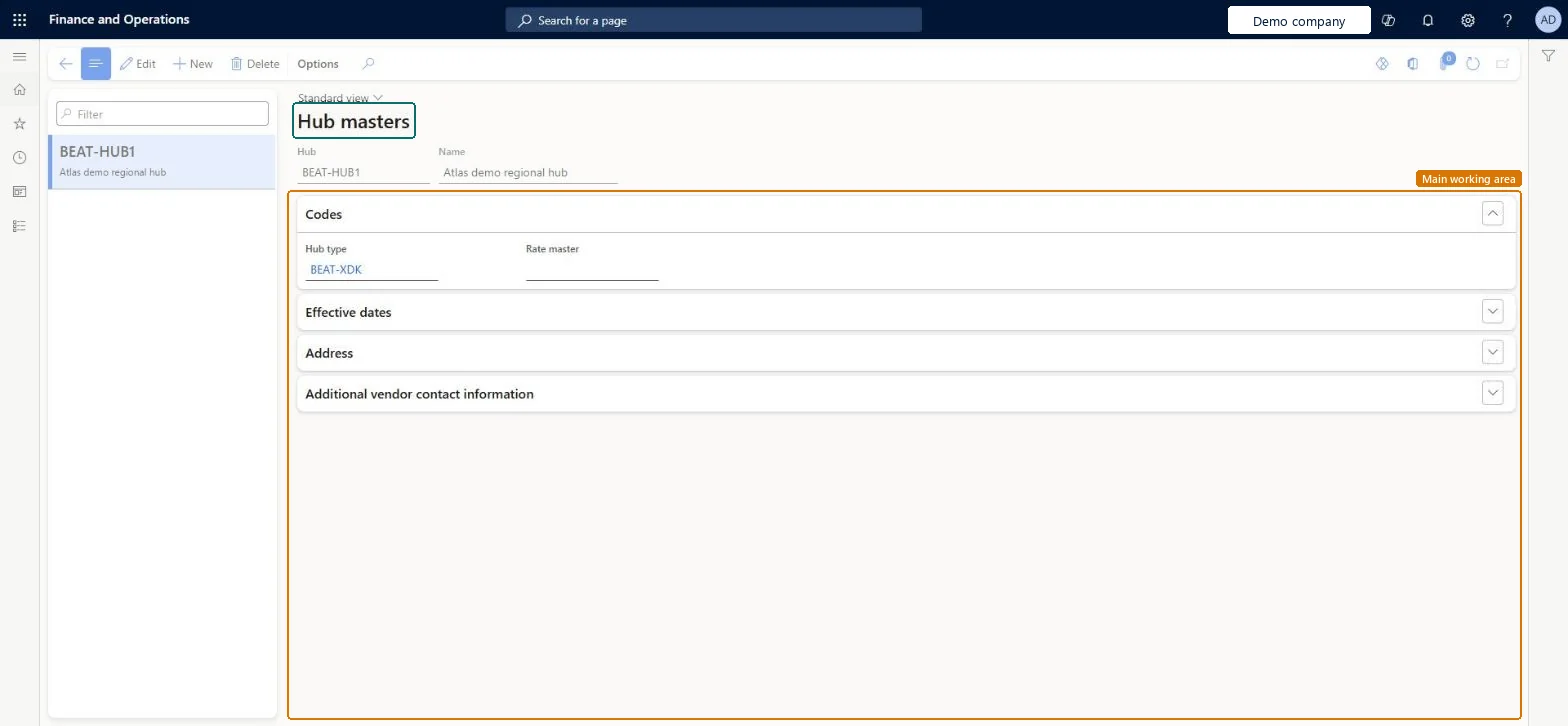
A setup page where you define hubs, with a hub type, a rate master, effective dates, an address and additional vendor contact information for each hub.
PAGE GUIDEWhat the page does and how to use it8 sections. Choose a role to highlight what matters to you.
Everyone
1What it is and why
What it is
A setup page where you define hubs, with a hub type, a rate master, effective dates, an address and additional vendor contact information for each hub.
What you do here
Use this page to set up the hubs that are used as the stops on transportation routes.
Example
For example, a hub can be a vendor, a warehouse, a customer or a reloading place where you change carrier.
The page in Dynamics 365. page title tab to open what to set or check
About the examples: Examples and screenshots in this guide use BEAT, a demo company in a Dynamics 365 test environment. Use your own company's codes and values instead of copying them.
Setup steps on this page
Set up Hub masters
Use this page to set up the hubs that are used as the stops on transportation routes.
How to use it
Go to Transportation management > Setup > Routing > Hub masters.
Select New, and then enter a Hub and a Name.
On the Codes FastTab, select the Hub type and the Rate master.
Expand the Effective dates and Address FastTabs and enter the dates and the address of the hub.
Expand the Additional vendor contact information FastTab and enter the contact details as required.
Source: Checked in Dynamics 365
Test checklist
Create a hub with an address whose postal code matches a customer's delivery address.
Use the hub as a destination on a scheduled route plan.
Create a sales order for that customer with a delivery date in the route range.
On the Load building workbench, propose a load and check the sales order is included.
One hub for every stop used on a route plan (vendor, warehouse, customer or reloading point); for scheduled routes, hub addresses carry the postal codes of the customers visitedStops on a route must be defined as hubs, and for scheduled routes the destination hubs are created from the customers' postal codes, which the Load building workbench matches against sales order delivery addresses.
A hub postal code that doesn't match the customer's delivery address. The Load building workbench then doesn't propose that customer's sales orders for the scheduled route.
Reversible: Hub details can be changed. Route plan segments, route guides and constraints point to hubs, so a change affects routing for loads planned afterwards. Microsoft Learn
Technical architect
6Technical
Menu item
TMSHubMasterChecked in Dynamics 365
Form
TMSHubMasterChecked in Dynamics 365
Table
TMSHubMasterShown as “HUB MASTERS” in Record infoKey field: HubMasterCodeChecked in Dynamics 365
PrivilegesMaintain hub master records TMSHubMasterMaintainView hub master data TMSHubMasterViewDutiesInquire into carrier master and network planning information TMSCarrierMasterInquireMaintain carrier and network planning master TMSCarrierMasterMaintain2 security rolesLogistics manager TMSLogisticsManagerTransportation coordinator TMSTransportationCoordinatorChecked in Dynamics 365
Roles to set it up and use it
To set it up or change itLogistics manager TMSLogisticsManagerTo use itTransportation coordinator TMSTransportationCoordinatorGive people one of these roles. On this system, 2 roles can open this page.Checked in Dynamics 365
TMSTransportationHubEntity (Transportation hubs): loaded for each company, in Microsoft's default template 405 - Transportation management.Load order: Microsoft's default template 405 - Transportation management loads Transportation hubs at execution unit 1, level 405, sequence 10. Lower levels load first, and entities at the same level load in sequence order.Load first: the default templates at lower levels (System setup to Warehouse management)Microsoft Learn