About the examples: Examples and screenshots in this guide use BEAT, a demo company in a Dynamics 365 test environment. Use your own company's codes and values instead of copying them.
Setup steps on this page
Set up Equipment
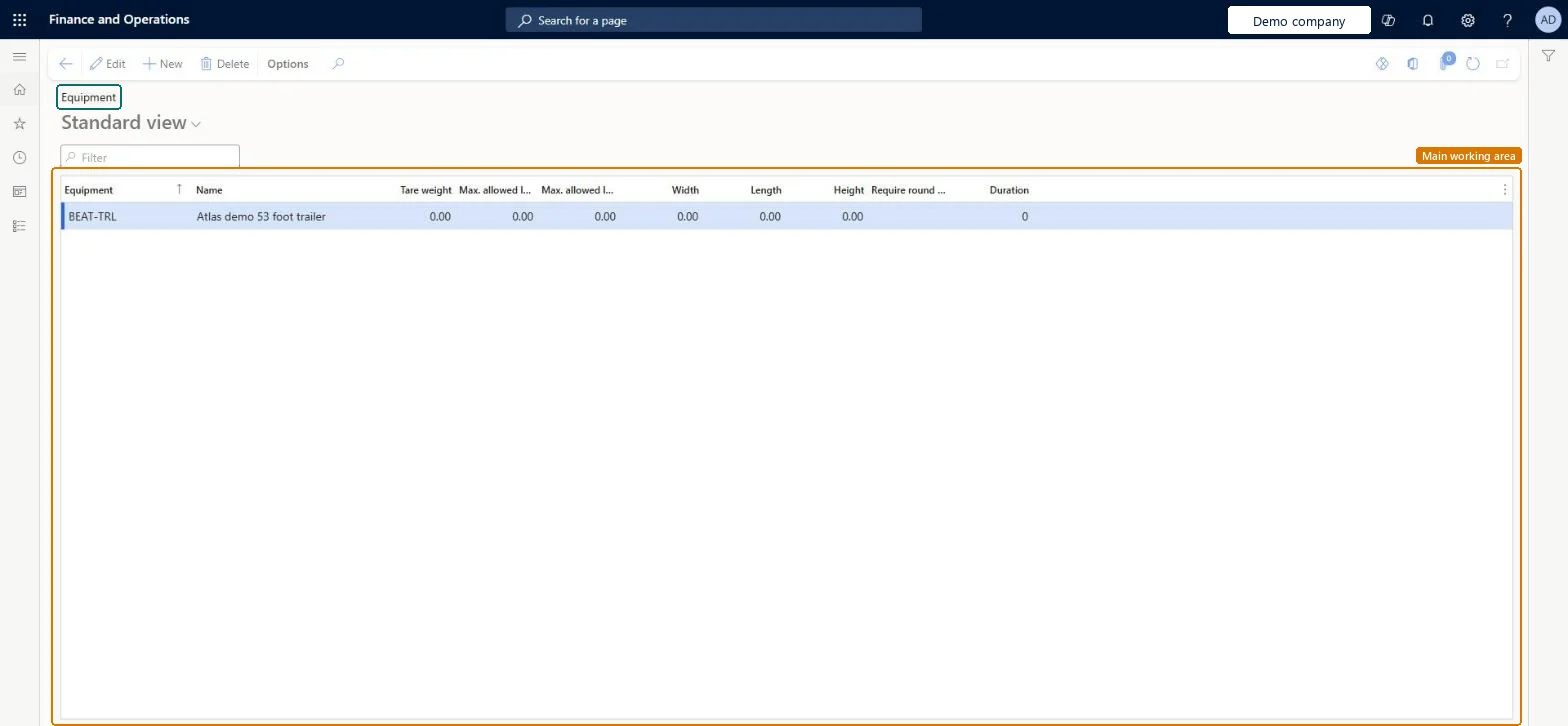
Use this page to define the equipment that is used to ship loads, together with its weight limits and dimensions.
How to use it
Go to Transportation management > Setup > Load building > Equipment.
On the Action Pane, select New to add a line.
Enter the Equipment code and Name.
Enter the Tare weight, the maximum allowed load values and the Width, Length and Height of the equipment.
Set the round trip option and the Duration when they apply to the equipment.
Source: Checked in Dynamics 365
Test checklist
Create equipment for each truck or container type you use.
Select it on a load template together with the template's dimensions and weight limits.
Create a load with that template and check the equipment shows on the load.
Reversible: Equipment is selected on load templates. Changing it affects loads created from those templates afterwards. Maximum allowed gross weight on the load template includes tare weight, so keep tare values realistic. Microsoft Learn
Technical architect
5Technical
Menu item
TMSEquipmentChecked in Dynamics 365
Form
TMSEquipmentChecked in Dynamics 365
Table
TMSEquipmentShown as “EQUIPMENT” in Record infoKey field: EquipmentCodeChecked in Dynamics 365
PrivilegesMaintain equipment TMSEquipmentMaintainView equipment TMSEquipmentViewDutiesInquire into carrier master and network planning information TMSCarrierMasterInquireMaintain carrier and network planning master TMSCarrierMasterMaintain2 security rolesLogistics manager TMSLogisticsManagerTransportation coordinator TMSTransportationCoordinatorChecked in Dynamics 365
Roles to set it up and use it
To set it up or change itLogistics manager TMSLogisticsManagerTo use itTransportation coordinator TMSTransportationCoordinatorGive people one of these roles. On this system, 2 roles can open this page.Checked in Dynamics 365
TMSTransportationEquipmentEntity (Transportation equipments): loaded for each company, in Microsoft's default template 405 - Transportation management.Load order: Microsoft's default template 405 - Transportation management loads Transportation equipments at execution unit 1, level 30, sequence 10. Lower levels load first, and entities at the same level load in sequence order.Load first: the default templates at lower levels (System setup to General ledger)Microsoft Learn