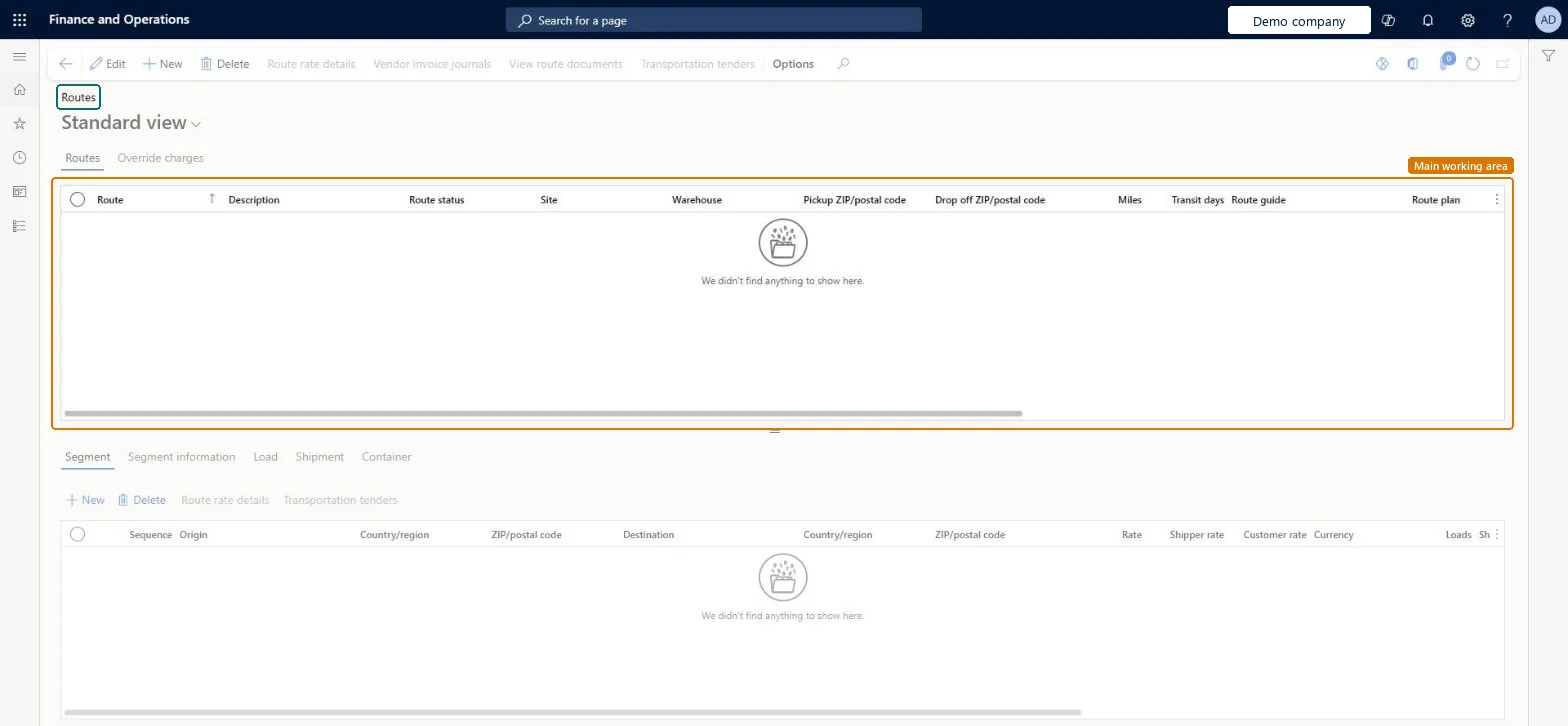
A list page that shows routes with their status, site, warehouse, pickup and drop off postal codes, miles, transit days, route guide and route plan, together with the segments, loads, shipments and containers of the selected route.
PAGE GUIDEWhat the page does and how to use it7 sections. Choose a role to highlight what matters to you.
Everyone
1What it is and why
What it is
A list page that shows routes with their status, site, warehouse, pickup and drop off postal codes, miles, transit days, route guide and route plan, together with the segments, loads, shipments and containers of the selected route.
What you do here
Use this page to review routes and their route segments, rates and override charges, and to work with the route rate details, vendor invoice journals, route documents and transportation tenders of a route.
The page in Dynamics 365. page title tab to open what to set or check
About the examples: Examples and screenshots in this guide use BEAT, a demo company in a Dynamics 365 test environment. Use your own company's codes and values instead of copying them.
How to use it
Go to Transportation management > Planning > Dock appointment scheduling > Routes.
On the Routes tab, select a route and review its Route status, Site, Warehouse, Pickup ZIP/postal code, Drop off ZIP/postal code, Miles, Transit days, Route guide and Route plan.
On the Segment tab in the lower part of the page, review the Sequence, Origin, Destination, Rate, Shipper rate and Customer rate of each route segment.
Use the Segment information, Load, Shipment and Container tabs to see the details of the selected segment.
Use the Override charges tab to review override charges for the route.
On the Action Pane, use Route rate details, Vendor invoice journals, View route documents or Transportation tenders for the selected route.
Source: Checked in Dynamics 365
Test checklist
Assign a route to a load on the Rate route workbench using a route guide.
Open Routes and check the route shows the origin and destination, route guide, route plan and the load.
Check the route segments match the hubs on the route plan.
Confirm the load and check the freight bill uses the route's rates.
Hard to reverse: A route is created when a load is assigned to a route plan, or from a route schedule for scheduled routes. Once the load is confirmed, the route's rates are in the freight bill and apportioned to the orders, so corrections go through freight reconciliation. Microsoft Learn
Technical architect
5Technical
Menu item
TMSRouteWorkbenchChecked in Dynamics 365
Form
TMSRouteWorkbenchChecked in Dynamics 365
Table
TMSRouteShown as “ROUTE” in Record infoKey field: RouteCodeChecked in Dynamics 365
Who can open it
PrivilegesMaintain route information TMSRouteWorkbenchMaintainView route details TMSRouteWorkbenchViewDutiesMaintain rating and routing TMSRateRouteOperationMaintainInquire into rating and routing transaction TMSRateRouteOperationStatusInquireReview transportation management process performance TMSTransportationMgmtProcessPerfReview2 security rolesLogistics manager TMSLogisticsManagerTransportation coordinator TMSTransportationCoordinatorChecked in Dynamics 365
Roles to set it up and use it
To set it up or change itTransportation coordinator TMSTransportationCoordinatorTo use itLogistics manager TMSLogisticsManagerGive people one of these roles. On this system, 2 roles can open this page.Checked in Dynamics 365
Actions on the page
(Action Pane without tabs): Route rate details, Vendor invoice journals, View route documents, Transportation tendersChecked in Dynamics 365