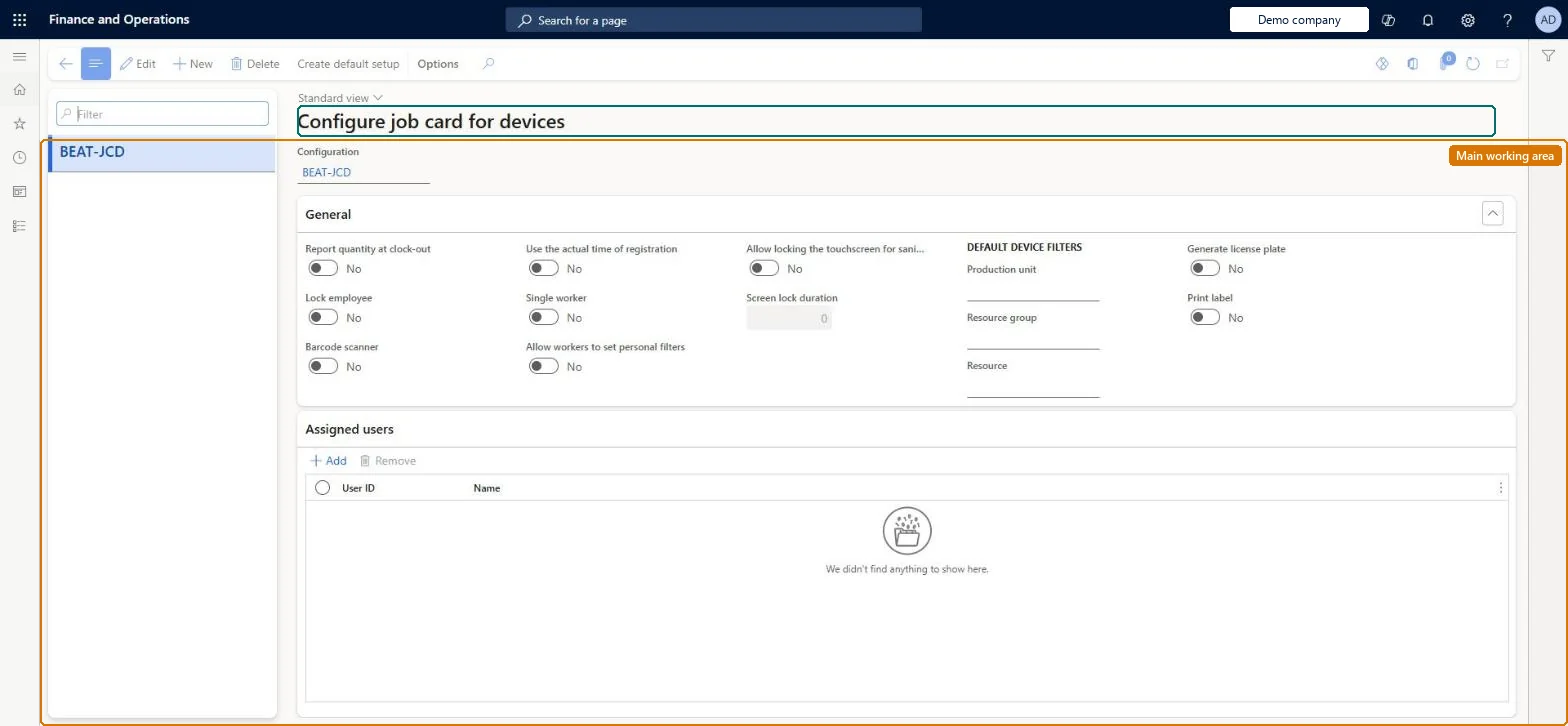
A setup page where you configure the job card device, a mobile alternative to the job card terminal, with settings per device such as license plate handling and sign-in behaviour.
Deprecated in Supply Chain Management 10.0.19. Microsoft has not supported the job card device since April 2022. Use the production floor execution interface instead. Microsoft Learn
PAGE GUIDEWhat the page does and how to use it8 sections. Choose a role to highlight what matters to you.
Everyone
1What it is and why
What it is
A setup page where you configure the job card device, a mobile alternative to the job card terminal, with settings per device such as license plate handling and sign-in behaviour.
What you do here
Use this page to control how workers on a job card device sign in and report as finished, for example whether a new license plate is generated and a label printed.
Example
For example, you set Generate license plate to Yes so that each report as finished from the device creates a new license plate.
The page in Dynamics 365. page title tab to open what to set or check
About the examples: Examples and screenshots in this guide use BEAT, a demo company in a Dynamics 365 test environment. Use your own company's codes and values instead of copying them.
Setup steps on this page
Set up Configure job card for devices
Use this page to control how workers on a job card device sign in and report as finished, for example whether a new license plate is generated and a label printed.
Steps from Microsoft
Go to Time and attendance > Setup > Configure job card > Configure job card for devices.
Don't use the job card device; set Generate license plate and Print label on the production floor execution configuration insteadThe job card device has been unsupported since April 2022 and is replaced by the production floor execution interface.
Use the job card device?Configuring license plate and label options here for new devices. The device is unsupported, so the setup has no future.
Feature management and licence
Licence or add-in
Time and attendance roles come from the security read in the Technical section. On this system the page is opened with roles such as Payroll administrator, Production manager.
Reversible: Settings only change how the device behaves on the next report as finished. Microsoft Learn
If you change it later
Device settings, such as Generate license plate, change what happens when workers report as finished from the device. Microsoft Learn
Technical architect
6Technical
Menu item
JmgRegistrationSetupTouchChecked in Dynamics 365
Form
JmgRegistrationSetupTouchChecked in Dynamics 365
Table
JmgRegistrationSetupShown as “REGISTRATION SETUP” in Record infoChecked in Dynamics 365
Data entities
JmgJobCardDeviceConfigurationEntityJob card device configurations Microsoft data model JmgJobCardTerminalConfigurationEntityJob card terminal configurations Microsoft data model
Who can open it
PrivilegesMaintain registration form configurations JmgRegistrationSetupMaintainView registration form configurations JmgRegistrationSetupViewDutiesInquire into manufacturing execution policies JmgManufacturingExecutionPoliciesInquirEnable manufacturing execution process JmgManufacturingExecutionProcessEnableEnable time and attendance process JmgTimeAttendanceProcessEnable2 security rolesPayroll administrator HcmPayrollAdministratorProduction manager ProdProductionManagerChecked in Dynamics 365
Roles to set it up and use it
To set it up or change itPayroll administrator HcmPayrollAdministratorProduction manager ProdProductionManagerGive people one of these roles. On this system, 2 roles can open this page.Checked in Dynamics 365
Actions on the page
(Action Pane without tabs): Create default setupChecked in Dynamics 365
JmgJobCardDeviceConfigurationEntity (Job card device configurations): loaded for each company, in Microsoft's default template 410 - Production control.JmgJobCardTerminalConfigurationEntity (Job card terminal configurations): loaded for each company, in Microsoft's default template 410 - Production control.Load order: Microsoft's default template 410 - Production control loads Job card device configurations at execution unit 1, level 410, sequence 60. Lower levels load first, and entities at the same level load in sequence order.Load first: the default templates at lower levels (System setup to Transportation management)Microsoft Learn