About the examples: Examples and screenshots in this guide use BEAT, a demo company in a Dynamics 365 test environment. Use your own company's codes and values instead of copying them.
When to run it
When to run it
When the raw registrations table has grown large enough to slow down the application, and only after registrations older than the maximum age are processed.
How often
Periodically, as Microsoft recommends; how often depends on how quickly raw registrations build up.
Batch settings
Run it as a recurring batch job outside working hours, with To table as the safest mode.
What the output shows
Old raw registrations moved to the archive table, written to a file or deleted. Unprocessed registrations are never removed. If recent registrations disappear, Maximum age was set too low.
Keep the raw registrations table small without losing documentation.
Steps from Microsoft
Go to Time and attendance > Periodic tasks > Clean up registrations.
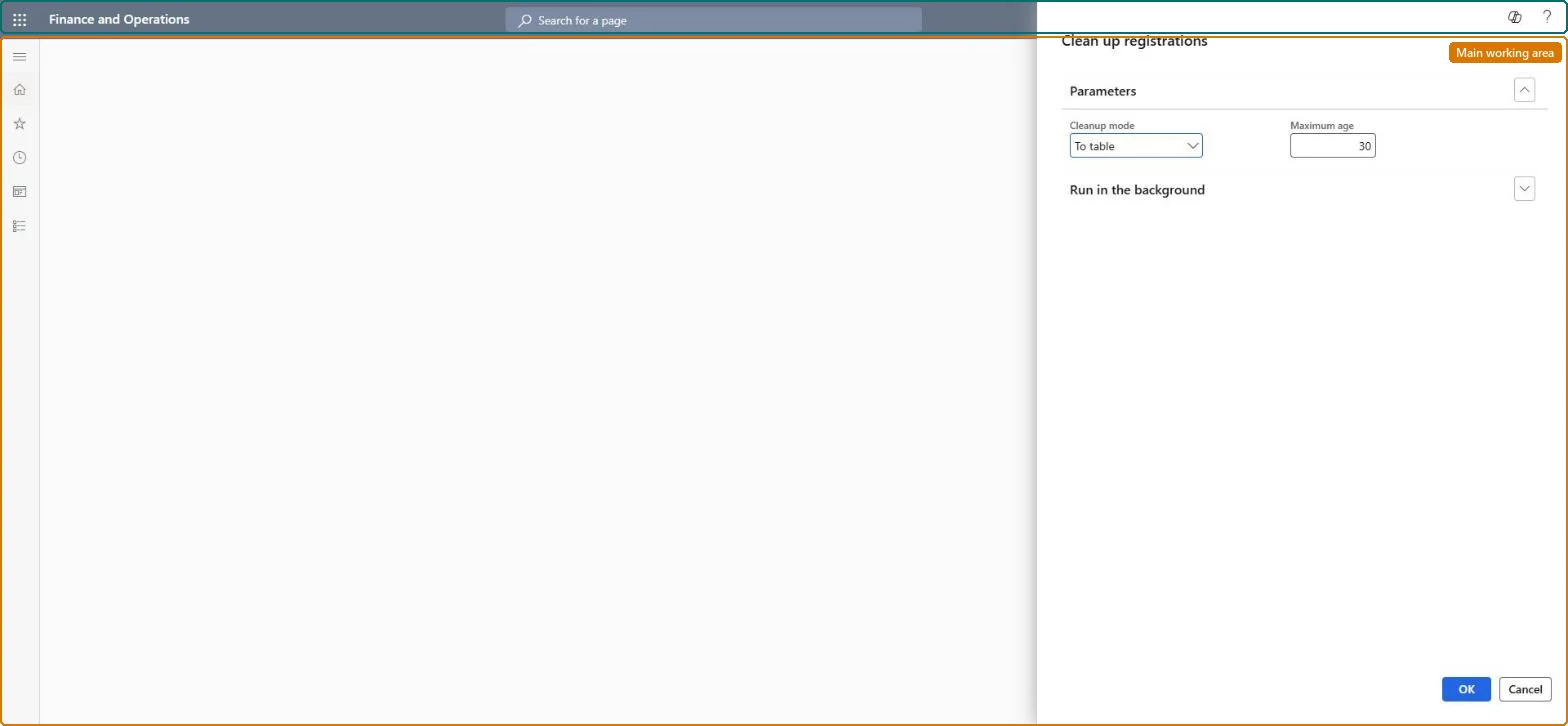
In Cleanup mode, choose To table to move old registrations to the Raw registrations archive page, To file to move them to an external file, or Delete to remove them permanently.
In Maximum age, enter the number of days of registrations to keep. For example, 20 cleans up every registration that is more than 20 days old.
If you chose To file, enter or select a file name in File name.
Run it, then open Raw registrations and Raw registrations archive to confirm that only registrations older than the maximum age were moved.
To table moves old registrations to Raw registrations archive, To file moves them to an external file, and Delete removes them permanently.Microsoft Learn
To table
Maximum age
The age in days above which registrations are cleaned up.Microsoft Learn
Delete mode removes registrations for good. Use To table so they stay on Raw registrations archive, and keep Delete for registrations you won't need as documentation. Microsoft Learn
Test checklist
Raw registrations contains nothing older than the maximum age.
With To table, the old registrations appear on Raw registrations archive.
A recurring batch run outside working hours in To table mode, with a maximum age longer than your longest correction window.Microsoft recommends cleaning up periodically; the job doesn't touch unprocessed data, and To table keeps the registrations readable.
Time and attendance roles come from the security read in the Technical section. On this system access comes from duties such as Production supervisor. The Microsoft Learn article for this page names no Feature management feature to turn on.
Per company: Time and attendance data is kept per legal entity (every Time and attendance entity in Data management is per company), so the job or report works on the registrations of the company it is run in. Microsoft Learn
Can it be undone
No: Deleted registrations can't be restored. With To table they stay visible on the Raw registrations archive page. Use Delete only for registrations you won't need later as documentation. Microsoft Learn
If you change it later
The job does not delete unprocessed data, but Delete mode removes registrations permanently, so make sure none are needed later as documentation. Microsoft Learn
Technical architect
6Technical
Menu item
JmgCleanupTermRegChecked in Dynamics 365
Form
DialogChecked in Dynamics 365
Roles to set it up and use it
To use itProduction supervisor ProdProductionSupervisorGive people one of these roles. On this system, 1 role can run this page.Checked in Dynamics 365
Developer
7Developer
Open it by URL
https://<your-environment>/?mi=JmgCleanupTermReg
Data migration
Load order: Clean up registrations has no data entity in Data management, so it can't be loaded from a file or a configuration template. It is a job; set up its batch recurrence in the new environment.Checked in Dynamics 365