PAGE GUIDEWhat the page does and how to use it8 sections. Choose a role to highlight what matters to you.
Everyone
1What it is and why
What it is
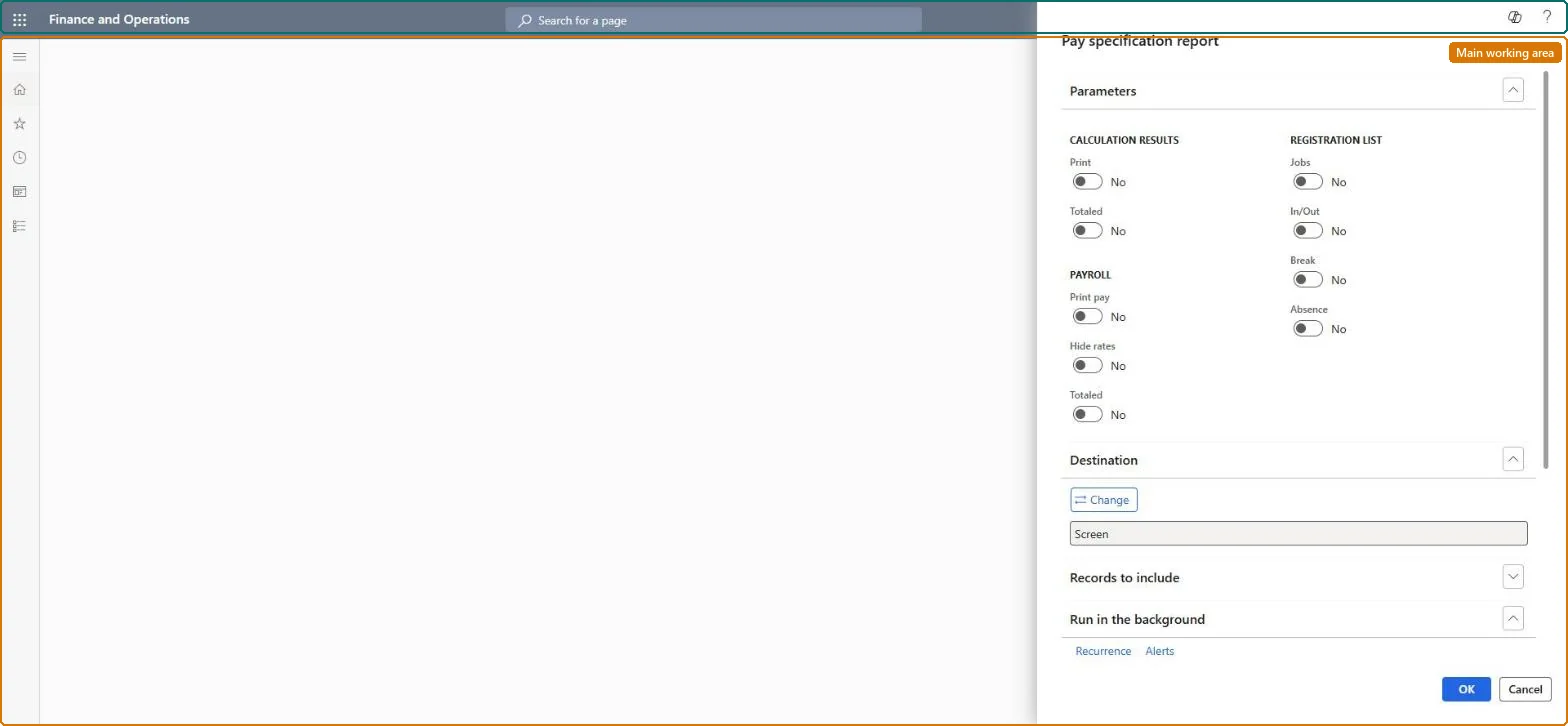
A report that prints, per worker, the registrations, calculated time and pay items for a period, with or without the pay rates.
What you do here
Use it before Transfer to pay to check each worker's pay items, or when a worker questions their pay.
Example
For example, for a worker who clocked in at 06:30 and out at 17:00, it shows pay time 10.00 on pay type 1201 at rate 10 (100.00) and overtime 1.50 on 1301 at rate 5 (7.50), 107.50 in total.
The page in Dynamics 365. page title tab to open what to set or check
About the examples: Examples and screenshots in this guide use BEAT, a demo company in a Dynamics 365 test environment. Use your own company's codes and values instead of copying them.
When to run it
When to run it
Before Transfer to pay, to review the pay items generated for each worker, or when a worker questions their pay.
How often
Once per pay period, or on demand when a worker's pay is questioned.
What the output shows
Per worker: registrations, calculated time and pay items (pay type, pay units and rate, unless hidden), with totals. Pay units that are too high usually come from overtime or flex settings in the time profile or pay agreement.
Print it per pay period with Print pay, and with Hide rates when it goes to workers.It shows each worker's registrations, time and pay items in one place.
Time and attendance roles come from the security read in the Technical section. On this system access comes from duties such as Payroll administrator, Payroll manager, Chief executive officer. The Microsoft Learn article for this page names no Feature management feature to turn on.
Per company: Time and attendance data is kept per legal entity (every Time and attendance entity in Data management is per company), so the job or report works on the registrations of the company it is run in. Microsoft Learn
Can it be undone
Nothing to undo: The specification only reads calculated registrations and pay items; it changes nothing. Microsoft Learn
If you change it later
The report changes no data; what it shows is what Transfer to pay exports. Microsoft Learn
Technical architect
6Technical
Menu item
JmgEmployeeTimeSpecChecked in Dynamics 365
Form
SysOperationTemplateFormChecked in Dynamics 365
Roles to set it up and use it
To use itPayroll administrator HcmPayrollAdministratorPayroll manager HcmPayrollManagerChief executive officer CompanyChiefExecutiveOfficerGive people one of these roles. On this system, 3 roles can run this page.Checked in Dynamics 365
Load order: The Pay specification report report has no data entity in Data management, so it can't be loaded from a file or a configuration template. It only prints data; set up its batch printing again if it is scheduled.Checked in Dynamics 365