Setup page · Tax
Message statuses
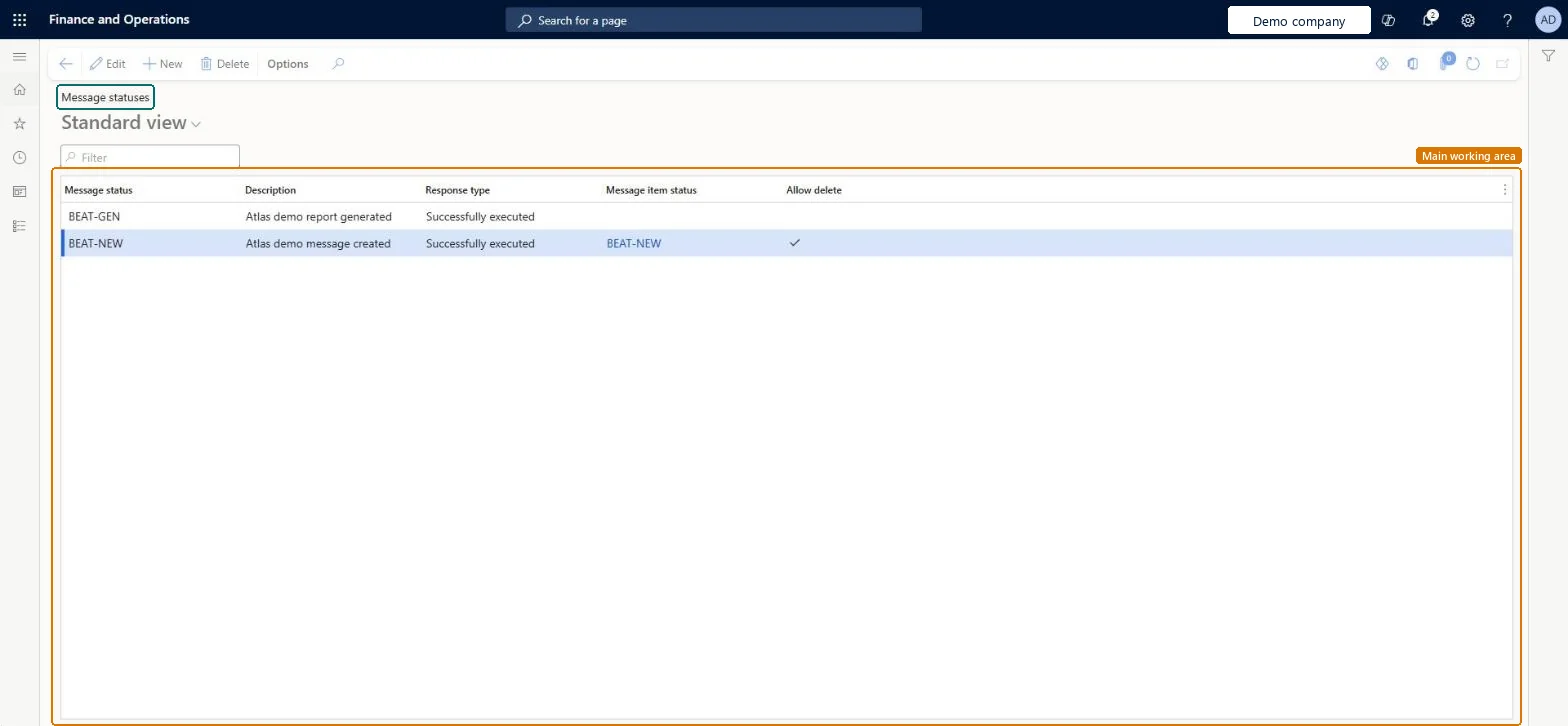
A setup page for message statuses, which describe the state of an electronic message at every moment.
- Used by
- Accounts payable clerk, Collections manager, Accounts receivable clerk and 6 more roles
- Business process
- Report tax and financial data to authorities in Dynamics 365 Finance
- Menu item
ElectronicMessageStatus- Main table
ElectronicMessageStatus- Data entity
- —
- Setup steps
- 1 on this page
Show what matters for
Everyone
1What it is and why
| What it is | A setup page for message statuses, which describe the state of an electronic message at every moment. |
|---|---|
| What you do here | Used to set up the message statuses available in message processing, with their response type and delete rule. |
| Example | For example, a simple process for an Excel report can use the statuses New, Prepared and Generated, with Allow delete selected only for New. |
Functional consultant · Solution architect
2Where it fits
| Business process | Record financial transactions › Record tax commitments › Report tax and financial data to authorities in Dynamics 365 Finance |
|---|---|
| Menu path | Tax › Setup › Electronic messages › Message statuses |
| Set up first | Message item statuses Microsoft Learn ↗ |
| Used next by | Message processing actions Microsoft Learn ↗ |
| Related pages | — |
End user · Functional consultant
3How to do it
Step by step, with screenshots
Set up Message statuses1 screen
Used to set up the message statuses available in message processing, with their response type and delete rule.
Screen 1
Create the message statuses
Go to Tax > Setup > Electronic messages > Message statuses
- Select New, and enter the Message status and Description
- Select the Response type and the Message item status
- Select Allow delete if messages in this status may be deleted
- Select Save, and repeat for each status
1Message status BEAT-NEW 1Message item status BEAT-NEW Description Atlas demo message created Response type Successfully executed Allow delete Selected 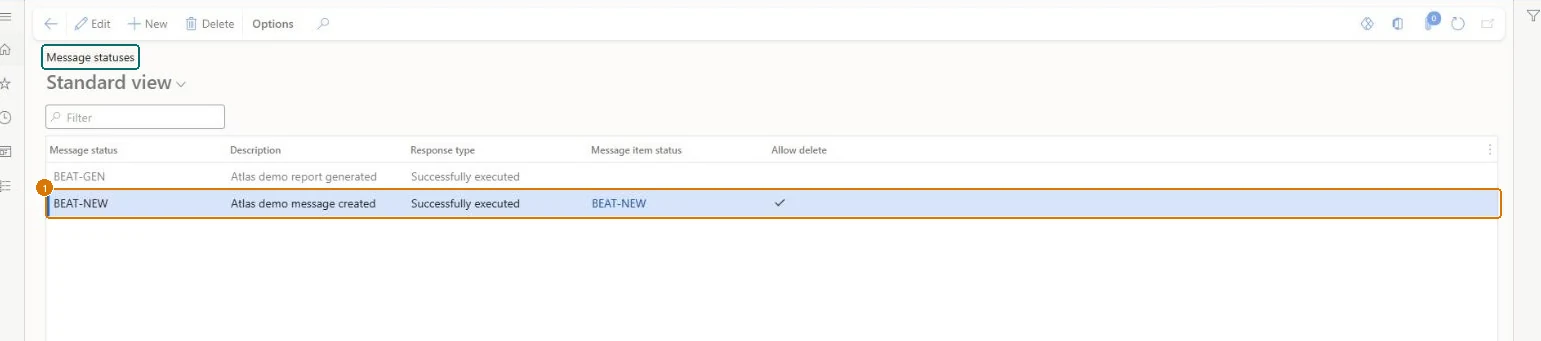
Show the full screen
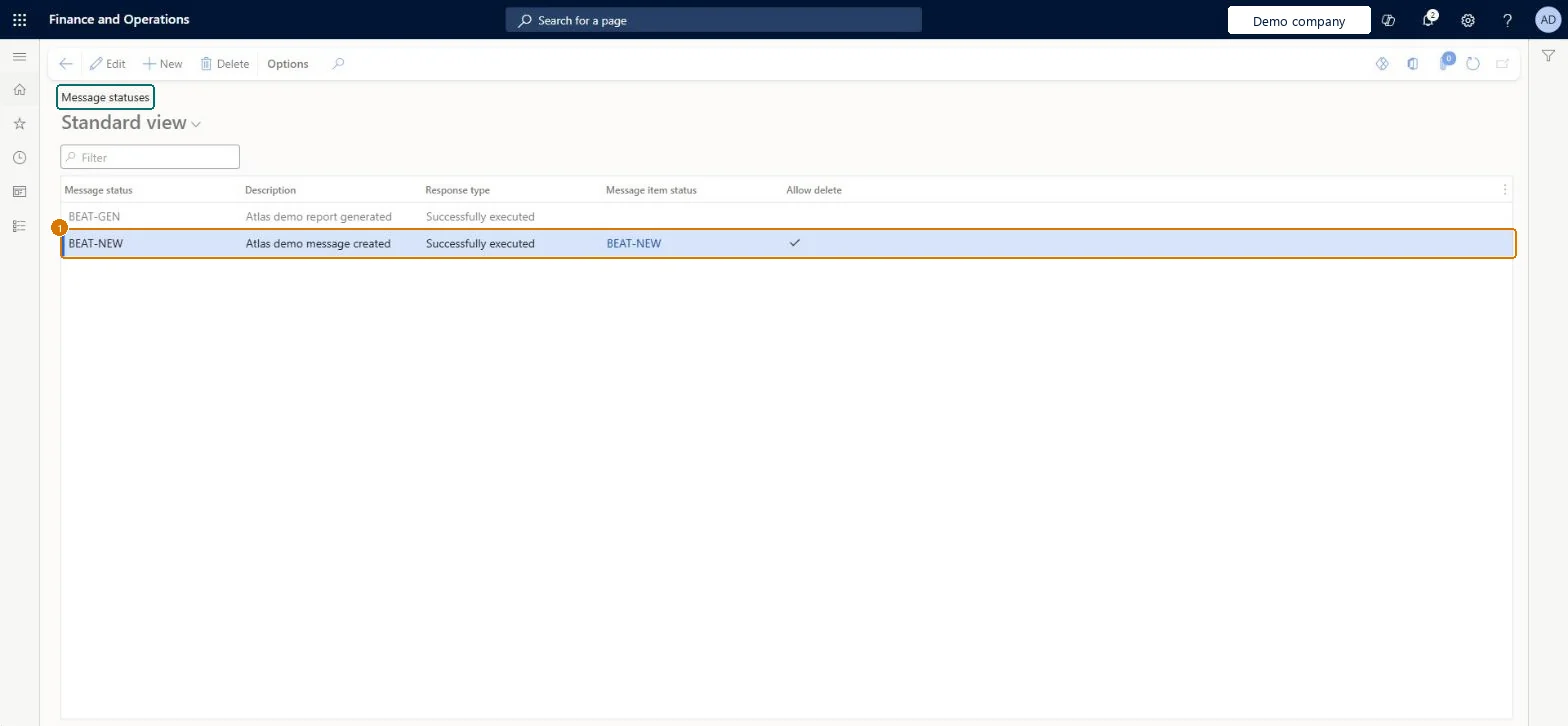
page title tab to open what to set or check
Microsoft's steps
- Go to Tax > Setup > Electronic messages > Message statuses.
- Create the message statuses you need, such as New, Prepared and Generated.
- For each status, enter a description and select the response type.
- On the statuses whose messages users may delete, select Allow delete.
Source: Microsoft Learn ↗
Field guide
| Field | What it means | Worked example | Table column |
|---|---|---|---|
| Message status | A unique name for the status, shown on the Electronic messages page and in the log.Microsoft Learn ↗ | BEAT-NEW | — |
| Response type | The response type, such as Successfully executed or Technical error, that leads to this status.Microsoft Learn ↗ | Successfully executed | — |
| Message item status | The message item status that items get when the message has this status.Microsoft Learn ↗ | BEAT-NEW | — |
| Allow delete | Whether messages in this status can be deleted on the Electronic messages page.Microsoft Learn ↗ | Selected | — |
| Description | — | Atlas demo message created | — |
Functional consultant
4Setup decisions
| Setup step | Recommended value and why | Decision · common mistake · test |
|---|---|---|
| Set up Message statuses | — | — |
Solution architect
5Design impact
| Shared or per company | — |
|---|---|
| Can it be undone | — |
| Feature or country | — |
| If you change it later | — |
Technical architect
6Technical
| Menu item | ElectronicMessageStatus Checked in Dynamics 365 |
|---|---|
| Form | ElectronicMessageStatus Checked in Dynamics 365 |
| Table | ElectronicMessageStatusShown as “Electronic message statuses” in Record infoChecked in Dynamics 365 |
| Data entities | — |
| Who can open it | PrivilegesMaintain electronic messages ElectronicMessageMaintainView electronic messages ElectronicMessageViewDutiesMaintain sales tax transactions TaxSalesTaxTransactionsMaintainInquire into sales tax transaction status TaxSalesTaxTransactionStatusInquire9 security rolesCollections managerCollectionLetterCollectionsManagerAccounts receivable clerk CustInvoiceAccountsReceivableClerkAccounts receivable manager CustInvoiceAccountsReceivableManagerTax accountant FBTaxAccountant_BRAccountant LedgerAccountantAccounting manager LedgerAccountingManagerAccounting supervisor LedgerAccountingSupervisorSales manager TradeSalesManagerAccounts payable clerk VendInvoiceAccountsPayableClerk |
| Actions on the page | Options: Personalize, Page options, ShareChecked in Dynamics 365 |
Developer
7Developer
| Open it directly | https://<your-environment>/?mi=ElectronicMessageStatus |
|---|---|
| Integrate with | — |
| Table definition | — |
Everyone
8Sources and checks
- learn.microsoft.com/dynamics365/finance/general-ledger/electronic-messaging-setup
- learn.microsoft.com/dynamics365/finance/general-ledger/electronic-messaging-example
- Checked in a working Dynamics 365 system, version 10.0.49: the menu item, form, table and security, the page, the demo records and the values in the screenshots.