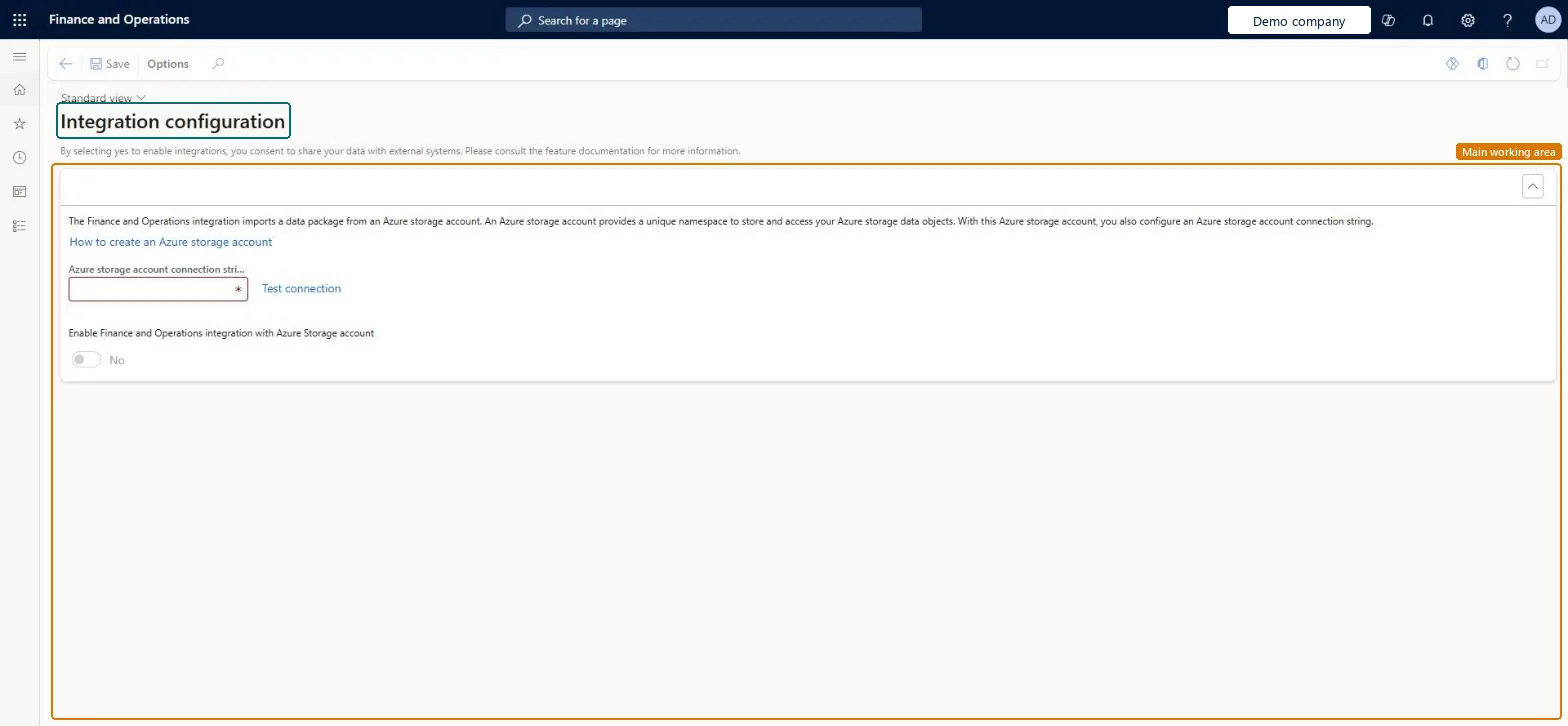
A setup page where you enter the Azure Storage connection string that Finance uses to import the general ledger transactions produced by the Ceridian Dayforce payroll integration.
Data management administrator, Information technology manager
Business process
Administer system features
Menu item
PersonnelIntegrationConfiguration
Main table
PersonnelIntegrationConfiguration
Setup steps
1 on this page
Show what matters for
PAGE GUIDEWhat the page does and how to use it8 sections. Choose a role to highlight what matters to you.
Everyone
1What it is and why
What it is
A setup page where you enter the Azure Storage connection string that Finance uses to import the general ledger transactions produced by the Ceridian Dayforce payroll integration.
What you do here
Use this page to import the payroll integration's general ledger transactions into Finance from an Azure Storage account.
Example
For example, an existing V1 Dayforce customer enters the connection string of the storage account that receives the payroll results, tests the connection and sets the integration to Yes, so the payroll general ledger transactions are imported into BEAT by a scheduled batch job.
The page in Dynamics 365. page title tab to open what to set or check
About the examples: Examples and screenshots in this guide use BEAT, a demo company in a Dynamics 365 test environment. Use your own company's codes and values instead of copying them.
Step by step, with screenshots
Set up Integration configuration1 screen
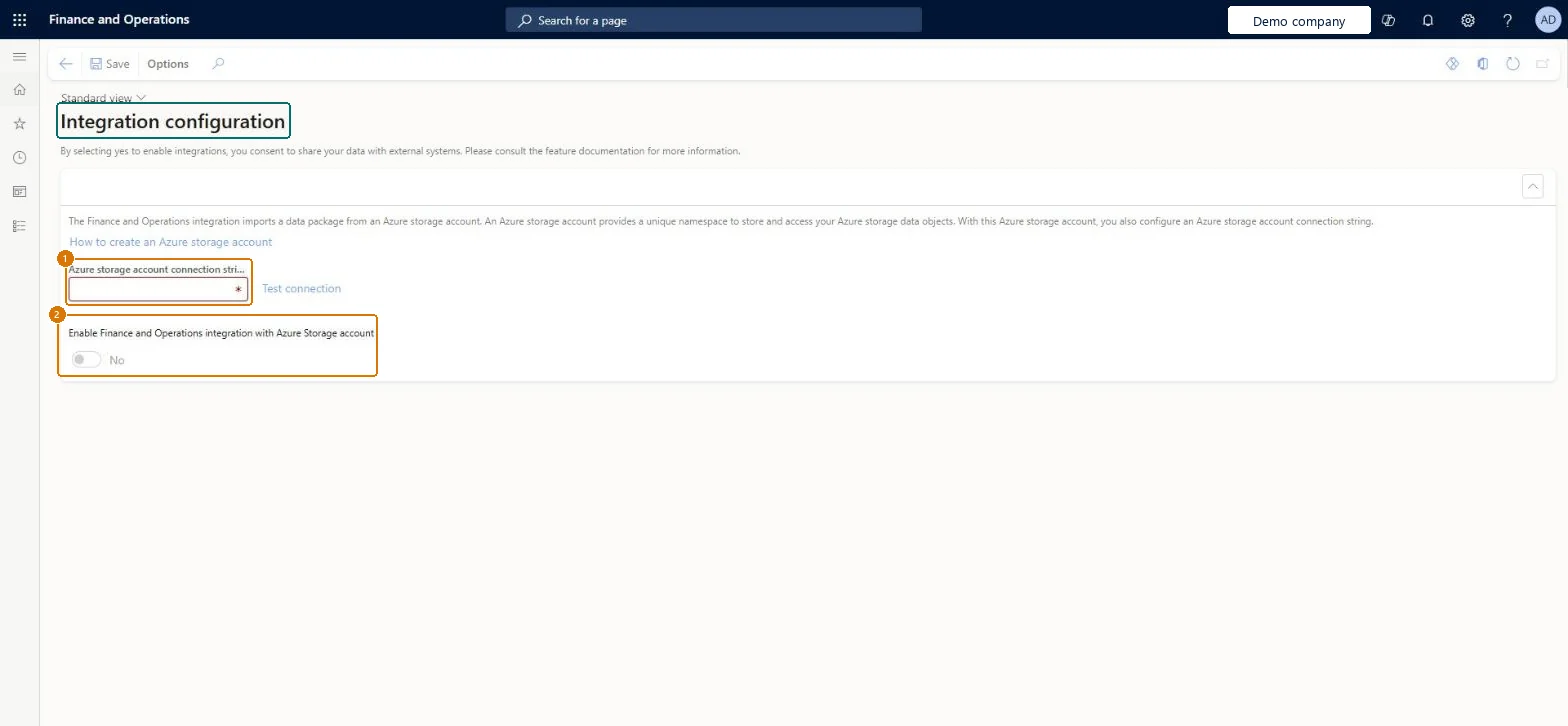
Use this page to import the payroll integration's general ledger transactions into Finance from an Azure Storage account.
Screen 1
Review the integration configuration
Go to System administration > Setup > Integration configuration
Enter the Azure storage account connection string
Select Test connection
Turn on Enable Finance and Operations integration with Azure Storage account
Select Save
Show the full screen page title tab to open what to set or check
Steps from Microsoft
Go to System administration > Setup > Integration configuration.
Enter the connection string of the Azure storage account that receives the payroll data.
Test the connection.
Set Enable Finance and Operations integration with Azure Storage account to Yes.
The connection string of the Azure storage account Finance imports the payroll general ledger data from.Microsoft Learn
Common errors and fixes
Message
What to do
The payroll general ledger transactions aren't imported
Test the connection string, check that Enable Finance and Operations integration with Azure Storage account is Yes, and check that the Payroll integration export data project exists and its batch job runs. Microsoft Learn
Test checklist
Enter the connection details and test the connection.
Set Enable payroll integration to Yes.
In Data management, check that the Payroll integration export project exists.
Check that the scheduled batch job runs and the general ledger transactions can be imported from the Azure Storage account into Finance.
Use this page only if you're an existing V1 Dayforce integration customer; new customers work with their payroll provider on API-based payroll integrationLearn states the Dayforce V1 integration is only available for existing Ceridian Dayforce customers on the V1 integration with Human Resources.
On this system the page opens for Information technology manager and Data management administrator. Only existing customers on the V1 Dayforce integration use this page; new customers work with their payroll provider on API-based payroll integration. No Feature management feature needs to be turned on for this page.
Reversible: Connection settings and the export frequency can be changed at any time. Microsoft Learn
If you change it later
This integration is only for existing customers on the V1 Dayforce integration; new customers work with the payroll provider on API-based payroll integration. Microsoft Learn
Technical architect
6Technical
Menu item
PersonnelIntegrationConfigurationChecked in Dynamics 365
Form
PersonnelIntegrationConfigurationChecked in Dynamics 365
Table
PersonnelIntegrationConfigurationShown as “Personnel integration configuration” in Record infoChecked in Dynamics 365
Who can open it
PrivilegesMaintain integrations from Human Resources to Finance and Operations PersonnellIntegrationConfigurationMaintainDutiesPersonnellIntegrationConfigurationMaintain2 security rolesData management administrator DataManagementAdministratorInformation technology manager SysServerITManagerChecked in Dynamics 365
Roles to set it up and use it
To set it up or change itInformation technology manager SysServerITManagerData management administrator DataManagementAdministratorGive people one of these roles. On this system, 2 roles can open this page.Checked in Dynamics 365
Actions on the page
Options: Personalize, Page options, Edit, ShareChecked in Dynamics 365
Load order: Integration configuration has no data entity in Data management, so it can't be loaded from a file or a configuration template. Enter the Azure storage account connection string by hand in each environment and test the connection.Checked in Dynamics 365
Checked in a working Dynamics 365 system, version 10.0.49: the menu item, form, table and security, the page, the demo records and the values in the screenshots.