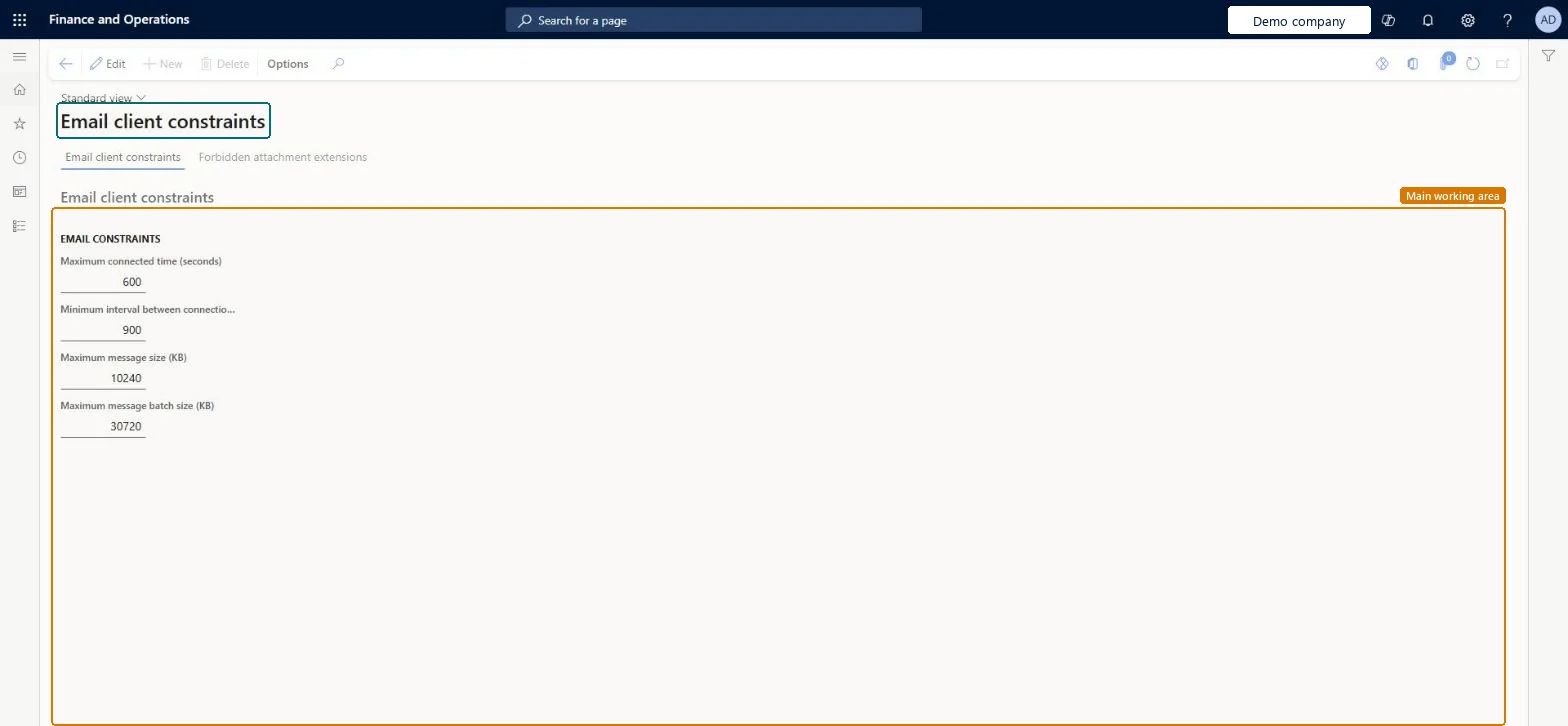
A setup page, per legal entity, that holds the limits of the POP email client (table SysEmailPopClientConstraints): maximum connected time, minimum interval between connections, maximum message size and maximum message batch size, with a second tab for forbidden attachment extensions.
PAGE GUIDEWhat the page does and how to use it8 sections. Choose a role to highlight what matters to you.
Everyone
1What it is and why
What it is
A setup page, per legal entity, that holds the limits of the POP email client (table SysEmailPopClientConstraints): maximum connected time, minimum interval between connections, maximum message size and maximum message batch size, with a second tab for forbidden attachment extensions.
What you do here
Use this page to set the limits that apply to the email client and to list the attachment extensions that are not allowed.
Example
For example, an administrator in BEAT's legal entity reviews the maximum message size (KB) and adds an attachment extension to Forbidden attachment extensions, then repeats the check in each other legal entity, because each company has its own record.
The page in Dynamics 365. page title tab to open what to set or check
About the examples: Examples and screenshots in this guide use BEAT, a demo company in a Dynamics 365 test environment. Use your own company's codes and values instead of copying them.
Step by step, with screenshots
Set up Email client constraints1 screen
Screen 1
Review the email client constraints
Go to System administration > Setup > Email > Email client constraints
Review the maximum connected time and the minimum interval between connections
Review the maximum message size and the maximum message batch size
Open the Forbidden attachment extensions tab to review which attachment types are blocked
Show the full screen page title tab to open what to set or check
How to use it
Go to System administration > Setup > Email > Email client constraints.
Select Edit to change the settings.
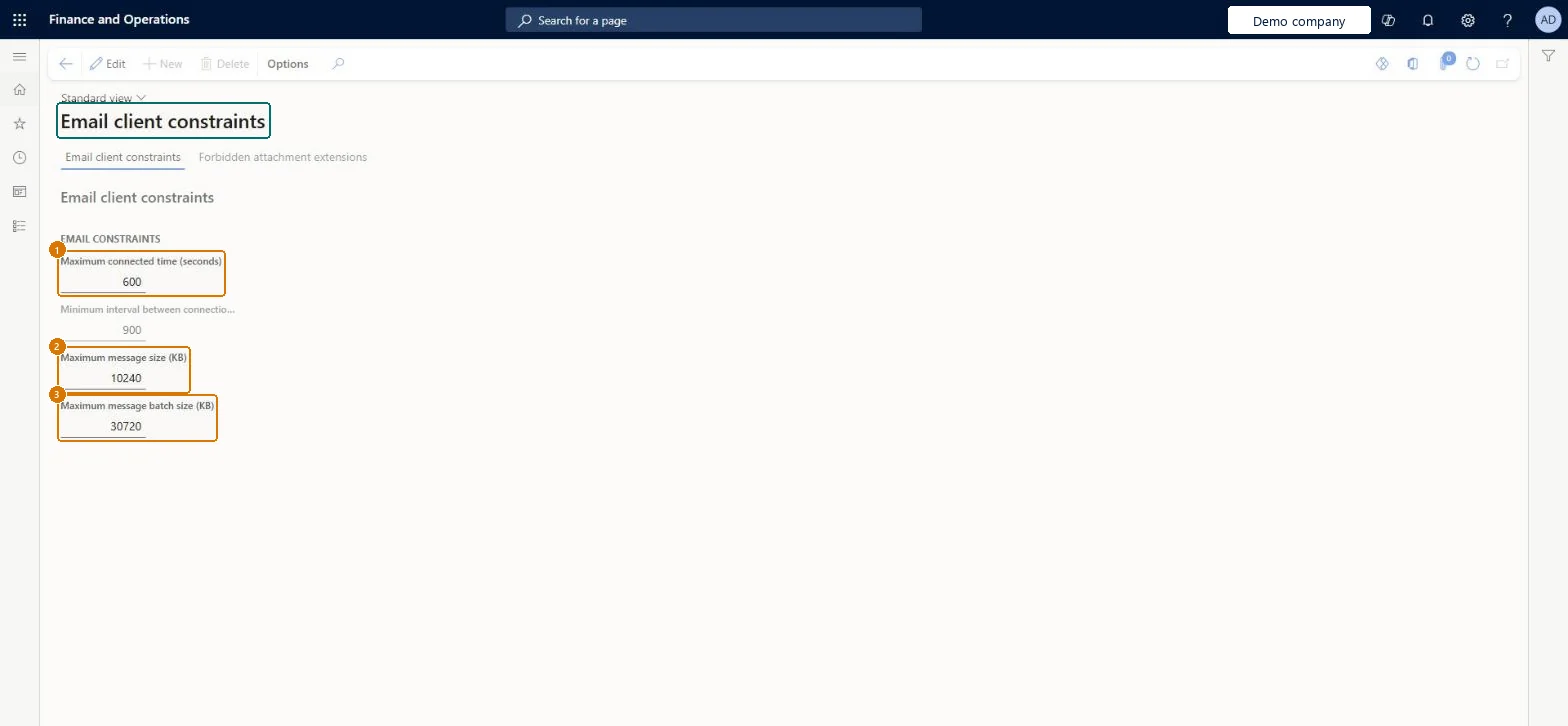
On the Email client constraints tab, set Maximum connected time (seconds), Minimum interval between connections, Maximum message size (KB) and Maximum message batch size (KB).
Select the Forbidden attachment extensions tab to review the attachment extensions that are not allowed.
Source: Checked in Dynamics 365
Fields on the page
Field
What it means
Maximum connected time (seconds)
The longest time, in seconds, that the email client stays connected.Checked in Dynamics 365
Minimum interval between connections
The shortest time allowed between two connections of the email client.Checked in Dynamics 365
Maximum message size (KB)
The largest message, in KB, that the email client accepts.Checked in Dynamics 365
Maximum message batch size (KB)
The largest batch of messages, in KB, handled in one go.Checked in Dynamics 365
Forbidden attachment extensions
The attachment file extensions listed as not allowed, kept per company (table SysEmailPopClientForbiddenExtension).Microsoft data model
Common errors and fixes
Message
What to do
A limit changed in one company has no effect in another
Set the constraints in every legal entity that uses the email client, with the same forbidden attachment extensions unless a company needs different rulesBoth the limits and the forbidden extensions are stored per company, so a value set in one legal entity doesn't apply in another.
Reversible: Select Edit to change the limits or the forbidden extensions at any time. Checked in Dynamics 365
If you change it later
The values apply only to the legal entity you're signed in to, because both tables are stored per company; other companies keep their own limits. Microsoft data model
Technical architect
6Technical
Menu item
SysEmailPopClientConstraintsChecked in Dynamics 365
Form
SysEmailPopClientConstraintsChecked in Dynamics 365
Table
SysEmailPopClientConstraintsShown as “Email client constraints” in Record infoChecked in Dynamics 365
Who can open it
PrivilegesMaintain email server access constraints SysEmailPopClientConstraintsMaintainView email server access constraints SysEmailPopClientConstraintsViewDutiesMaintain system settings SysServerSettingsMaintain1 security roleInformation technology manager SysServerITManagerChecked in Dynamics 365
Roles to set it up and use it
To set it up or change itInformation technology manager SysServerITManagerGive people one of these roles. On this system, 1 role can open this page.Checked in Dynamics 365
Actions on the page
Options: Personalize, Page options, ShareChecked in Dynamics 365
Load order: Email client constraints has no data entity in Data management, so it can't be loaded from a file or a configuration template. Enter the limits and forbidden extensions by hand in each legal entity.Checked in Dynamics 365
Checked in a working Dynamics 365 system, version 10.0.49: the menu item, form, table and security, the page, the demo records and the values in the screenshots.