PAGE GUIDEWhat the page does and how to use it8 sections. Choose a role to highlight what matters to you.
Everyone
1What it is and why
What it is
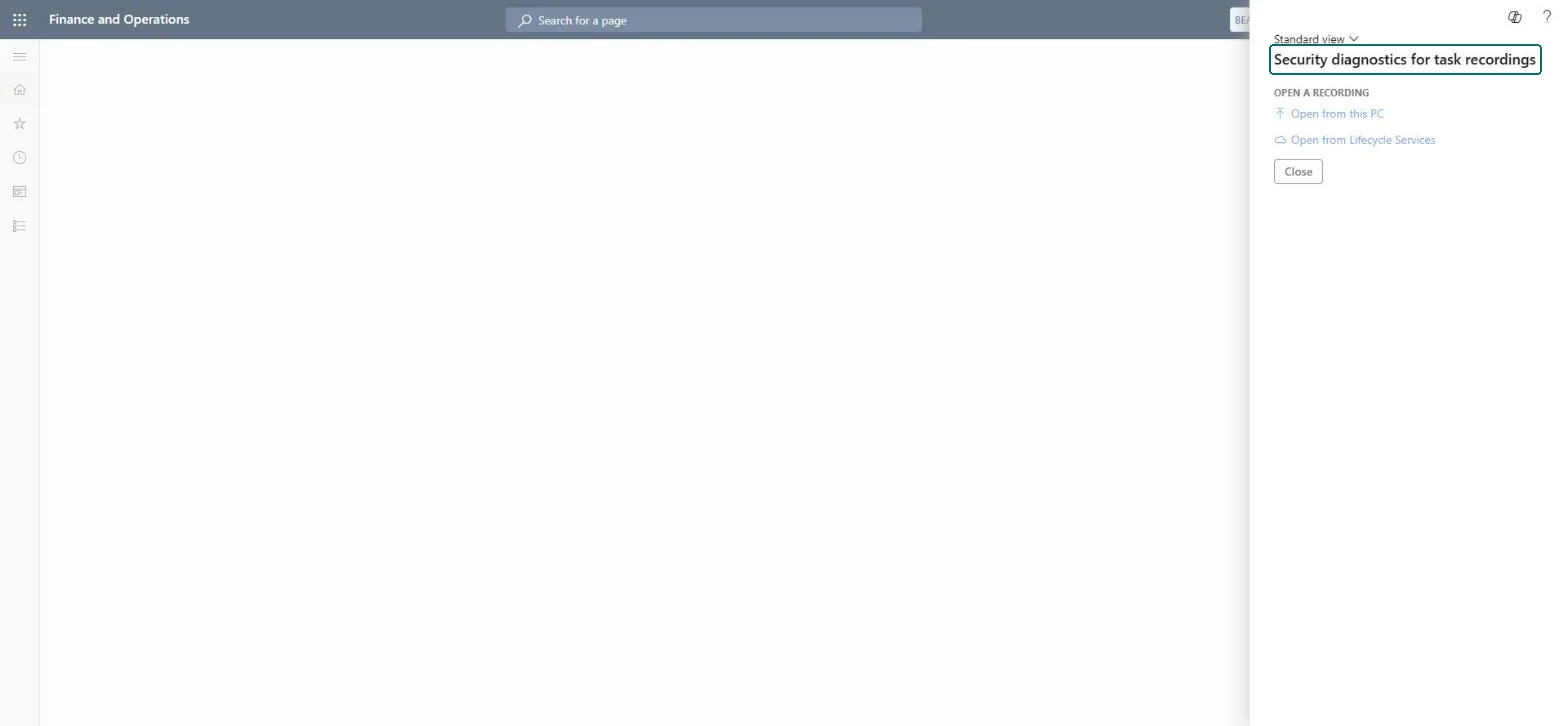
A tool page that reads a task recording and lists the security objects needed to run that business process.
What you do here
Use this page to check whether a user is missing permissions for a recorded process and to add the role, duty or privilege that grants them.
Example
For example, a new BEAT accounts payable clerk can't post a vendor invoice; the administrator opens the invoice task recording, selects the clerk's user ID, sees Missing permissions = Yes and adds the duty that grants the missing menu item.
The page in Dynamics 365. page title tab to open what to set or check
About the examples: Examples and screenshots in this guide use BEAT, a demo company in a Dynamics 365 test environment. Use your own company's codes and values instead of copying them.
When to run it
When to run it
When a user can't finish a recorded business process because of missing access, or before you hand a recorded process to a new user.
How often
On demand, whenever a new task recording or a new user needs a security review.
What the output shows
The Security menu item details page lists the menu items that the recording uses, and Missing permissions shows Yes or not for the selected user. If it still shows Yes after you add a role, that role doesn't grant every menu item in the recording.
Use a task recording to find and grant exactly the access a user lacks for a process.
Steps from Microsoft
Go to System administration > Security > Security diagnostics for task recordings.
Select Open from this PC or Open from Lifecycle Services, pick the task recording of the business process, and then select Close. The Security menu item details page lists the security objects that the process needs.
In User ID, select the user who must run the process. Missing permissions changes to Yes when that user lacks access to some of the menu items.
Select Add Reference to list the roles, duties and privileges that grant the missing permission.
For a role, select Add role to user. For a duty, select Add duty to role, and for a privilege, select Add privilege to duties; then pick the roles that should receive it.
Select the user again in User ID and confirm that Missing permissions no longer shows Yes. Action and Output menu items aren't in the list, so review those separately.
Prefer adding an existing role to the user; add a duty or privilege to a role only after checking who else holds that roleA duty or privilege added to a role reaches every user of the role, not only the user you are fixing.
Shared: roles, duties and privileges changed from here apply to the whole environment. Microsoft Learn
Can it be undone
Yes: Reading the recording changes nothing. A role, duty or privilege that you add from here can be removed again from the user or the role. Microsoft Learn
If you change it later
Adding a duty or privilege to a role grants that access to every user who holds the role, not only to the selected user. Microsoft Learn
Load order: Security diagnostics for task recordings has no data entity in Data management, so it can't be loaded from a file or a configuration template. It reads a recording and changes roles; the roles it changes move with the security customization entities from Security configuration.Checked in Dynamics 365