PAGE GUIDEWhat the page does and how to use it8 sections. Choose a role to highlight what matters to you.
Everyone
1What it is and why
What it is
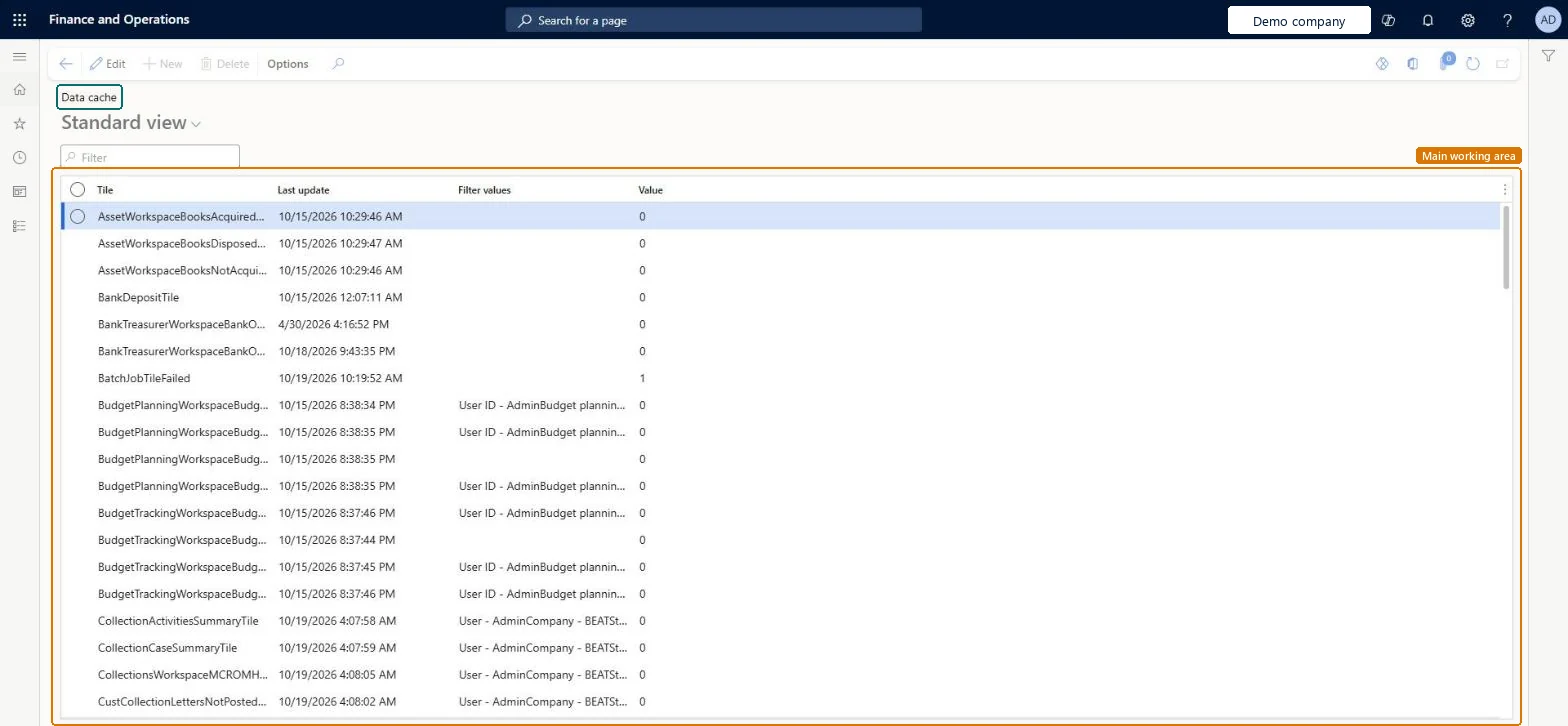
An inquiry page that lists the workspace tiles held in the data cache, with the time each was last updated, its filter values and its current value.
What you do here
Use this page to see when each tile in the data cache was last updated and what value it holds.
Example
For example, a count tile whose query runs in less than 250 ms can be refreshed every 10 minutes, so the Last update of its entry here is never more than 10 minutes old.
The page in Dynamics 365. page title tab to open what to set or check
About the examples: Examples and screenshots in this guide use BEAT, a demo company in a Dynamics 365 test environment. Use your own company's codes and values instead of copying them.
Setup steps on this page
Check how fresh the tile cache is
Use this page to see when each cached tile was last refreshed and which value it holds.
Steps from Microsoft
Go to System administration > Inquiries > Data cache > Tile data cache.
Use the Filter box to find the tile you are checking.
Read Last update to see when the cached value was refreshed, and Filter values to see which filter it was cached for.
Compare Value with what the workspace shows; to change how often entries refresh, open Tile data cache configuration.
The workspace tile whose count is cached.Checked in Dynamics 365
Last update
When the cached entry was last refreshed.Checked in Dynamics 365
Today at 09:40
Filter values
The filter values the entry was cached for, such as a workspace filter.Checked in Dynamics 365
Value
The cached result that the workspace shows.Checked in Dynamics 365
Common errors and fixes
Message
What to do
A workspace shows an out-of-date tile
The value comes from the cache and is refreshed only at the cache's refresh frequency. Check Last update here, and shorten the refresh frequency on Tile data cache configuration only where the query is fast enough. Microsoft Learn
Test checklist
Open a workspace that uses the cache and note the value it shows.
Open Tile data cache and find the matching entry.
Check that Value matches the workspace and that Last update is within the refresh frequency.
Change the underlying data, wait for the refresh frequency to pass, and check that Last update and Value change.
Check Last update against the tile's refresh frequency (5 seconds, 10 minutes or 24 hours) before you treat a tile count as wrongWorkspace data comes from a cache that is refreshed at a set frequency, so a value can be older than the source data by up to that interval.
On this system the page opens for Information technology manager. Administrators use it to check how fresh workspace data is. No Feature management feature needs to be turned on for this page.
Reading the cache changes nothing. How often entries are refreshed is set by the cache's refresh frequency, which administrators can change at run time on the cache configuration pages. Microsoft Learn
Technical architect
6Technical
Menu item
TileDataCacheChecked in Dynamics 365
Form
SysDataCacheChecked in Dynamics 365
Table
SysDataCacheContextTableShown as “Cache context” in Record infoChecked in Dynamics 365
Who can open it
PrivilegesData cache inquiry SysDataCacheInquiryDutiesMaintain system settings SysServerSettingsMaintain1 security roleInformation technology manager SysServerITManagerChecked in Dynamics 365
Roles to set it up and use it
To use itInformation technology manager SysServerITManagerGive people one of these roles. On this system, 1 role can open this page.Checked in Dynamics 365
Actions on the page
Options: Personalize, Page options, ShareChecked in Dynamics 365
Developer
7Developer
Open it by URL
https://<your-environment>/?mi=TileDataCache
Data migration
Load order: Tile data cache has no data entity in Data management, so it can't be loaded from a file or a configuration template. The cache is rebuilt by the system from the source data in each environment, so there is nothing to move.Checked in Dynamics 365