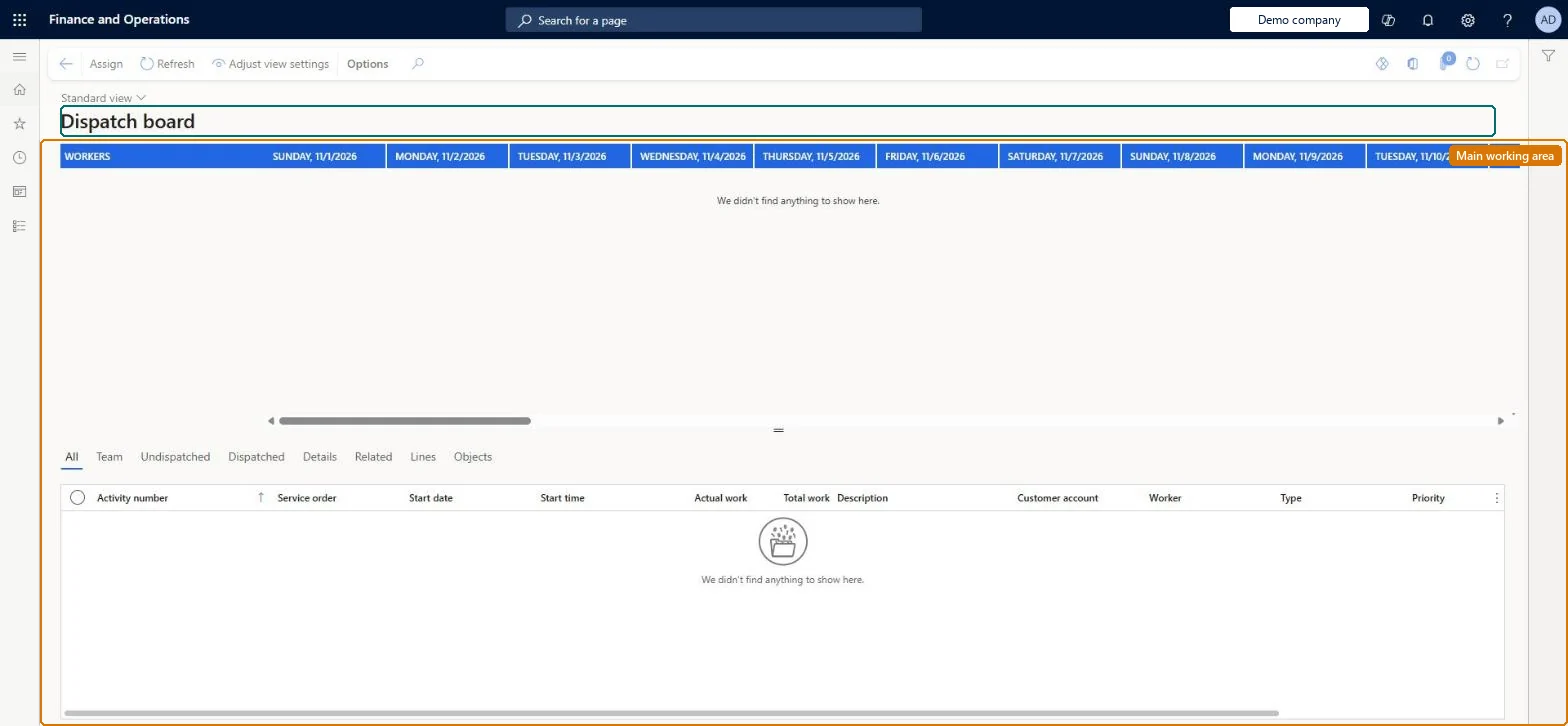
A page with a Gantt chart and detail tabs that is the central place to view the status of the service activities in service orders for a date range and to dispatch them to workers.
PAGE GUIDEWhat the page does and how to use it7 sections. Choose a role to highlight what matters to you.
Everyone
1What it is and why
What it is
A page with a Gantt chart and detail tabs that is the central place to view the status of the service activities in service orders for a date range and to dispatch them to workers.
What you do here
Use this page to filter activities by date, see their priority by colour, review dispatch team workers, change service times and assigned technicians, and find activities that have not yet been dispatched.
Example
For example, to find service orders that have no dispatch team assigned, you set the date range, open the board and select the Undispatched tab.
The page in Dynamics 365. page title tab to open what to set or check
About the examples: Examples and screenshots in this guide use BEAT, a demo company in a Dynamics 365 test environment. Use your own company's codes and values instead of copying them.
When to run it
When to run it
Whenever service activities need to be planned or re-planned, for example at the start of the day or when a technician becomes unavailable.
How often
Daily, or as often as the dispatcher plans service visits.
What the output shows
A Gantt chart of service activities by dispatch team and worker for the selected dates, coloured by priority, with tabs for all, team, undispatched and related activities. An activity missing from the chart is usually outside the date range, closed, or in a team you are not related to.
Go to Service management > Perform periodic tasks > Dispatch board.
On the Action Pane, select Adjust view settings and enter the From date and To date of the activities to show; set Show closed activities to include closed ones, and Show only related teams to see only your dispatch teams.
In the grid, select the service activity you want to work with; its colour shows its Priority.
Use the tabs in the bottom panel to change the Worker, the service times or the Priority, set Dispatched when the worker has been sent, and look for activities that are not yet dispatched.
Select Refresh and check that each activity now shows the right worker, time and Phase.
Marks that the worker or team has been dispatched.Microsoft Learn
Dispatched
Phase
The status of the activity, such as In Progress, Finished or Cancelled.Microsoft Learn
PhaseId
Solution architect
4Design impact
Can it be undone
Yes: Assignments and times can be changed back on the board; reassigning an activity changes the dispatch plan for the service order until you change it again. Microsoft Learn
If you change it later
Reassigning an activity to another worker, date or time changes the dispatch plan for that service order. Microsoft Learn
Technical architect
5Technical
Menu item
SMADispatchBoardChecked in Dynamics 365
Form
SMADispatchBoardChecked in Dynamics 365
Table
GanttTmpSMAShown as “TEMPORARY TABLE” in Record infoChecked in Dynamics 365
Data entities
SMAServiceOrderLineEntityService order lines Checked in Dynamics 365
Who can open it
PrivilegesMaintain dispatch boards SMADispatchBoardMaintainDutiesPerform service order periodic jobs SMAServiceOrderPeriodicMaintain1 security roleService dispatcher SMADispatcherChecked in Dynamics 365
Roles to set it up and use it
To set it up or change itService dispatcher SMADispatcherGive people one of these roles. On this system, 1 role can open this page.Checked in Dynamics 365
Actions on the page
(Action Pane without tabs): Assign, Refresh, Adjust view settingsChecked in Dynamics 365
Developer
6Developer
Open it by URL
https://<your-environment>/?mi=SMADispatchBoard
Integrate with
SMAServiceOrderLineEntity data entity Checked in Dynamics 365