BeyondERP.Newsletter
Menu

Report page · Service management

Work description report

A report dialog that prints the Work description report, which describes the service work that is to be delivered on a service order.

Business process
Deliver services
Show what matters for
PAGE GUIDEWhat the page does and how to use it6 sections. Choose a role to highlight what matters to you.
Everyone

1What it is and why

What it isA report dialog that prints the Work description report, which describes the service work that is to be delivered on a service order.
What you do hereUse this page to print work descriptions for service orders so that the technician knows what work is planned before the service visit.
Work description report page in Dynamics 365
The page in Dynamics 365. page title tab to open what to set or check
Functional consultant · Solution architect

2Where it fits

Business processDeliver services
Menu pathService management › Inquiries and reports › Work description report
Set up firstService orders Microsoft Learn
Related pagesWork receipt report Microsoft Learn Service orders (Work description action) Microsoft Learn
End user · Functional consultant

3How to do it

About the examples: Examples and screenshots in this guide use BEAT, a demo company in a Dynamics 365 test environment. Use your own company's codes and values instead of copying them.

When to run it

When to run itBefore the service visit, once the service order and its planned lines are ready to hand to the technician.
How oftenOn demand, each time service orders are dispatched to a technician.
What the output showsA work description per service order that describes the service work to be delivered, with the notes, item lines and product dimensions you chose to include. Missing parts or tasks usually mean the service order lines or item requirements were not created yet.

Source: Microsoft Learn

Steps from Microsoft

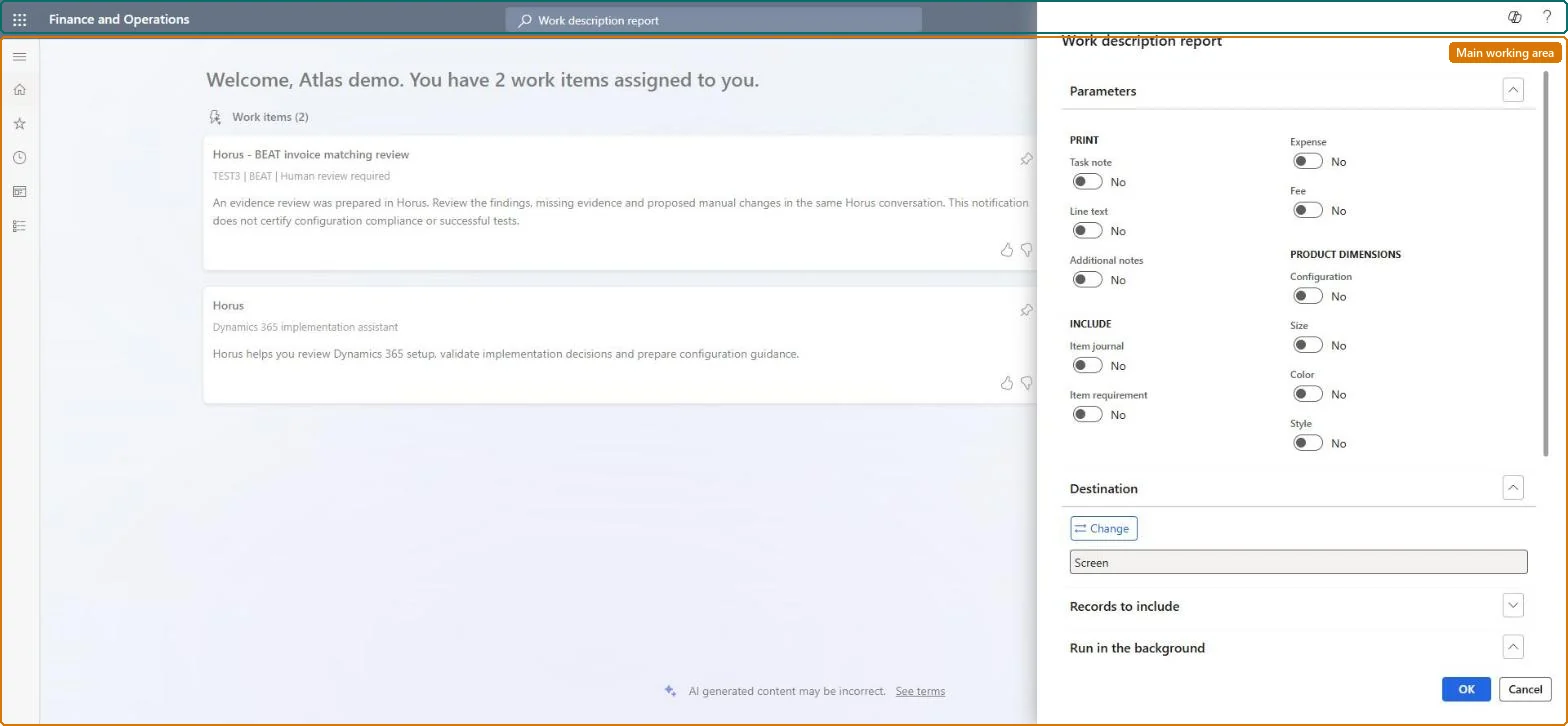
  1. Go to Service management > Inquiries and reports > Work description report.
  2. Under Parameters > Print, set Task note, Line text and Additional notes to Yes so the technician sees the planned work instructions before the visit.
  3. Under Include, set Item journal and Item requirement to Yes if the technician must know which parts are planned for the job.
  4. Under Product dimensions, set Configuration, Size, Color and Style to Yes when the planned items need these details to be picked correctly.
  5. Expand Records to include and select Filter to pick the service orders of the upcoming visits, then select OK and check that each work description lists the planned tasks and parts.
Source: Microsoft Learn

Solution architect

4Design impact

Can it be undoneNothing to undo: Printing the work description only reads the service order; nothing is changed. Microsoft Learn
Technical architect

5Technical

FormSysOperationTemplateForm Checked in Dynamics 365
Everyone

6Sources