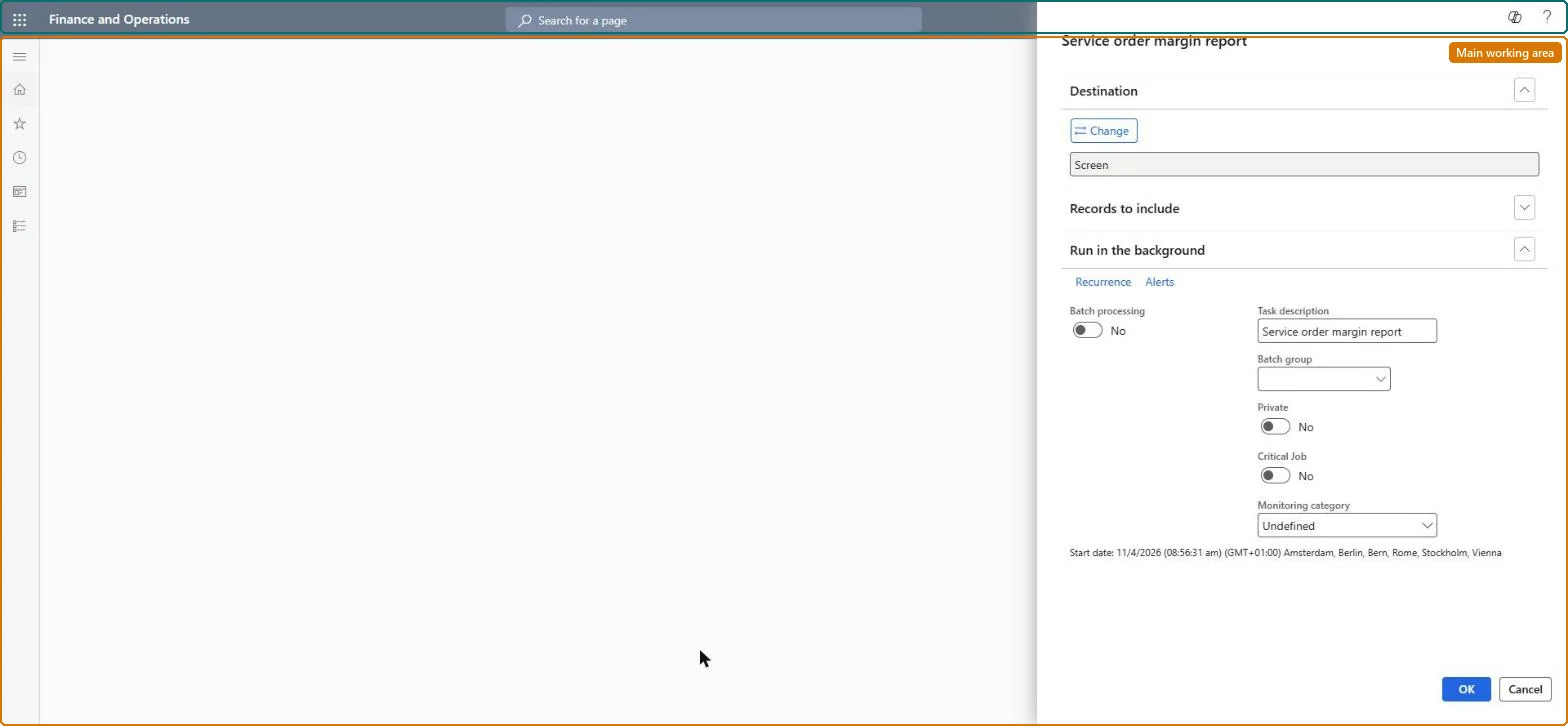
A report dialog that runs the Service order margin report, one of the Service management reporting tools that Microsoft lists for monitoring the margin on service orders.
PAGE GUIDEWhat the page does and how to use it7 sections. Choose a role to highlight what matters to you.
Everyone
1What it is and why
What it is
A report dialog that runs the Service order margin report, one of the Service management reporting tools that Microsoft lists for monitoring the margin on service orders.
What you do here
Use this page to print the margin on service orders so that you can compare the cost of the hours, items, expenses and fees delivered against what is invoiced to the customer.
The page in Dynamics 365. page title tab to open what to set or check
About the examples: Examples and screenshots in this guide use BEAT, a demo company in a Dynamics 365 test environment. Use your own company's codes and values instead of copying them.
When to run it
When to run it
When you review the profitability of delivered service work, for example after service orders are posted and invoiced for a period.
How often
On demand, when you need to monitor service order margins, for example at period end.
Batch settings
Run it in the background when the filter covers many service orders, so the margin report is produced without blocking your session.
What the output shows
The margin on each selected service order: the cost of the hours, items, expenses and fees delivered set against what is invoiced to the customer. A margin that looks too low usually means lines that are delivered but not yet invoiced, or cost prices on the project categories or items that need checking.
Go to Service management > Inquiries and reports > Service order margin report.
Decide which service orders to compare. The margin sets the cost of the hours, items, expenses and fees delivered against what is invoiced, so orders that are not yet posted and invoiced show an incomplete margin.
Expand Records to include and select Filter to limit the margin report to those service orders, for example one service agreement, customer or date range.
Under Destination, select Change if the margin figures should go to a file or printer instead of Screen; for many service orders, set Batch processing to Yes under Run in the background so the report runs as a batch job.
Compare delivered cost with the invoiced amount on each service order, and look into orders with a low or negative margin.
Nothing to undo: The margin report only reads service order data; it changes nothing. Microsoft Learn
Technical architect
5Technical
Menu item
SMAServiceOrderMarginChecked in Dynamics 365
Form
SysOperationTemplateFormChecked in Dynamics 365
Roles to set it up and use it
To use itService delivery manager SMAServiceDeliveryManagerChief executive officer CompanyChiefExecutiveOfficerGive people one of these roles. On this system, 2 roles can run this page.Checked in Dynamics 365