PAGE GUIDEWhat the page does and how to use it8 sections. Choose a role to highlight what matters to you.
Everyone
1What it is and why
What it is
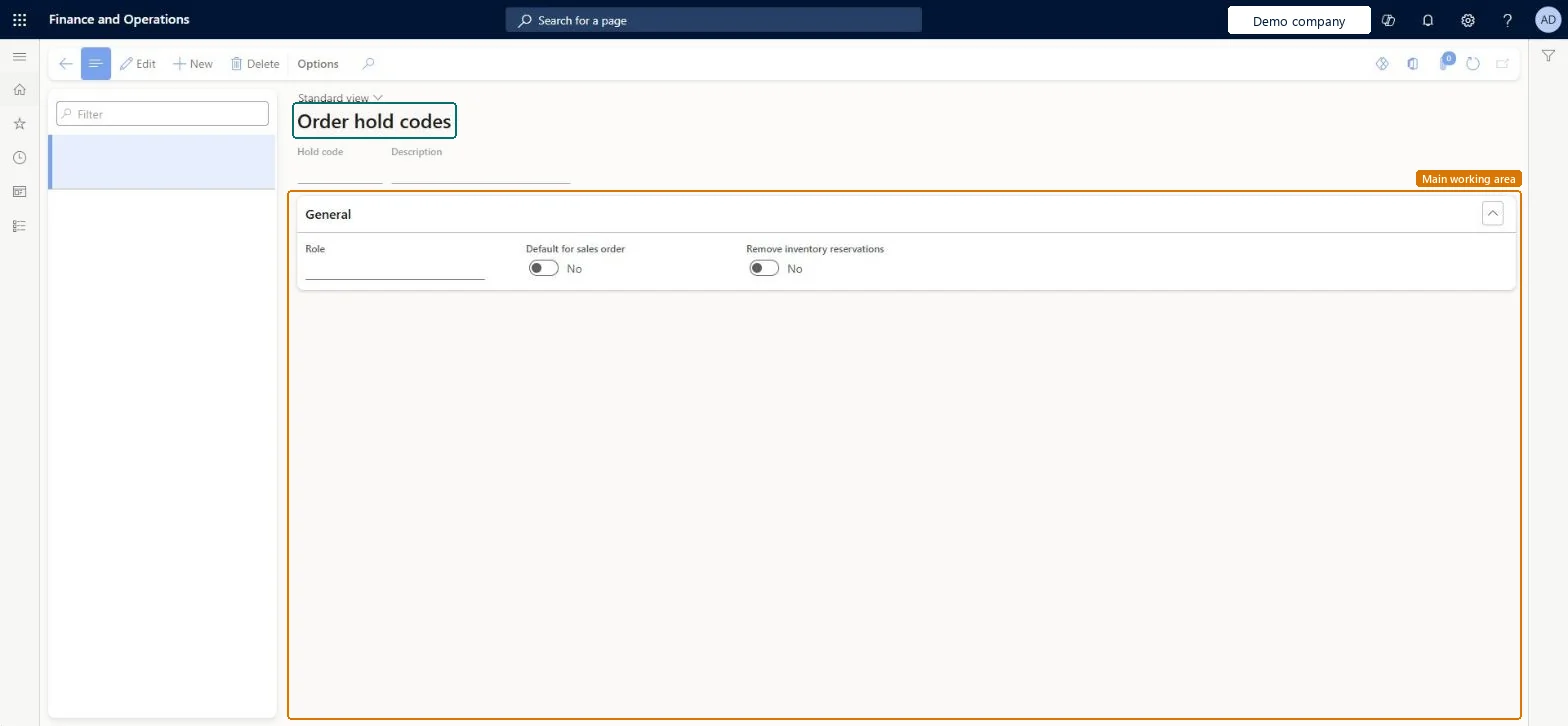
A setup page where you create the hold codes that give the reason a sales order is put on hold.
What you do here
Use this page to set up each type of hold, who can remove it, and whether it removes inventory reservations.
Example
BEAT creates hold code CREDIT with Role = Collections manager and Remove inventory reservations = No. When order SO-001234 for 12,500.00 needs a credit review, the order desk adds the CREDIT hold; the order can't be picked or packed until a user with the Collections manager role clears the hold, and its stock stays reserved meanwhile.
The page in Dynamics 365. page title tab to open what to set or check
About the examples: Examples and screenshots in this guide use BEAT, a demo company in a Dynamics 365 test environment. Use your own company's codes and values instead of copying them.
Step by step, with screenshots
Set up Order hold codes1 screen
Use this page to set up each type of hold, who can remove it, and whether it removes inventory reservations.
Screen 1
Create an order hold code
Go to Sales and marketing > Setup > Sales orders > Order hold codes
Select New
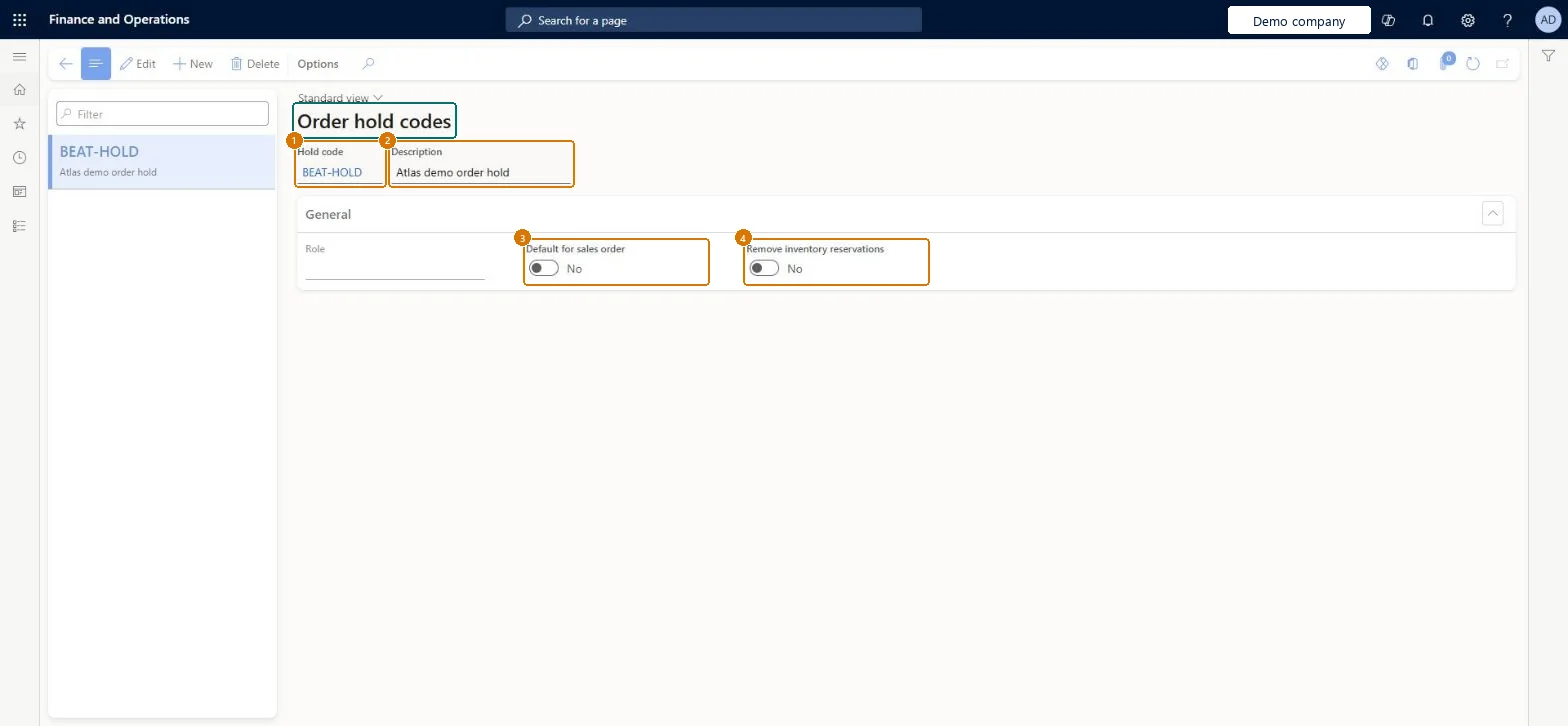
Enter the hold code and description
Optionally select the role that can remove the hold
Set Default for sales order and Remove inventory reservations as needed
Select Save
1Hold code
BEAT-HOLD
2Description
Order hold
3Default for sales order
No
4Remove inventory reservations
No
Show the full screen page title tab to open what to set or check
Steps from Microsoft
Go to Sales and marketing > Setup > Sales orders > Order hold codes.
Select New, or select Edit and choose an existing hold code.
In the Hold code field, enter a short name, for example Call back.
In the Description field, enter a short description.
In the Role field, select the security role a user needs to remove this hold.
Select Default for sales order or Remove inventory reservations if needed.
Picking list and packing slip buttons are unavailable on a sales order
The order has a hold (Do not process is selected). Clear the hold with Clear holds, by a user who has the role set on the hold code. Microsoft Learn
Stock reserved for an order is gone after a hold
The hold code has Remove inventory reservations selected, which removes physical reservations when the hold is added. Reserve again after clearing the hold, and clear the option on codes used for short holds. Microsoft Learn
Test checklist
Create a hold code with a Role and Remove inventory reservations set to Yes.
Reserve stock on a sales order, then add the hold through Sales order > Functions > Order holds.
Check that All sales orders shows a check mark in Do not process and a pause symbol in Hold, and that picking list and packing slip buttons on the Pick and pack tab are disabled.
Check that the physical reservation on the order line was removed.
Sign in as a user without the selected role and confirm the hold can't be cleared; then clear it with Clear holds as a user with the role.
One hold code per hold reason (for example credit review, address check, customer callback), each with Role set to the security role that is allowed to clear itHold codes exist so you can set up each type of hold you apply to sales orders, and the Role field limits who can remove that hold from an order, so the right team owns each release.
Reversible: You can edit hold codes at any time. The settings apply when a hold is added to an order, so changes affect new holds. Reservations already removed by an earlier hold aren't put back by editing the code. Microsoft Learn
If you change it later
An order with a hold can't be picked, packed or processed further until the hold is cleared. Microsoft Learn
Technical architect
6Technical
Menu item
MCRHoldCodeTableChecked in Dynamics 365
Form
MCRHoldCodeTableChecked in Dynamics 365
Table
MCRHoldCodeTableShown as “Hold code” in Record infoKey field: MCRHoldCode, MCRHoldCodeDescriptionChecked in Dynamics 365
PrivilegesMaintain order hold codes MCRHoldCodeTableMaintainDutiesEnable sales order hold process MCRSalesHoldProcessEnable1 security roleSales manager TradeSalesManagerChecked in Dynamics 365
Roles to set it up and use it
To set it up or change itSales manager TradeSalesManagerGive people one of these roles. On this system, 1 role can open this page.Checked in Dynamics 365
Actions on the page
Options: Personalize, Page options, ShareChecked in Dynamics 365
MCRSalesOrderHoldCodeEntity (Sales order hold codes): loaded for each company, in Microsoft's default template 330 - Sales and marketing.Load order: Microsoft's default template 330 - Sales and marketing loads Sales order hold codes at execution unit 1, level 40, sequence 10. Lower levels load first, and entities at the same level load in sequence order.Load first: the default templates at lower levels (System setup to dependency bands 30 to 90)Microsoft Learn
Checked in a working Dynamics 365 system, version 10.0.49: the menu item, form, table and security, the page, the demo records and the values in the screenshots.