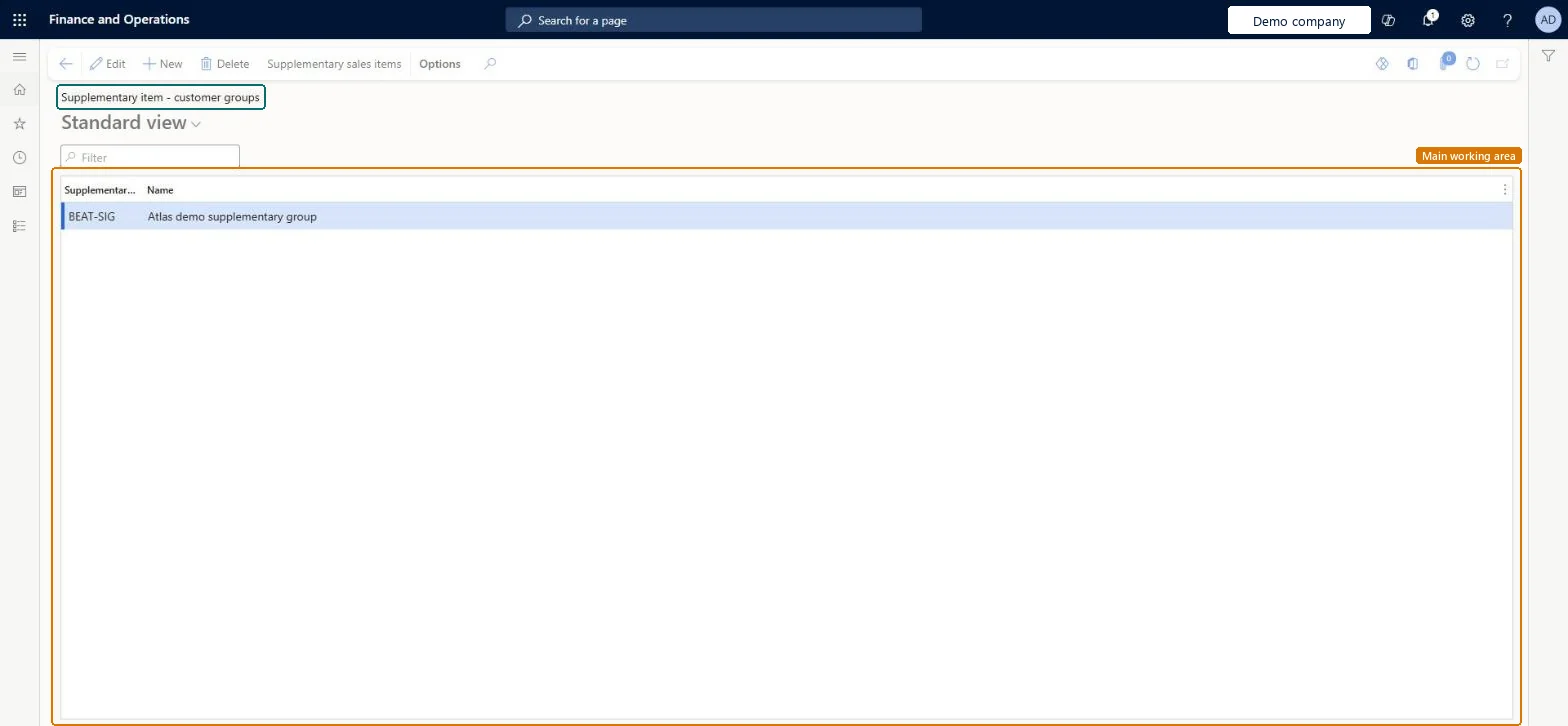
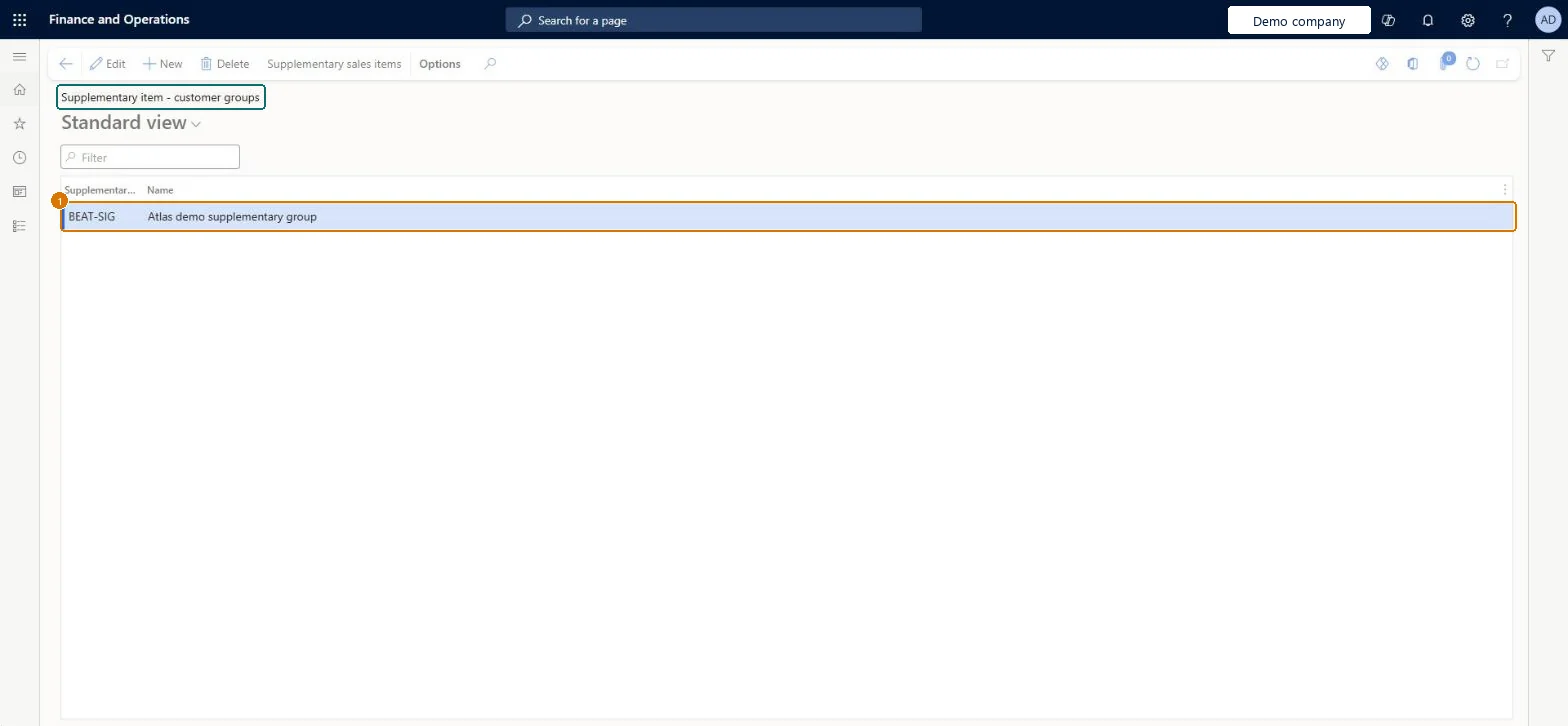
A setup page where you create the customer groups for supplementary items, each with an ID and a name, and open the supplementary sales items for a group.
Accounts receivable clerk, Accounts receivable manager, Accounts receivable centralized payments clerk and 6 more roles
Business process
Enter sales orders
Menu item
SuppItemGroup_Cust
Main table
SuppItemGroup
Data entity
InventSupplementaryProductCustomerGroupEntity
Setup steps
1 on this page
Show what matters for
PAGE GUIDEWhat the page does and how to use it8 sections. Choose a role to highlight what matters to you.
Everyone
1What it is and why
What it is
A setup page where you create the customer groups for supplementary items, each with an ID and a name, and open the supplementary sales items for a group.
What you do here
Use this page to group customers so that the same supplementary items, required or optional extra products, are proposed when they order.
Example
For example, BEAT creates the customer group HORECA for its 85 cafes and restaurants, so that 1 free bottle opener BEAT-ITEM-090 is proposed with every 12 cases of BEAT-ITEM-001 they order.
The page in Dynamics 365. page title tab to open what to set or check
About the examples: Examples and screenshots in this guide use BEAT, a demo company in a Dynamics 365 test environment. Use your own company's codes and values instead of copying them.
Step by step, with screenshots
Set up Supplementary item - customer groups1 screen
Screen 1
Create a customer group for supplementary items
Go to Sales and marketing > Setup > Items > Supplementary item - customer groups
Select New
Enter the group code and name
Select Save
Assign the group to customers, then use Supplementary sales items to add the items that are offered with an order
1Supplementary item group
BEAT-SIG
Name
Supplementary group
Show the full screen page title tab to open what to set or check
How to use it
Go to Sales and marketing > Setup > Items > Supplementary item - customer groups.
Select New and enter the supplementary item customer group ID and the Name.
Select Supplementary sales items on the Action Pane and add the supplementary items for the group.
Set the group on the customers who should get these proposals.
Source: Checked in Dynamics 365
Fields on the page
Field
What it means
Example
Table column
Supplementary item group
The ID of the supplementary item customer group.Checked in Dynamics 365
HORECA
GroupId
Name
The name of the group.Checked in Dynamics 365
Cafes and restaurants
Name
Common errors and fixes
Message
What to do
No supplementary item is proposed on the sales order.
Supplementary items are proposals for products related to the one ordered; check that the customer belongs to the group and that the supplementary sales item is set up for the ordered item. Microsoft Learn
Test checklist
Create group HORECA and, under Supplementary sales items, add BEAT-ITEM-090 for BEAT-ITEM-001.
Set HORECA on a customer.
Add BEAT-ITEM-001 to a sales order for that customer.
Check that 1 supplementary item, BEAT-ITEM-090, is proposed.
Customer groups only for customers who get different supplementary items (for example free accessories for one channel).Supplementary items propose related products, required, optional or free; a customer group lets one set of proposals apply to many customers.
On the live system, Sales manager, Rental manager, Rental coordinator agent, Rental sales manager and Accounts receivable manager can maintain this page, and Accounts receivable clerk, Accounts receivable centralized payments clerk and Accounts receivable payments clerk can use it.
Reversible: Groups and their supplementary items can be changed or removed at any time. Microsoft Learn
If you change it later
The group only drives the proposals made while order lines are entered; lines already on orders stay as they are. Microsoft Learn
Technical architect
6Technical
Menu item
SuppItemGroup_CustChecked in Dynamics 365
Form
SuppItemGroupChecked in Dynamics 365
Table
SuppItemGroupShown as “Supplementary item groups” in Record infoKey field: Module, GroupIdChecked in Dynamics 365
Data entities
InventSupplementaryProductCustomerGroupEntitySupplementary item - customer groups Microsoft data model InventSupplementaryProductProductGroupEntitySupplementary item - item groups Microsoft data model InventSupplementaryProductVendorGroupEntitySupplementary item - vendor groups Microsoft data model
Who can open it
PrivilegesMaintain customer supplementary item groups SuppItemGroup_CustMaintainView customer supplementary item groups SuppItemGroup_CustViewDutiesEnable quotation to sales order process RentalSalesQuotationToSlsOrdProcessEnableEnable quotation to sales order process SalesQuotationToSalesOrderProcessEnableInquire into quotation to sales order reference data SalesQuotationToSalesOrderRefDataInquir9 security rolesAccounts receivable clerk CustInvoiceAccountsReceivableClerkAccounts receivable manager CustInvoiceAccountsReceivableManagerAccounts receivable centralized payments clerk PaymAccountsReceivableCentralPaymClerkAccounts receivable payments clerk PaymAccountsReceivablePaymentsClerkRental coordinator agent RentalCoordinatorAgentRental manager RentalManagerRental sales manager RentalSalesManagerRetail service RetailServiceSales manager TradeSalesManagerChecked in Dynamics 365
Roles to set it up and use it
To set it up or change itSales manager TradeSalesManagerRental manager RentalManagerRental coordinator agent RentalCoordinatorAgentRental sales manager RentalSalesManagerAccounts receivable manager CustInvoiceAccountsReceivableManagerTo use itAccounts receivable clerk CustInvoiceAccountsReceivableClerkAccounts receivable centralized payments clerk PaymAccountsReceivableCentralPaymClerkAccounts receivable payments clerk PaymAccountsReceivablePaymentsClerkGive people one of these roles. On this system, 9 roles can open this page.Checked in Dynamics 365
Actions on the page
Options: Personalize, Page options, ShareChecked in Dynamics 365
InventSupplementaryProductCustomerGroupEntity (Supplementary item - customer groups): loaded for each company, in Microsoft's default template 330 - Sales and marketing.Load order: Microsoft's default template 330 - Sales and marketing loads Supplementary item - customer groups at execution unit 1, level 30, sequence 10. Lower levels load first, and entities at the same level load in sequence order.Load first: the default templates at lower levels (System setup to General ledger)Microsoft Learn
Checked in a working Dynamics 365 system, version 10.0.49: the menu item, form, table and security, the page, the demo records and the values in the screenshots.