Define order management policies for Dynamics 365 Supply Chain Management
Menu item
CustItemGroup
Main table
CustVendItemGroup
Data entity
PurchProductDescriptionVendorGroupEntity
Setup steps
1 on this page
Show what matters for
PAGE GUIDEWhat the page does and how to use it8 sections. Choose a role to highlight what matters to you.
Everyone
1What it is and why
What it is
A setup page where you create customer groups that share the same external item numbers, and keep those item numbers for each group.
What you do here
Use this page to simplify the upkeep of customers' own item numbers when many customers use the same numbers.
Example
For example, BEAT sets up the group BUYASSOC for a buying association of 30 independent shops that all order BEAT-ITEM-001 as 'BA-7731', and sets Item - customer group BUYASSOC on the 30 shops instead of keeping 30 copies of the number.
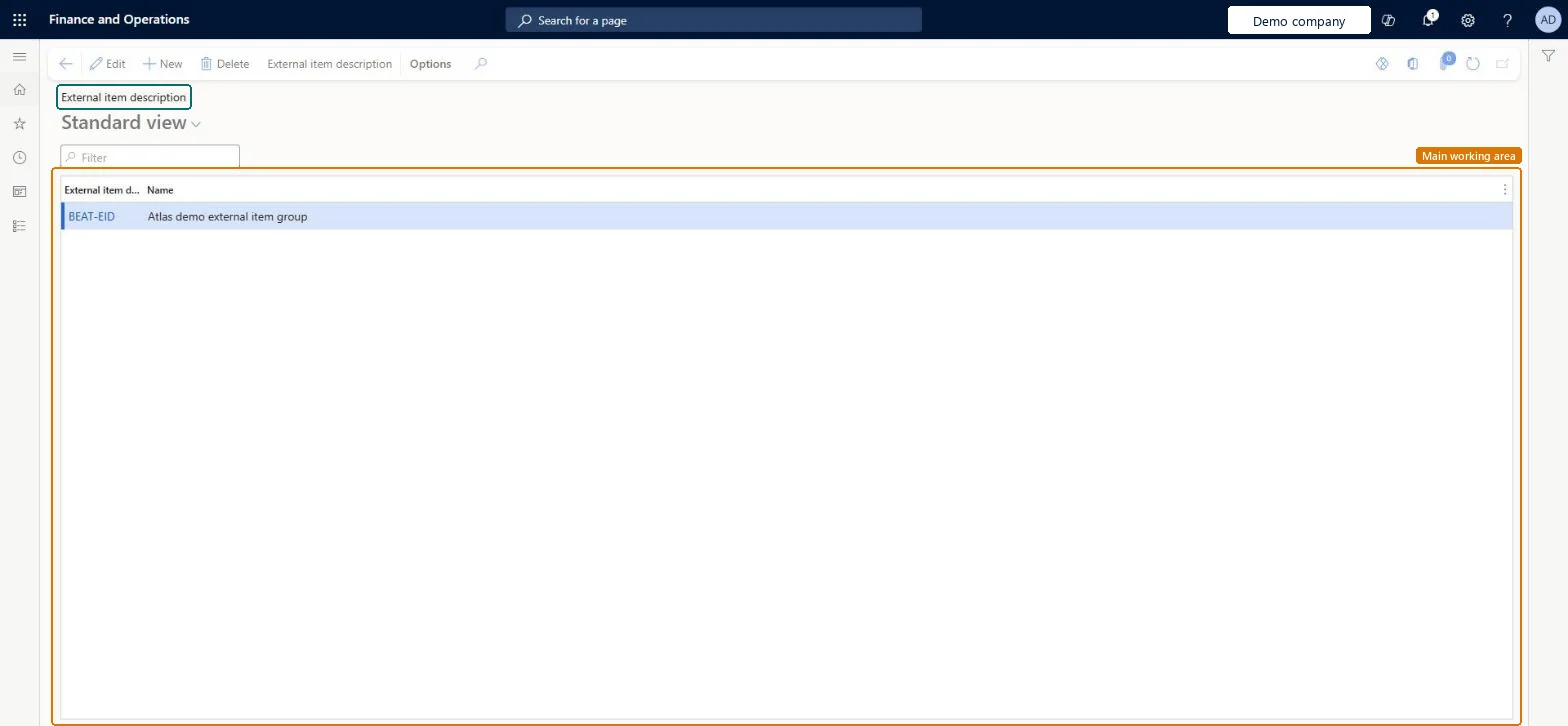
The page in Dynamics 365. page title tab to open what to set or check
About the examples: Examples and screenshots in this guide use BEAT, a demo company in a Dynamics 365 test environment. Use your own company's codes and values instead of copying them.
Step by step, with screenshots
Set up External item description1 screen
Use this page to simplify the upkeep of customers' own item numbers when many customers use the same numbers.
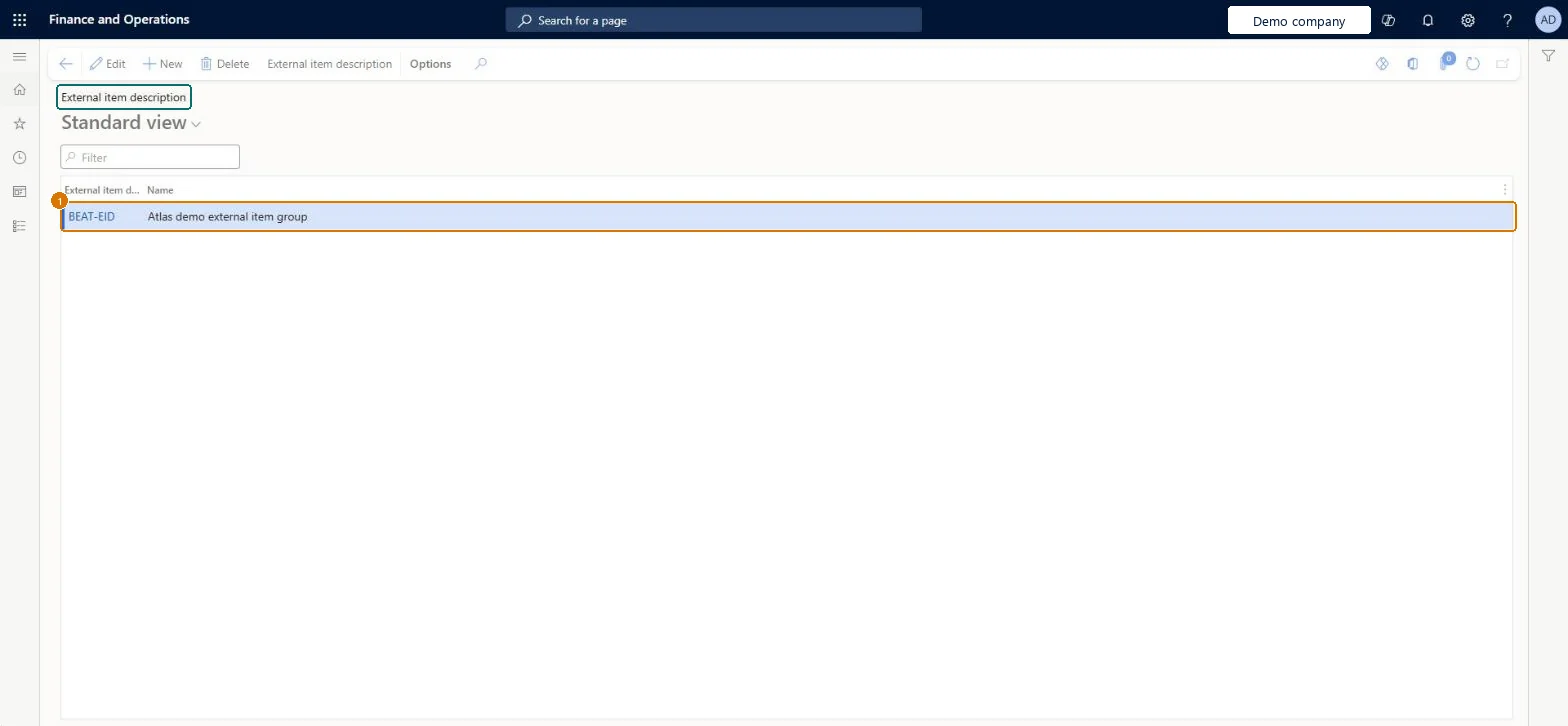
Screen 1
Create a customer group for external item descriptions
Go to Sales and marketing > Setup > Items > External item description
Select New
Enter the group code and name
Select Save
Assign the group to customers, then use External item description to add the customers own item numbers for the group
1External item description group
BEAT-EID
Name
External item group
Show the full screen page title tab to open what to set or check
Steps from Microsoft
Go to Sales and marketing > Setup > Items > External item description.
Select New and enter the External item description group code and the Name.
Select External item description on the Action Pane and add each item with the group's external item number and description.
Set Item - customer group on each member customer's Sales order defaults FastTab.
The ID of the customer group that shares the same external item numbers; customers join it through the Item - customer group field.Microsoft Learn
BUYASSOC
GroupId
Name
The name of the group.Checked in Dynamics 365
Buying association shops
Name
Common errors and fixes
Message
What to do
The group's external item number isn't found when you search a sales order line by it.
Set Item - customer group on the customer's Sales order defaults FastTab to the group; without it, the group's numbers aren't used for that customer. Microsoft Learn
Test checklist
Create an external item description group and add an item with its external item number and description.
Set Item - customer group on a customer's Sales order defaults FastTab to the new group.
Create a sales order for that customer, show the External column and search by the external item number.
Check the Item number and Product name fill in from the selected external item.
Create a group only when several customers (for example a buying association) share the same item numbers; keep customer-specific numbers on the customer itselfGroups are there to simplify the upkeep of external item numbers when many customers use the same numbers; each customer joins a group through the Item - customer group field.
Enable lookup based search for Sales External Item Identifier field (Mandatory, on by default)
Licence or add-in
On the live system, Rental manager, Rental coordinator agent, Rental sales manager, Accounts receivable manager and Sales clerk can maintain this page, and Sales manager, Accounts receivable clerk, Sales representative, Customer service representative and Rental representative can use it.
Reversible: External item numbers are references, not inventory or ledger data. Note they are kept per legal entity, so changes must be made in each company. Microsoft Learn
If you change it later
External item numbers are used on external documents and in the External lookup on sales order lines for every customer in the group. Microsoft Learn
Technical architect
6Technical
Menu item
CustItemGroupChecked in Dynamics 365
Form
CustVendItemGroupChecked in Dynamics 365
Table
CustVendItemGroupShown as “External item description group” in Record infoChecked in Dynamics 365
Data entities
PurchProductDescriptionVendorGroupEntityExternal item description vendor groups Microsoft data model SalesProductDescriptionCustomerGroupEntityExternal item description customer groups Microsoft data model
Roles to set it up and use it
To set it up or change itRental manager RentalManagerRental coordinator agent RentalCoordinatorAgentRental sales manager RentalSalesManagerAccounts receivable manager CustInvoiceAccountsReceivableManagerSales clerk TradeSalesClerkTo use itSales manager TradeSalesManagerAccounts receivable clerk CustInvoiceAccountsReceivableClerkSales representative TradeSalesRepresentativeCustomer service representative TradeCustomerServiceRepresentativeRental representative RentalRepresentativeGive people one of these roles. On this system, 25 roles can open this page.Checked in Dynamics 365
Actions on the page
Options: Personalize, Page options, ShareChecked in Dynamics 365
SalesProductDescriptionCustomerGroupEntity (External item description customer groups): loaded for each company, in Microsoft's default template 330 - Sales and marketing.PurchProductDescriptionVendorGroupEntity (External item description vendor groups): the vendor groups kept in the same table, template 320 - Procurement and sourcing.Load order: Microsoft's default template 330 - Sales and marketing loads External item description customer groups at execution unit 1, level 30, sequence 10. Load the groups before the external item numbers and before the customers that point to them.Load first: the default templates at lower levels (System setup to General ledger), Released productsMicrosoft Learn
Checked in a working Dynamics 365 system, version 10.0.49: the menu item, form, table and security, the page, the demo records and the values in the screenshots.