Define order management policies for Dynamics 365 Supply Chain Management
Menu item
SalesPackageAppearance
Main table
SalesPackageAppearance
Data entity
SalesPackageAppearanceEntity
Setup steps
1 on this page
Show what matters for
PAGE GUIDEWhat the page does and how to use it8 sections. Choose a role to highlight what matters to you.
Everyone
1What it is and why
What it is
A setup page where you describe how goods are packed, such as in cartons, boxes or pallets.
What you do here
Use this page to keep package descriptions that are used on the bill of lading for shipments.
Example
For example, BEAT ships most orders on PALLET and small cafe orders in CARTON, so the bill of lading for a 26-pallet truck to customer BEAT-000123 states the package appearance Pallet.
The page in Dynamics 365. page title tab to open what to set or check
About the examples: Examples and screenshots in this guide use BEAT, a demo company in a Dynamics 365 test environment. Use your own company's codes and values instead of copying them.
Step by step, with screenshots
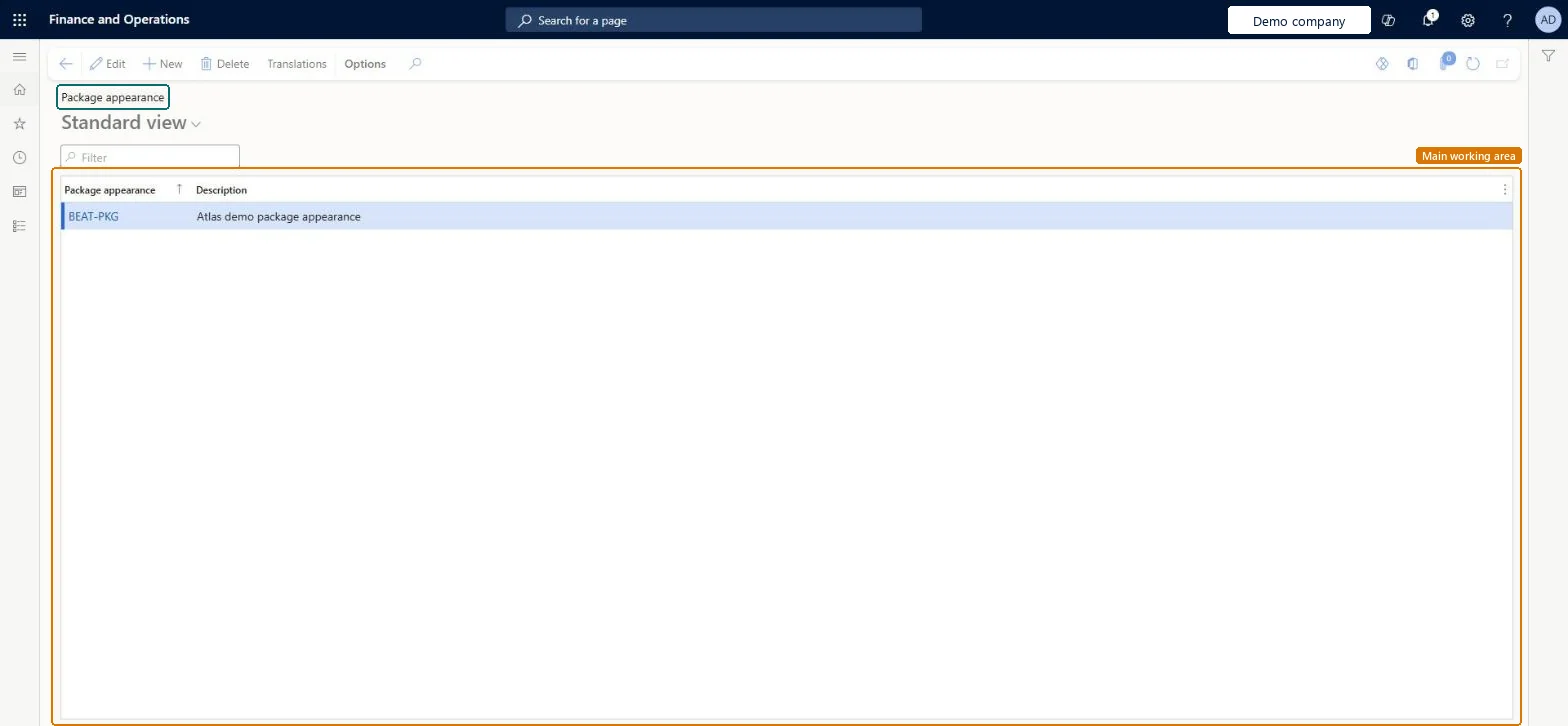
Set up Package appearance1 screen
Use this page to keep package descriptions that are used on the bill of lading for shipments.
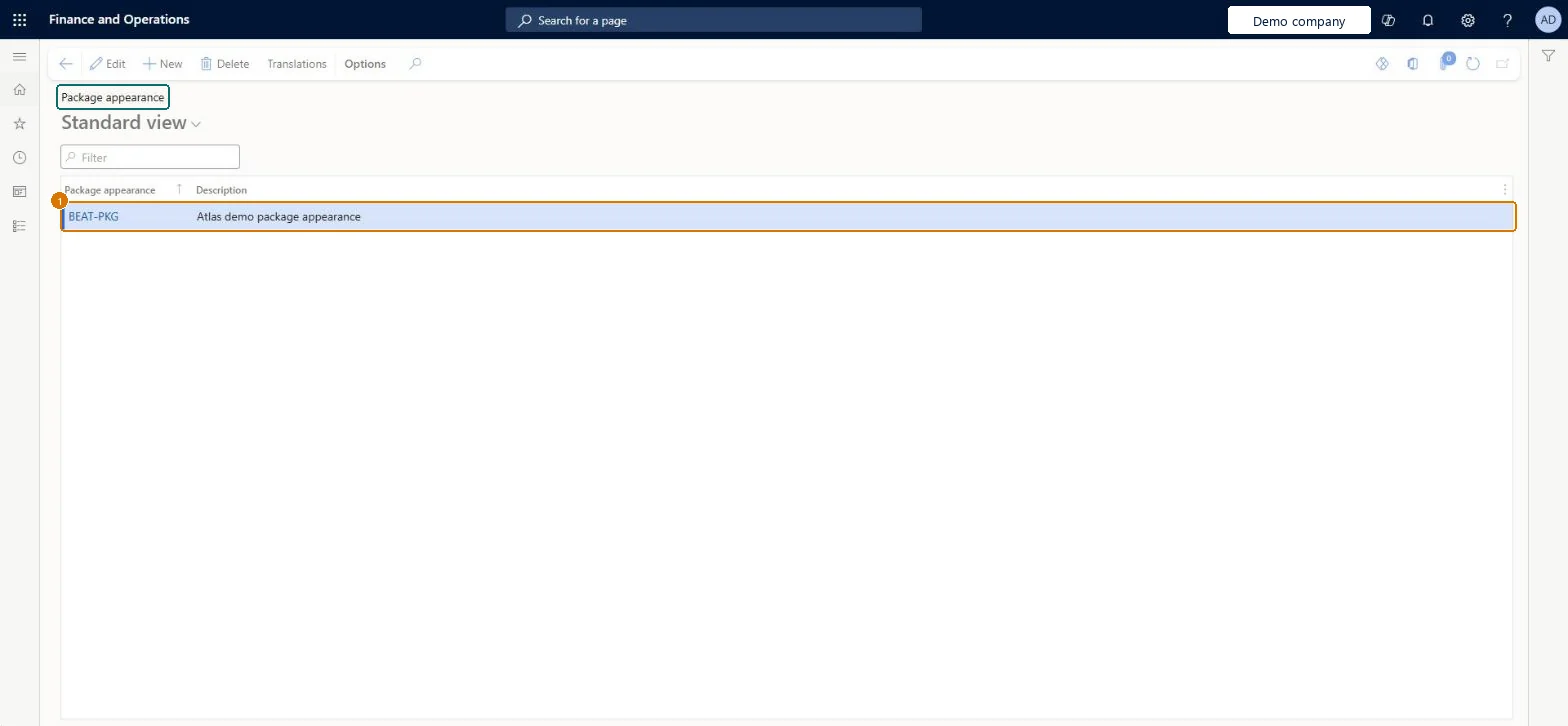
Screen 1
Create a package appearance
Go to Sales and marketing > Setup > Distribution > Package appearance
Select New
Enter the package appearance code and description
Select Save
Use Translations to add the text in other languages for the bill of lading
1Package appearance
BEAT-PKG
Description
Package appearance
Show the full screen page title tab to open what to set or check
Steps from Microsoft
Go to Sales and marketing > Setup > Distribution > Package appearance.
Select New and enter the Package appearance, for example PALLET.
Enter a Description, such as Euro pallet.
Select the package appearance on the bill of lading lines for the shipment.
One code per packing type that shipping documents must show (pallet, carton, box).Package appearance describes how goods are packed and is used on the bill of lading for shipments.
On the live system, Sales manager, Rental manager, Rental coordinator agent, Rental sales manager and Accounts receivable manager can maintain this page, and Accounts receivable clerk, Sales clerk, Sales representative, Customer service representative and Rental representative can use it.
To set it up or change itSales manager TradeSalesManagerRental manager RentalManagerRental coordinator agent RentalCoordinatorAgentRental sales manager RentalSalesManagerAccounts receivable manager CustInvoiceAccountsReceivableManagerTo use itAccounts receivable clerk CustInvoiceAccountsReceivableClerkSales clerk TradeSalesClerkSales representative TradeSalesRepresentativeCustomer service representative TradeCustomerServiceRepresentativeRental representative RentalRepresentativeGive people one of these roles. On this system, 19 roles can open this page.Checked in Dynamics 365
Actions on the page
Options: Personalize, Page options, ShareChecked in Dynamics 365
SalesPackageAppearanceEntity (Sales package appearances): loaded for each company, in Microsoft's default template 330 - Sales and marketing.Load order: Microsoft's default template 330 - Sales and marketing loads Sales package appearances at execution unit 1, level 30, sequence 10. Lower levels load first, and entities at the same level load in sequence order.Load first: the default templates at lower levels (System setup to General ledger)Microsoft Learn
Checked in a working Dynamics 365 system, version 10.0.49: the menu item, form, table and security, the page, the demo records and the values in the screenshots.