BeyondERP.Newsletter
Menu

Setup page · Sales and marketing

Expedite codes

A setup page where you create expedite codes that mark how urgently orders should be shipped.

Used by
Sales manager
Business process
Define order management policies for Dynamics 365 Supply Chain Management
Menu item
MCRExpediteTable
Main table
MCRExpediteTable
Data entity
MCRExpediteCodeEntity
Setup steps
1 on this page
Show what matters for
PAGE GUIDEWhat the page does and how to use it8 sections. Choose a role to highlight what matters to you.
Everyone

1What it is and why

What it isA setup page where you create expedite codes that mark how urgently orders should be shipped.
What you do hereUse this page to give orders, order lines or delivery modes a priority code for sorting and reporting during fulfillment.
ExampleFor example, BEAT must pick next-day air orders by 1 PM, so it links expedite code OVERNIGHT to its 2 next-day modes of delivery and the warehouse filters the noon pick wave on OVERNIGHT.
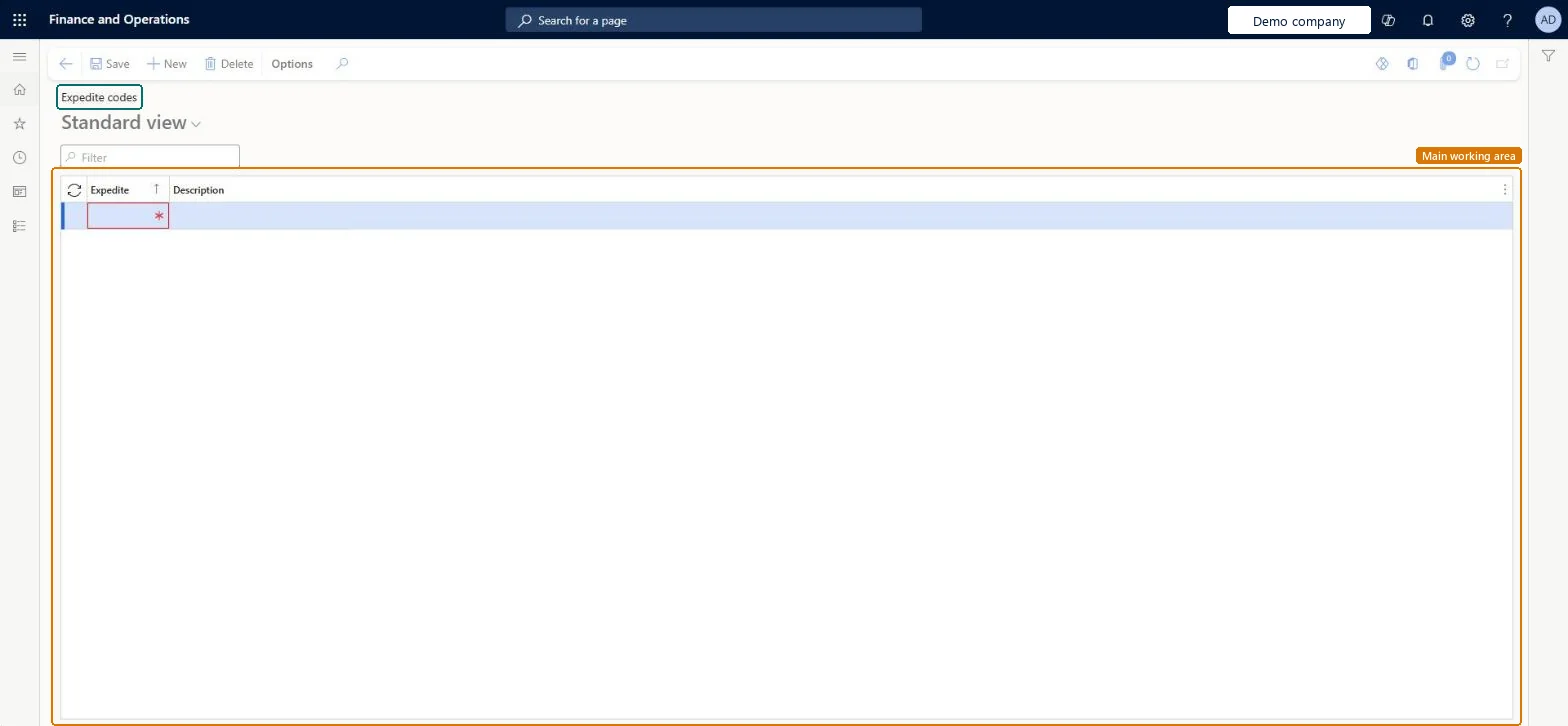
Expedite codes page in Dynamics 365
The page in Dynamics 365. page title tab to open what to set or check
Functional consultant · Solution architect

2Where it fits

End user · Functional consultant

3How to do it

About the examples: Examples and screenshots in this guide use BEAT, a demo company in a Dynamics 365 test environment. Use your own company's codes and values instead of copying them.

Step by step, with screenshots

Set up Expedite codes1 screen

Use this page to give orders, order lines or delivery modes a priority code for sorting and reporting during fulfillment.

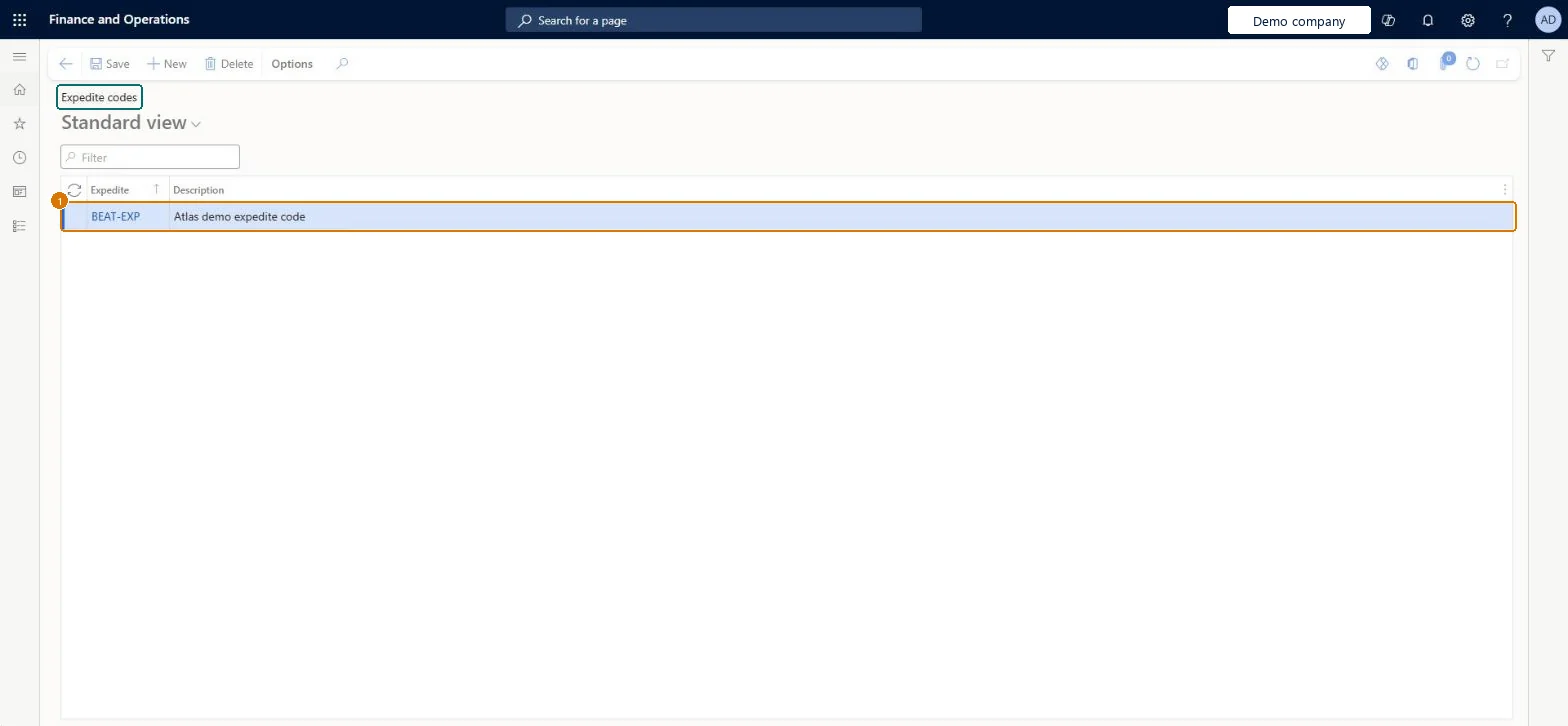
  1. Screen 1

    Create an expedite code

    Go to Sales and marketing > Setup > Distribution > Expedite codes

    1. Select New
    2. Enter the expedite code and description
    3. Select Save
    4. Select the code on sales orders, order lines or delivery modes to prioritize them
    1ExpediteBEAT-EXP
    DescriptionExpedite code
    Create an expedite code (zoomed on the outlined fields)
    Show the full screenCreate an expedite code
    page title tab to open what to set or check

Steps from Microsoft

  1. Go to Sales and marketing > Setup > Distribution > Expedite codes.
  2. Select New, and then enter a code and a description, for example OVERNIGHT.
  3. Close the page.
  4. Link the code to the next-day modes in the Expedite field on Modes of delivery.

Source: Microsoft Learn

Fields on the page

FieldWhat it meansExampleTable column
ExpediteThe expedite code, used to sort and report orders and order lines by shipping urgency.Microsoft Learn OVERNIGHTMCRExpedite
DescriptionA short description of the expedite code.Checked in Dynamics 365Next-day air, pick by 1 PM

Common errors and fixes

MessageWhat to do
The customer isn't charged extra for an expedited order.That is expected: expedite codes are a sorting and reporting tool and don't add fees. Set up delivery charges with auto charges. Microsoft Learn

Test checklist

  1. Create an expedite code and select it in the Expedite field of a next-day mode of delivery.
  2. Create a sales order with that mode of delivery and check the expedite code on the order.
  3. Manually apply a different expedite code to one order line.
  4. Filter orders or pick waves on the Expedite field and check only the expected orders appear.
  5. Check no extra charge was added to the order by the expedite code.

Source: Microsoft Learn

Functional consultant

4Setup decisions

Setup stepRecommended value and whyDecision, common mistake and test
Set up Expedite codesOne expedite code per shipping urgency (for example next-day air with a 1 PM pick cutoff), linked to the matching modes of deliveryExpedite codes are a sorting and reporting tool. Linking a code to delivery modes lets the warehouse filter pick waves on the Expedite field so urgent orders are picked first.Set expedite codes from the mode of delivery or by hand?Expecting an expedite code to charge the customer for faster delivery. It doesn't add fees; set up delivery charges with auto charges instead.Test: Pick wave filtered on expedite code

Feature management and licence

Licence or add-inOn the live system, Sales manager can maintain this page.

Checked in Dynamics 365

Solution architect

5Design impact

Shared or per companyPer company: each legal entity has its own records. Microsoft data model
Can it be undoneReversible: Codes and their links to delivery modes can be changed any time. They have no financial effect. Microsoft Learn
If you change it laterExpedite codes only sort and report orders; they don't add extra fees to the order. Microsoft Learn
Technical architect

6Technical

Menu itemMCRExpediteTable Checked in Dynamics 365
FormMCRExpediteTable Checked in Dynamics 365
TableMCRExpediteTableShown as “Expedite codes” in Record infoChecked in Dynamics 365
Data entitiesMCRExpediteCodeEntityExpedite codes Microsoft data model
Who can open itPrivilegesMaintain expedite codes MCRExpediteTableMaintainDutiesEnable sales MCRSalesEnable
1 security roleSales manager TradeSalesManager
Checked in Dynamics 365
Roles to set it up and use itTo set it up or change itSales manager TradeSalesManagerGive people one of these roles. On this system, 1 role can open this page.Checked in Dynamics 365
Actions on the pageOptions: Personalize, Page options, Edit, ShareChecked in Dynamics 365
Developer

7Developer

Open it by URLhttps://<your-environment>/?mi=MCRExpediteTable
Integrate withMCRExpediteCodeEntity data entity Microsoft data model
Data migrationMCRExpediteCodeEntity (Expedite codes): loaded for each company, in Microsoft's default template 120 - Accounts payable.Load order: Microsoft's default template 120 - Accounts payable loads Expedite codes at execution unit 1, level 30, sequence 10, before modes of delivery that refer to them (sequence 20).Load first: the default templates at lower levels (System setup to General ledger)Microsoft Learn
Table definitionMCRExpediteTable columns and relations Microsoft data model
Everyone

8Sources