Customer service manager, Customer service representative, Sales manager and 1 more role
Business process
Prospect to quote
Menu item
smmEncyclopedia
Main table
smmEncyclopediaItems
Data entity
smmKnowledgeArticleEntity
Setup steps
1 on this page
Show what matters for
PAGE GUIDEWhat the page does and how to use it8 sections. Choose a role to highlight what matters to you.
Everyone
1What it is and why
What it is
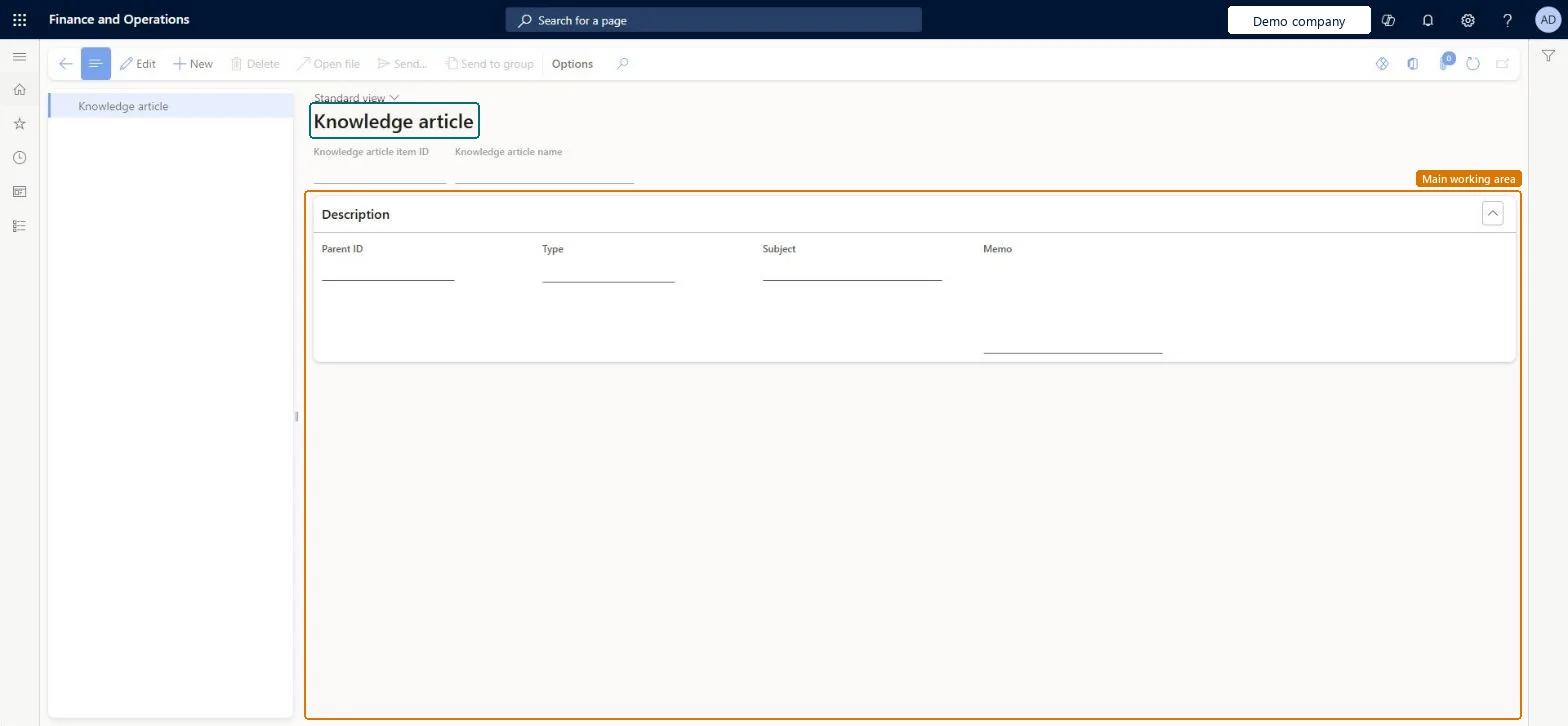
A page where you register, collect and categorize links to files, documents and web pages that are kept outside the system.
What you do here
Use it to build a shared library of links to web pages and files that sales and service staff can open from one folder tree.
Example
For example, BEAT creates the folder SALES-PLAYBOOK, adds a Link entry to the price list web page and a File entry that points to the returns policy document, so every sales representative finds both in the same place.
The page in Dynamics 365. page title tab to open what to set or check
Functional consultant · Solution architect
2Where it fits
Business process
Menu path
Sales and marketing › Periodic tasks › Knowledge articles
End user · Functional consultant
3How to do it
About the examples: Examples and screenshots in this guide use BEAT, a demo company in a Dynamics 365 test environment. Use your own company's codes and values instead of copying them.
When to run it
When to run it
When you add a document, web page or folder to the shared library that sales and service users open.
How often
On demand, whenever new reference material must be shared.
What the output shows
A folder tree of knowledge articles: folders, links to web addresses and references to files kept outside the system.
Create the subject folders first (Type Folder), then add Link and File entries inside them. Keep files on a shared location that all users can reach.New entries go into the folder selected in the left pane, so the folder tree is how users find them. A File entry stores only a path to a file outside the system.
On the live system, Customer service manager maintains knowledge articles, and Sales manager, Sales representative and Customer service representative use them. No feature in Feature management is needed.
Reversible: You can rename, change or delete an entry. The linked file or web page isn't affected. Microsoft Learn
If you change it later
Adds or changes entries in the knowledge article library. The files and web pages the entries point to are outside the system and aren't stored or changed. Microsoft Learn
Technical architect
6Technical
Menu item
smmEncyclopediaChecked in Dynamics 365
Form
smmEncyclopediaChecked in Dynamics 365
Table
smmEncyclopediaItemsShown as “Knowledge article” in Record infoKey field: ItemId, ParentId, ItemName, ItemDocument, ItemURL, TypeChecked in Dynamics 365
PrivilegesMaintain the encyclopedia smmEncyclopediaMaintainView knowledge articles smmEncyclopediaViewDutiesInquire into knowledge articles smmKnowledgeArticlesInquireMaintain knowledge articles smmKnowledgeArticlesMaintain4 security rolesCustomer service manager TradeCustomerServiceManagerCustomer service representative TradeCustomerServiceRepresentativeSales manager TradeSalesManagerSales representative TradeSalesRepresentativeChecked in Dynamics 365
Roles to set it up and use it
To set it up or change itCustomer service manager TradeCustomerServiceManagerTo use itSales manager TradeSalesManagerSales representative TradeSalesRepresentativeCustomer service representative TradeCustomerServiceRepresentativeGive people one of these roles. On this system, 4 roles can open this page.Checked in Dynamics 365
Actions on the page
Options: Personalize, Page options, ShareChecked in Dynamics 365
smmKnowledgeArticleEntity Load folders before the links and files that sit in them.Load order: Load folder entries first, then Link and File entries. Copy the files to their shared location before you load the paths.Microsoft data model