PAGE GUIDEWhat the page does and how to use it8 sections. Choose a role to highlight what matters to you.
Everyone
1What it is and why
What it is
A periodic job that deletes old sales update history that is created when confirmations, picking lists, packing slips and invoices are posted.
What you do here
Use this periodic task to keep sales posting fast by removing update history that is no longer needed.
Example
For example, BEAT keeps 90 days of posting history: it schedules the cleanup as a recurring batch job with Clean up = Executed and erroneous, Retain records based on age = Yes and Maximum age = 90, and runs it every three months, never leaving more than six months between runs.
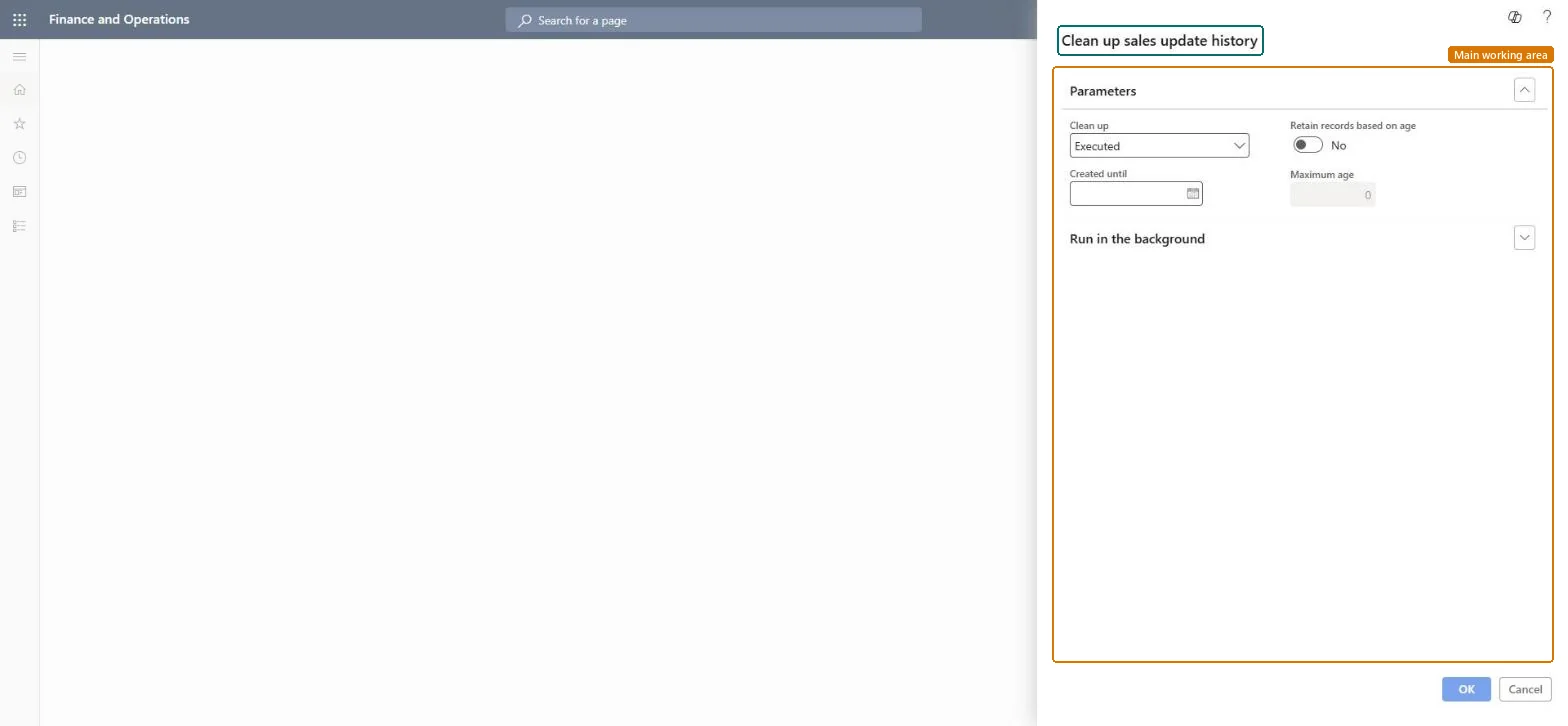
The page in Dynamics 365. page title tab to open what to set or check
About the examples: Examples and screenshots in this guide use BEAT, a demo company in a Dynamics 365 test environment. Use your own company's codes and values instead of copying them.
When to run it
When to run it
When sales update history builds up and slows down posting of confirmations, picking lists, packing slips and invoices, after you decide how many days of history you must keep.
How often
Every three months, and at most every six months, as Microsoft recommends.
Batch settings
Schedule it as a recurring batch job with Retain records based on age set to Yes, so the age is always counted from the run date. Each run stops after two hours and may have to run again.
What the output shows
Update history records older than the retention period, of the types chosen in Clean up, are deleted. If posting is still slow, check whether waiting or erroneous records were kept by the Clean up option.
Keep sales posting fast by deleting update history you no longer need, on a fixed schedule.
Steps from Microsoft
Go to Sales and marketing > Periodic tasks > Clean up > Sales update history cleanup.
In Clean up, choose Executed (only fully processed records, the safest), Executed and erroneous (the most common choice), or All (also waiting records that aren't yet processed).
Set Retain records based on age to Yes for a recurring job and enter the Maximum age in days to keep; set it to No to delete everything created before the Created until date.
On the Run in the background FastTab, set the schedule you decided on.
After the run, open History on update for a few sales orders and check that only records within the retention period remain; with large volumes the job stops after two hours and may need several runs.
The type of records to delete: Executed (only fully processed, the safest), Executed and erroneous (the most common), or All (also waiting records not yet processed).Microsoft Learn
Executed and erroneous
Retain records based on age
Yes deletes by age on the day the job runs (use it for a recurring job); No deletes records created before a fixed date.Microsoft Learn
Yes
Created until
Used only when Retain records based on age is No: records created before this date are deleted.Microsoft Learn
Maximum age
Used only when Retain records based on age is Yes: the age in days of the records to keep; older records are deleted.Microsoft Learn
90
Common errors and fixes
Message
What to do
Old update history is still there after the batch job finished.
The job runs for at most two hours per run; let the recurring job run again until all records older than the retention period are removed. Microsoft Learn
Test checklist
History on update shows no records older than the Maximum age or Created until date.
Waiting records are still there when Clean up wasn't set to All.
The batch job finished without errors, or ran again until all old records were removed.
Recurring batch job with Clean up = Executed and erroneous, Retain records based on age = Yes and a Maximum age agreed with the business; run it every three months and at most every six months.With Retain records based on age = Yes the age is counted from each run date, which is what a recurring job needs. Executed and erroneous is the most commonly used option.
On the live system, 7 roles can run this task, among them Sales manager, Accounts receivable manager, Rental manager and Retail service. The Sales history cleanup performance improvements feature splits the cleanup into batches and stops each run after two hours; it is on by default from 10.0.41 and mandatory from 10.0.43.
Sales update history of confirmations, picking lists, packing slips and invoices, of the record types chosen in Clean up. Microsoft Learn
Can it be undone
Irreversible: Deleted update history can't be restored. Decide first how many days of history you must keep, and test in a test environment. Microsoft Learn
If you change it later
Deletes sales update history records; History on update then shows only the retained records. Microsoft advises running cleanup routines only after confirming the data is no longer required, and testing them first. On the live system 7 roles can run it, among them Sales manager and Accounts receivable manager. Microsoft Learn
Technical architect
6Technical
Menu item
action:SalesParmCleanUpChecked in Dynamics 365
Form
DialogChecked in Dynamics 365
Roles to set it up and use it
To use itSales manager TradeSalesManagerRental manager RentalManagerRental coordinator agent RentalCoordinatorAgentAccounts receivable manager CustInvoiceAccountsReceivableManagerRetail service RetailServiceGive people one of these roles. On this system, 7 roles can run this page.Checked in Dynamics 365
Load order: Sales update history cleanup has no data entity in Data management. It deletes history; there is nothing to migrate.Checked in Dynamics 365