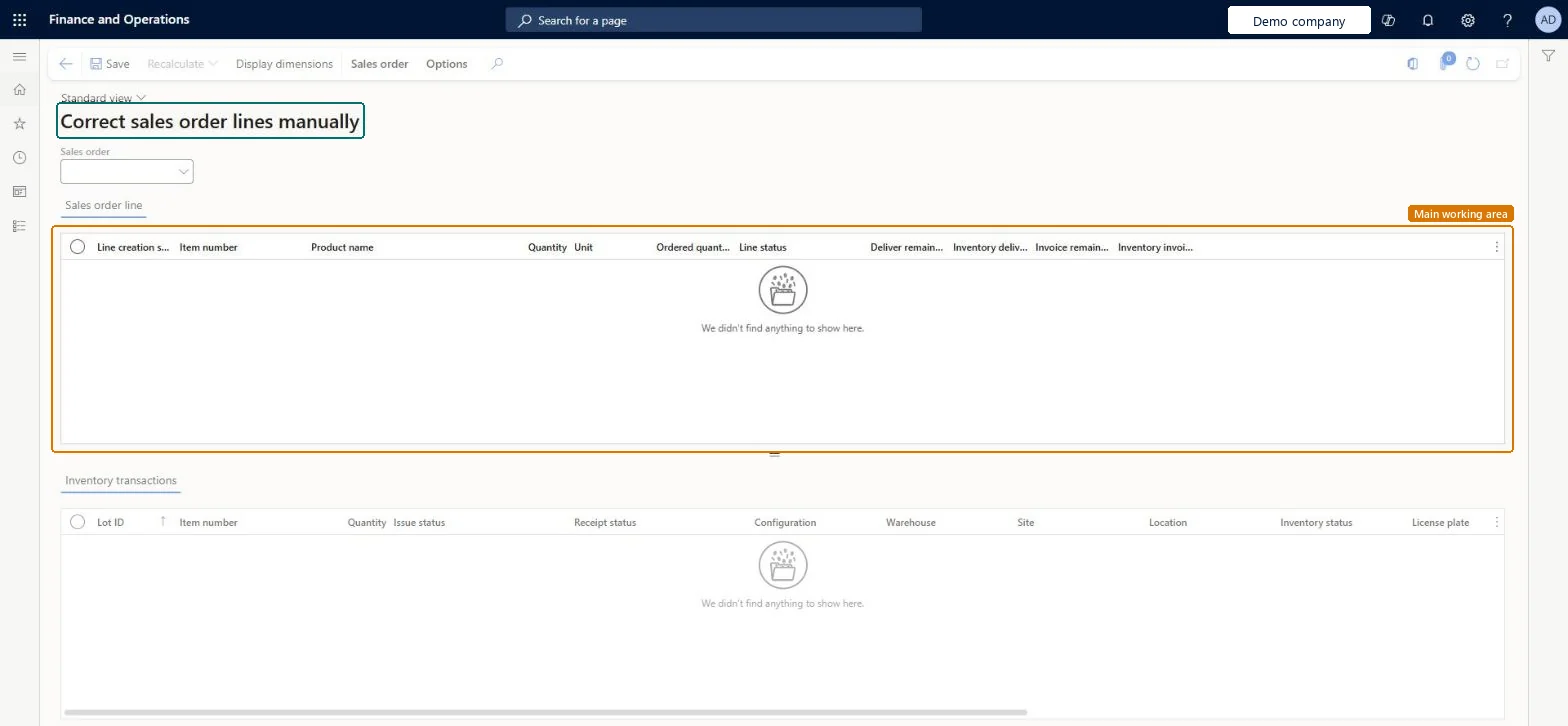
A data-correction tool that shows the lines of one sales order above the inventory transactions of the selected line, so a trained user can correct line data that doesn't match its transactions.
PAGE GUIDEWhat the page does and how to use it8 sections. Choose a role to highlight what matters to you.
Everyone
1What it is and why
What it is
A data-correction tool that shows the lines of one sales order above the inventory transactions of the selected line, so a trained user can correct line data that doesn't match its transactions.
What you do here
Use it only to repair a sales order whose line quantities or status no longer match its inventory transactions, after the problem has been analysed and tested in a copy.
Example
For example, on BEAT order SO-001234 line 2 shows Deliver remainder 5.00 although its inventory transactions are all sold; support confirms the cause, the fix is tried in a copy, then the line is corrected here and the old values are logged in the change ticket.
The page in Dynamics 365. page title tab to open what to set or check
About the examples: Examples and screenshots in this guide use BEAT, a demo company in a Dynamics 365 test environment. Use your own company's codes and values instead of copying them.
When to run it
When to run it
Only when a sales order line shows a quantity or status that doesn't match its inventory transactions and can't be fixed through the normal order process.
How often
On demand, only for the order with the data problem.
Source: Checked in Dynamics 365
Setup steps on this page
Restrict and control manual sales line correction
Repair sales order lines whose data no longer matches their inventory transactions, without creating new inconsistencies.
Steps from Microsoft
Go to Sales and marketing > Periodic tasks > Clean up > Correct sales order lines manually.
Reproduce the problem in a copy of production first and agree the correction with the person who owns the data.
In the Sales order field, select the order, and compare Quantity, Line status, Deliver remainder and Invoice remainder of each line with the Inventory transactions tab below.
Note the current values, correct the line, use Recalculate if you need it, and select Save.
Reopen the sales order and check that line status and remaining quantities now match the inventory transactions.
The issue status of each inventory transaction of the selected line.Checked in Dynamics 365
Warehouse
The warehouse of each inventory transaction of the selected line.Checked in Dynamics 365
Common errors and fixes
Message
What to do
The order status doesn't change after a line was corrected.
The order status follows the line quantities: it becomes Invoiced only when Invoice remainder and Deliver remainder are 0 for all lines. Check every line, not only the corrected one. Microsoft Learn
Test checklist
In a copy, open the order with the mismatch and note the line values.
Correct the line and select Save.
Check that Deliver remainder and Line status now fit the issue status of the transactions.
Post the next document for the order and check it posts without error.
Give the duty only to named support users; reproduce the problem in a copy, log the old values, then correct one line and reopen the order.Saves go directly to the order line outside the normal process, and the line status and remainders decide what the next posting does.
Hard to reverse: Changes are saved directly on the line and there is no undo on the page. Note the original values before you change them so you can put them back by hand, and try the fix in a copy first. Checked in Dynamics 365
If you change it later
Saves changes directly on the sales order line, outside the normal order process; line status and remainders drive what the next posting does. On the live system no standard role has the Correct sales order lines manually duty, so access must be granted on purpose. Checked in Dynamics 365
Technical architect
6Technical
Menu item
SalesLineManualCorrectionChecked in Dynamics 365
Form
SalesLineManualCorrectionChecked in Dynamics 365
Table
SalesLineShown as “Order lines” in Record infoKey field: SalesId, LineNumChecked in Dynamics 365
PrivilegesCorrect sales order lines manually SalesLineManualCorrectionDutiesCorrect sales order lines manually SalesLineManualCorrectionChecked in Dynamics 365
Actions on the page
Sales order: InventoryOptions: Page options, Edit, ShareChecked in Dynamics 365
SalesOrderLineV2Entity Loads sales order lines; it isn't a way to correct them.Load order: This page corrects existing lines; load sales order lines with Sales order lines V2 after the sales order headers.Checked in Dynamics 365