PAGE GUIDEWhat the page does and how to use it8 sections. Choose a role to highlight what matters to you.
Everyone
1What it is and why
What it is
A periodic job that recalculates and updates the summary totals for sales orders and sales quotations.
What you do here
Use this periodic task to keep the order and quotation totals, delivery figures and KPIs shown on inquiry pages, workspaces and analytics accurate.
Example
For example, after BEAT imports 3,500 sales orders with Data management, it runs the job once with Ignore documents updated before (days) = 2, and schedules it nightly at 01:00 with a 14-day look-back and Number of threads = 0.
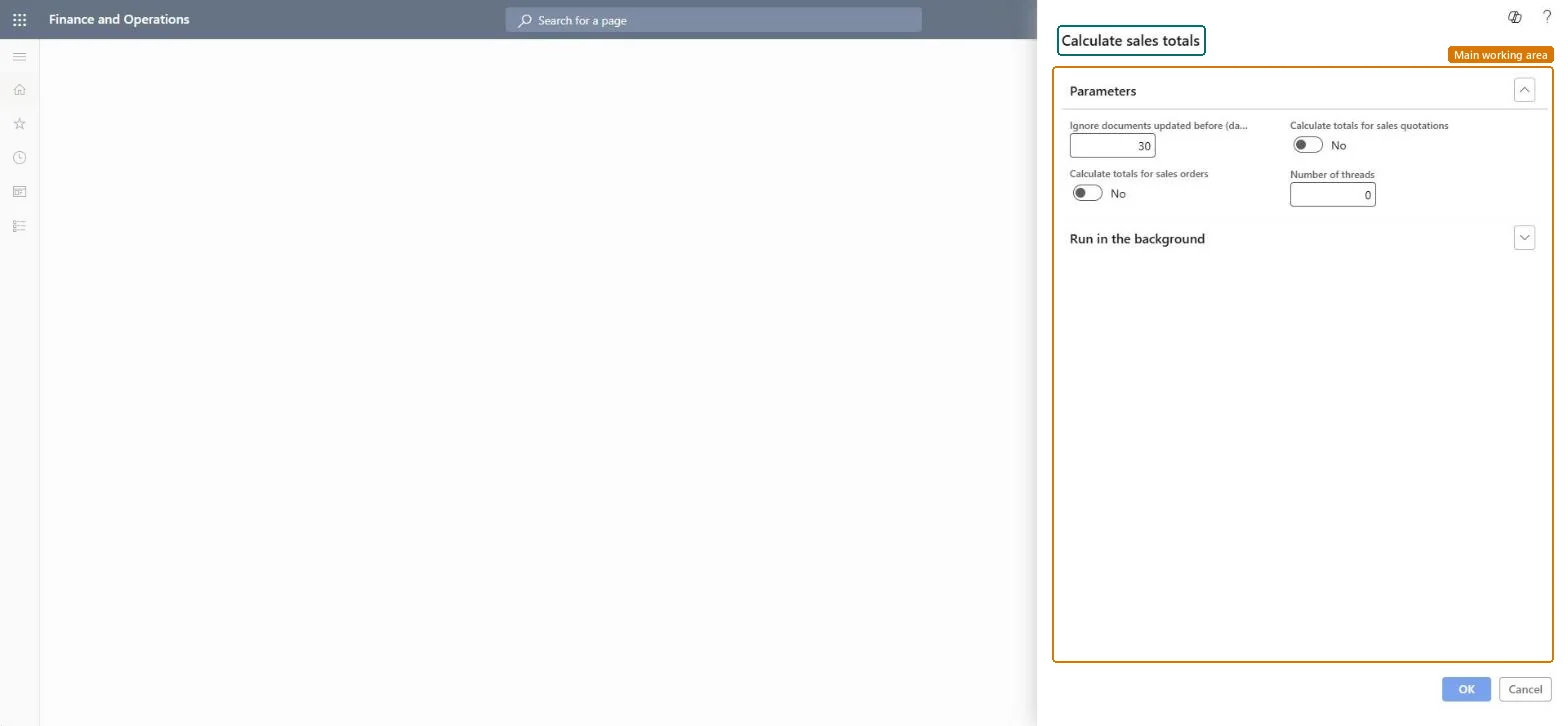
The page in Dynamics 365. page title tab to open what to set or check
About the examples: Examples and screenshots in this guide use BEAT, a demo company in a Dynamics 365 test environment. Use your own company's codes and values instead of copying them.
When to run it
When to run it
After bulk data imports or mass updates to sales orders or quotations, as part of month-end closing, and on a nightly schedule.
How often
Nightly, plus extra runs after bulk imports or mass updates.
Batch settings
Schedule it as a recurring nightly batch job outside peak hours with a 7 to 30 day look-back; avoid full historical recalculations in high-volume environments.
What the output shows
Updated order and quotation totals, delivery figures and KPI totals on inquiry pages, workspaces and analytics. If totals still look wrong, check for customizations that bypass update triggers.
Keep order and quotation totals and workspace KPIs accurate.
Steps from Microsoft
Go to Sales and marketing > Periodic tasks > Calculate sales totals.
In Ignore documents updated before (days), enter how far back to look; Microsoft recommends 7 to 30 days for routine runs.
Set Calculate totals for sales orders and Calculate totals for sales quotations to Yes for the document types you use; set quotations to No if you don't use sales quotations.
In Number of threads, enter the maximum parallel threads, or 0 to let the system decide; raise it if the job takes too long.
On the Run in the background FastTab, select Recurrence to set a nightly schedule.
Afterwards, open a few recently changed orders and quotations and check that the totals on inquiry pages and workspaces match their lines.
Recurring nightly batch job outside peak hours with a 7 to 30 day look-back, both document types Yes (quotations No if not used) and Number of threads 0; run it once more after bulk imports.Only documents updated within the look-back are recalculated, which balances freshness with performance; full historical runs are discouraged in high-volume environments.
On the live system, Sales manager runs this job. With the Dynamics 365 Sales integration, Microsoft recommends scheduling it so totals, taxes and freight charges are pushed to Sales regularly.
Sales orders and quotations last updated within the look-back period, for the document types set to Yes. Microsoft Learn
Can it be undone
Not needed: The job only recalculates stored totals from the order and quotation lines; running it again recalculates them. Postings don't change. Microsoft Learn
If you change it later
Recalculates stored totals and KPI values for sales orders and quotations used by inquiries, workspaces and analytics. Microsoft Learn
Technical architect
6Technical
Menu item
action:SalesTotalsCalculateChecked in Dynamics 365
Form
DialogChecked in Dynamics 365
Roles to set it up and use it
To use itSales manager TradeSalesManagerGive people one of these roles. On this system, 1 role can run this page.Checked in Dynamics 365
Load order: Calculate sales totals has no data entity in Data management. It recalculates stored totals; run it in the target system after you load orders and quotations.Checked in Dynamics 365