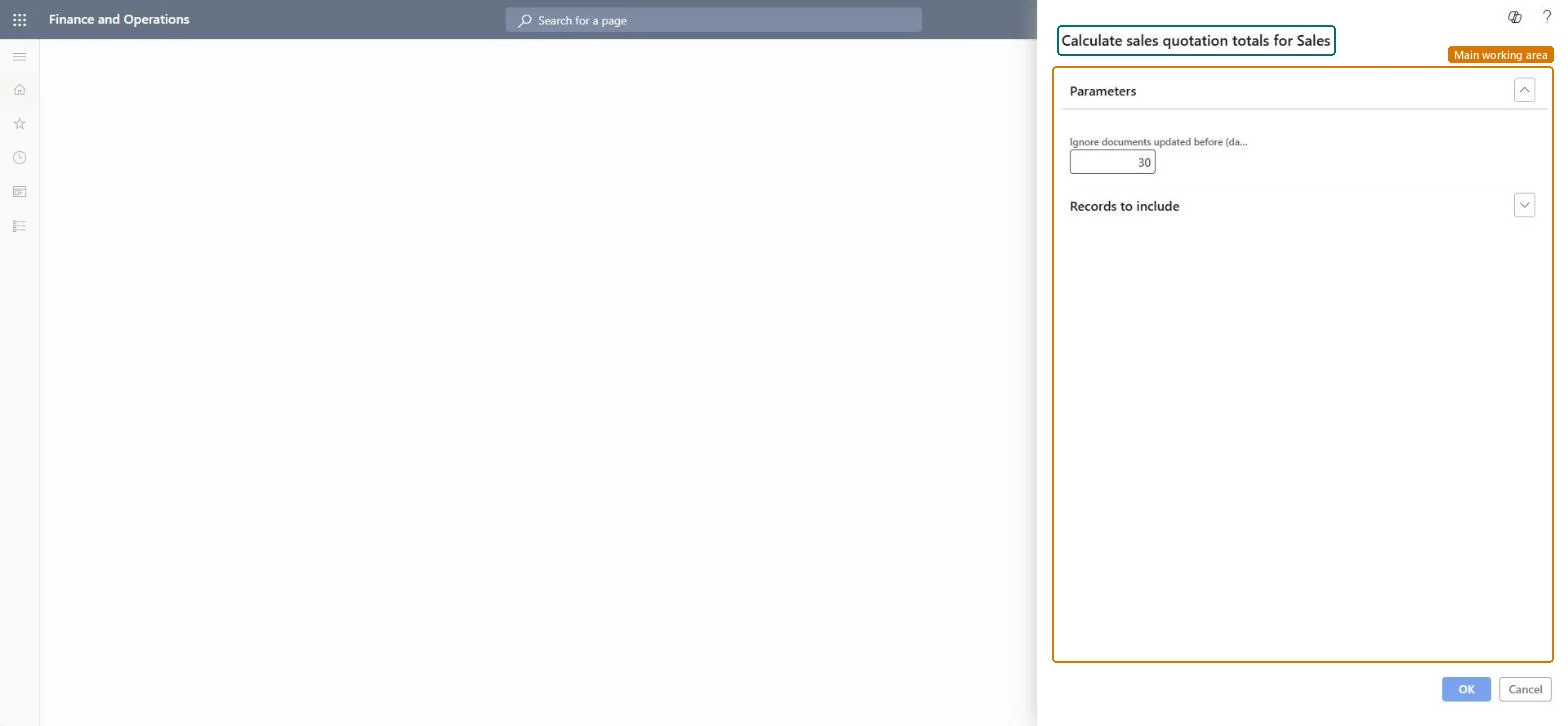
A periodic job that calculates new line and header totals for sales quotations and syncs them to Dynamics 365 Sales, without recalculating prices or discounts.
PAGE GUIDEWhat the page does and how to use it8 sections. Choose a role to highlight what matters to you.
Everyone
1What it is and why
What it is
A periodic job that calculates new line and header totals for sales quotations and syncs them to Dynamics 365 Sales, without recalculating prices or discounts.
What you do here
Use this periodic task to push up-to-date sales quotation totals to Dynamics 365 Sales as a one-time calculation.
Example
For example, BEAT updates the freight on 15 open quotations for customer BEAT-000123 and runs the job with Ignore documents updated before = 1 and a filter on that customer, so Dynamics 365 Sales shows the new totals while unit prices stay as quoted.
The page in Dynamics 365. page title tab to open what to set or check
About the examples: Examples and screenshots in this guide use BEAT, a demo company in a Dynamics 365 test environment. Use your own company's codes and values instead of copying them.
When to run it
When to run it
When sales quotations were updated in Supply Chain Management and their totals must be sent to Dynamics 365 Sales once, without recalculating prices or discounts.
How often
On demand only; the quotation version can't recur either, so routine syncing is left to Calculate sales totals.
Batch settings
Runs synchronously or asynchronously according to Calculate and push prices and totals in batch in Accounts receivable parameters.
What the output shows
New line and header totals for the selected sales quotations, synced to Dynamics 365 Sales. A quotation whose totals still differ usually needs its prices recalculated with Push price and totals.
Send updated quotation totals to Sales once, without recalculating prices or discounts.
Steps from Microsoft
Go to Sales and marketing > Periodic tasks > Calculate sales quotation totals for Sales.
In Ignore documents updated before, enter the age in days of the oldest sales quotation to process.
On the Records to include FastTab, select Filter to choose the quotations to push.
Use it for quotations whose prices are already right; it calculates totals only, so use Push price and totals on the quotation when prices or discounts must be recalculated.
Run it, then open the quotations in Dynamics 365 Sales and compare their Total amount with the quotation in Supply Chain Management.
Use it for quotations whose prices are already right, with a short look-back and a filter; use Push price and totals when prices or discounts must be recalculated.It calculates only new line and header totals and syncs them, and it can't be set to recur.
Integrate Sales Quotation lifecycle with Dynamics 365 SalesCalculate and push prices, discounts and totals for selective sales orders and sales quotations when integrated to Dynamics 365 Sales
Licence or add-in
On the live system, Sales manager runs this job. It needs Calculate and push prices on the Dynamics 365 Sales integration tab of Accounts receivable parameters, which requires the features Integrate Sales Quotation lifecycle with Dynamics 365 Sales and Calculate and push prices, discounts and totals for selective sales orders and sales quotations when integrated to Dynamics 365 Sales.
Load order: Calculate sales quotation totals for Sales has no data entity in Data management. It calculates and syncs totals; there is nothing to migrate.Checked in Dynamics 365