A report that prints sales order lines with basic details for each line, such as item number, sales price and discount, plus the quantity, amount and inventory dimension columns you choose. Its SSRS report is SalesLinesExtended.
Sales and marketingInquiries and reportsSales order reports
output:SalesLinesExtended
Business process
Manage sales orders
Menu item
output:SalesLinesExtended
Setup steps
1 on this page
Show what matters for
PAGE GUIDEWhat the page does and how to use it8 sections. Choose a role to highlight what matters to you.
Everyone
1What it is and why
What it is
A report that prints sales order lines with basic details for each line, such as item number, sales price and discount, plus the quantity, amount and inventory dimension columns you choose. Its SSRS report is SalesLinesExtended.
What you do here
Use it to review sales order lines outside the order page, for example their prices, discounts and margins before an order review.
Example
For example, BEAT's sales manager prints the open lines of item group CHAIRS with Net amount and Margin set to Yes; line 2 of SO-001288 shows a margin of -12.40 on CHAIR-01, so the discount on that line is checked.
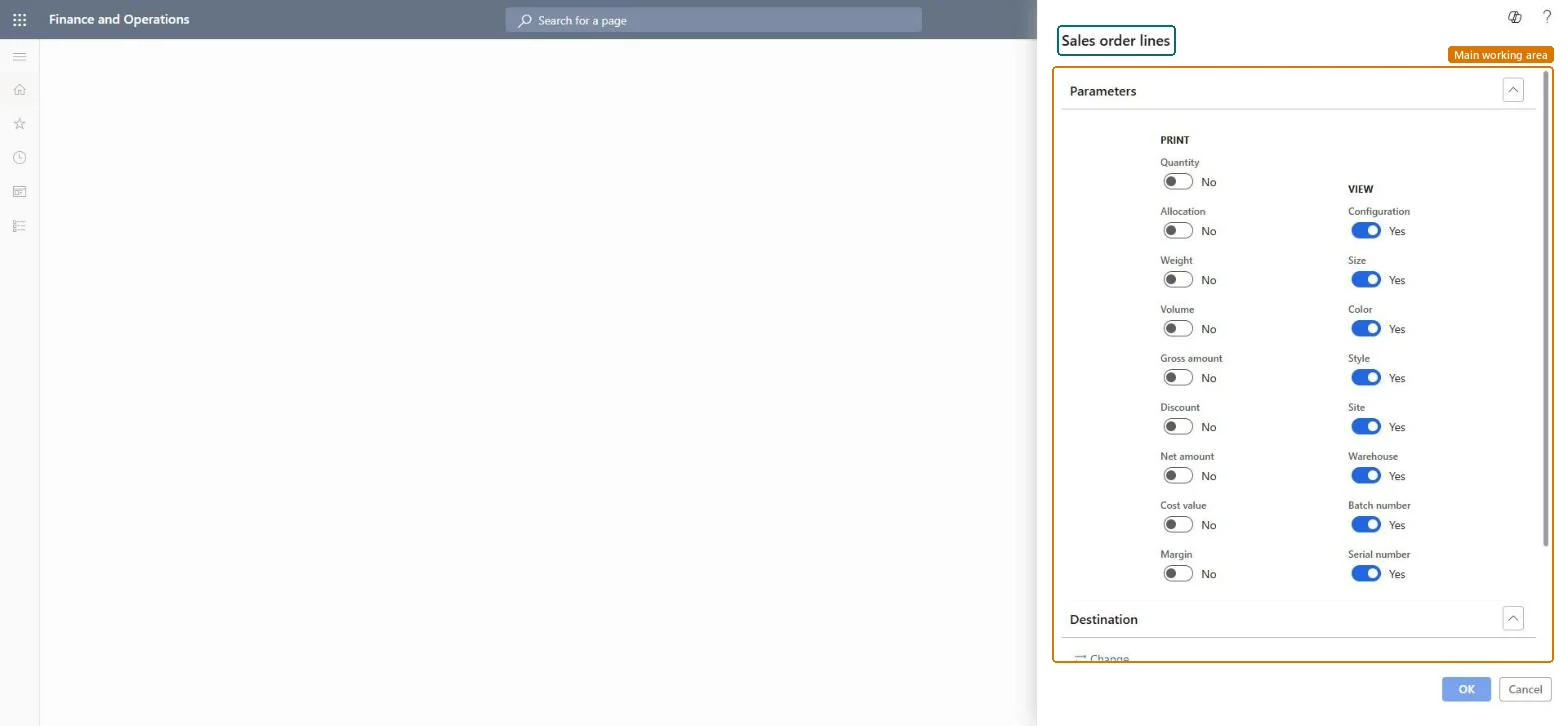
The page in Dynamics 365. page title tab to open what to set or check
About the examples: Examples and screenshots in this guide use BEAT, a demo company in a Dynamics 365 test environment. Use your own company's codes and values instead of copying them.
When to run it
When to run it
Before an order review, when lines must be checked outside the sales order page.
How often
On demand.
What the output shows
One row per sales order line with item number, sales price and discount, plus the figures chosen under Print and the dimensions chosen under View.
Print order lines with the figures needed for a price or margin review.
Steps from Microsoft
Go to Sales and marketing > Inquiries and reports > Sales order reports > Sales order lines.
Under Print, switch on the figures you need, for example Net amount, Discount and Margin for a price review.
Under View, switch on Site and Warehouse when lines ship from several warehouses, then select the order lines by item number, sales order or line status.
Read the lines with a low or negative margin and open their orders to check price and discount.
Check boxes that choose which line figures to print: Quantity, Allocation, Weight, Volume, Gross amount, Discount, Net amount, Cost value and Margin.Microsoft Learn
Net amount and Margin
View
Check boxes that choose which inventory dimensions to print for each line: Configuration, Size, Color, Site, Warehouse, Batch number and Serial number.Microsoft Learn
Common errors and fixes
Message
What to do
The margin or warehouse column is missing.
Columns are printed only when switched on: Margin under Print, Warehouse under View. Microsoft Learn
Test checklist
Pick a sales order with two lines.
Run the report for that sales order with Net amount and Margin under Print.
Check that both lines are printed with the net amount shown on the order.
Choose the Print figures first, then select the lines by item number, sales order or line status.The report prints only the figures switched on; a review without Margin or Discount can't show pricing problems.
On the live system, Sales manager, Rental manager, Rental coordinator agent, Accounts receivable clerk and Accounts receivable manager use this page; 18 roles can run it in total. No Feature management feature is needed to open it.
Checked in Dynamics 365
Solution architect
5Design impact
Shared or per company
Per company: the report reads the data of the legal entity you run it in. To compare legal entities, run it in each one. Checked in Dynamics 365
Can it be undone
Reversible: The report changes no data; it only reads sales order lines. Run it again with other parameters at any time. Checked in Dynamics 365
If you change it later
The report reads order lines at run time. In 10.0.49 its data provider can skip the reporting framework's transaction scope through the flight SalesSSRSReportSkipReportTransactionParmFlight, which reduces TempDB log pressure on large runs. Microsoft Learn
Technical architect
6Technical
Menu item
output:SalesLinesExtendedChecked in Dynamics 365
Form
SysOperationTemplateFormChecked in Dynamics 365
Roles to set it up and use it
To use itSales manager TradeSalesManagerRental manager RentalManagerRental coordinator agent RentalCoordinatorAgentAccounts receivable clerk CustInvoiceAccountsReceivableClerkAccounts receivable manager CustInvoiceAccountsReceivableManagerGive people one of these roles. On this system, 18 roles can run this page.Checked in Dynamics 365
Load order: Sales order lines (report) has no data entity in Data management. It is a report: it reads sales order lines and stores nothing of its own.Checked in Dynamics 365