About the examples: Examples and screenshots in this guide use BEAT, a demo company in a Dynamics 365 test environment. Use your own company's codes and values instead of copying them.
When to run it
When to run it
During the business day, after each run of Calculate transactional statements in batch.
How often
High frequency throughout the day, at the same pace as the transactional statement calculation.
Batch settings
A recurring batch job with a short interval that follows the calculation job, so inventory, revenue and payments are recognized close to real time.
What the output shows
Posted transactional statements with sales orders, sales invoices, payment journals, discount journals and income-expense transactions. Statements that still show on the Statements page have errors and weren't posted.
Go to Retail and Commerce > Retail and Commerce IT > POS posting > Post transactional statements in batch.
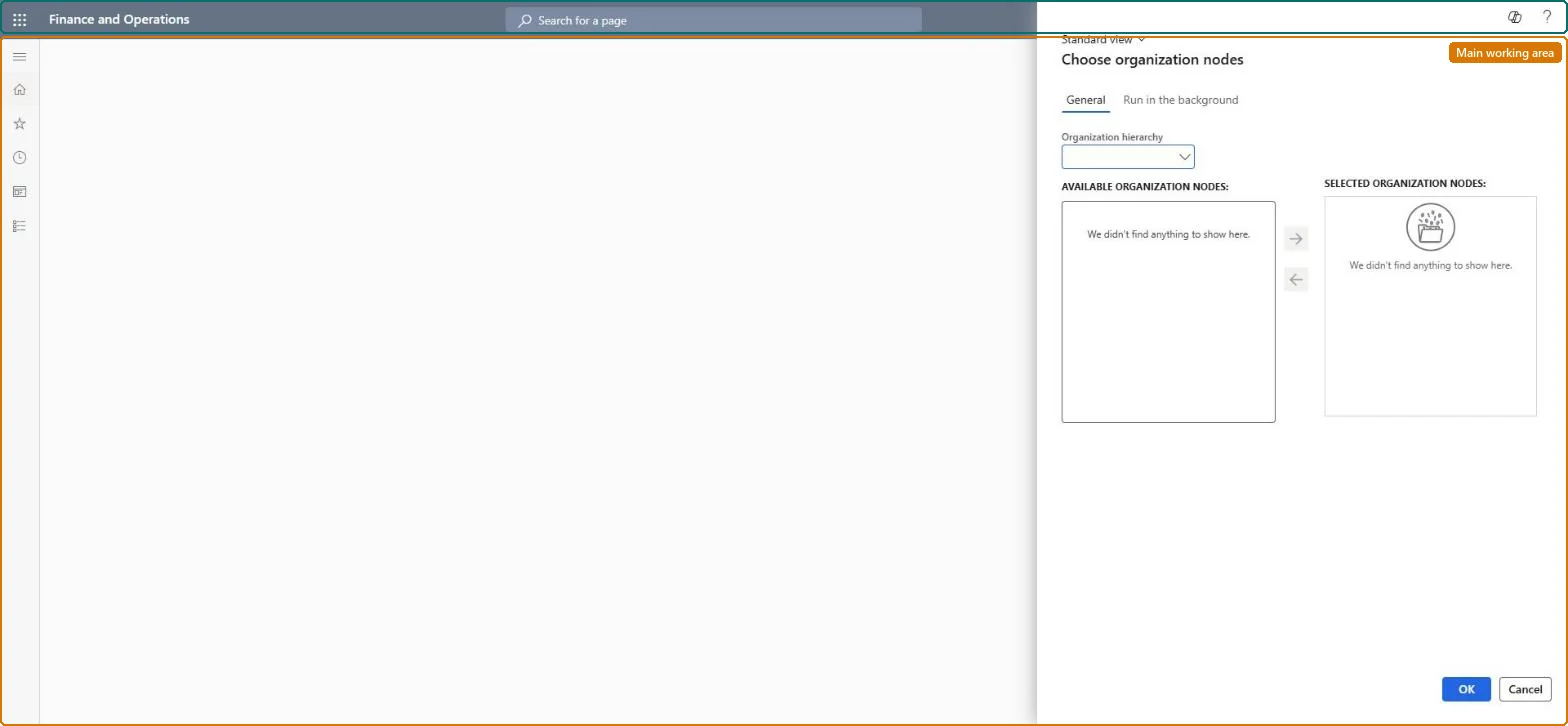
On the General tab, take the Organization hierarchy and select the stores whose calculated transactional statements should be posted.
Schedule it at a high frequency, right after Calculate transactional statements in batch.
Open the Statements page to find statements that weren't posted because of errors; the job skips them and keeps posting the others. Fix them so the next run posts them.
Check the sales orders and invoices created for the posted statements, and that store inventory is updated.
No: Posted sales orders, invoices and journals stay posted. Correct mistakes with returns or new transactions. Microsoft Learn
If you change it later
Creates and posts sales orders, invoices, payment and discount journals and income-expense transactions for the calculated statements. Microsoft Learn
Technical architect
5Technical
Menu item
RetailEodTransactionalStatementPost_BatchChecked in Dynamics 365
Form
RetailOperatingUnitPickerChecked in Dynamics 365
Roles to set it up and use it
To use itRetail service RetailServiceRetail operations manager RetailOperationsManagerRetail store manager RetailStoreManagerGive people one of these roles. On this system, 3 roles can run this page.Checked in Dynamics 365