Retail and CommerceRetail and Commerce ITPOS posting
RetailEodFinancialStatementPost_Batch
Business process
Post store end-of-day financial statements in Dynamics 365 Commerce
Menu item
RetailEodFinancialStatementPost_Batch
Show what matters for
PAGE GUIDEWhat the page does and how to use it7 sections. Choose a role to highlight what matters to you.
Everyone
1What it is and why
What it is
A batch job that posts calculated financial statements.
What you do here
Use this page to schedule end-of-day posting of financial statements, which create journals for tender count differences and other cash management transactions.
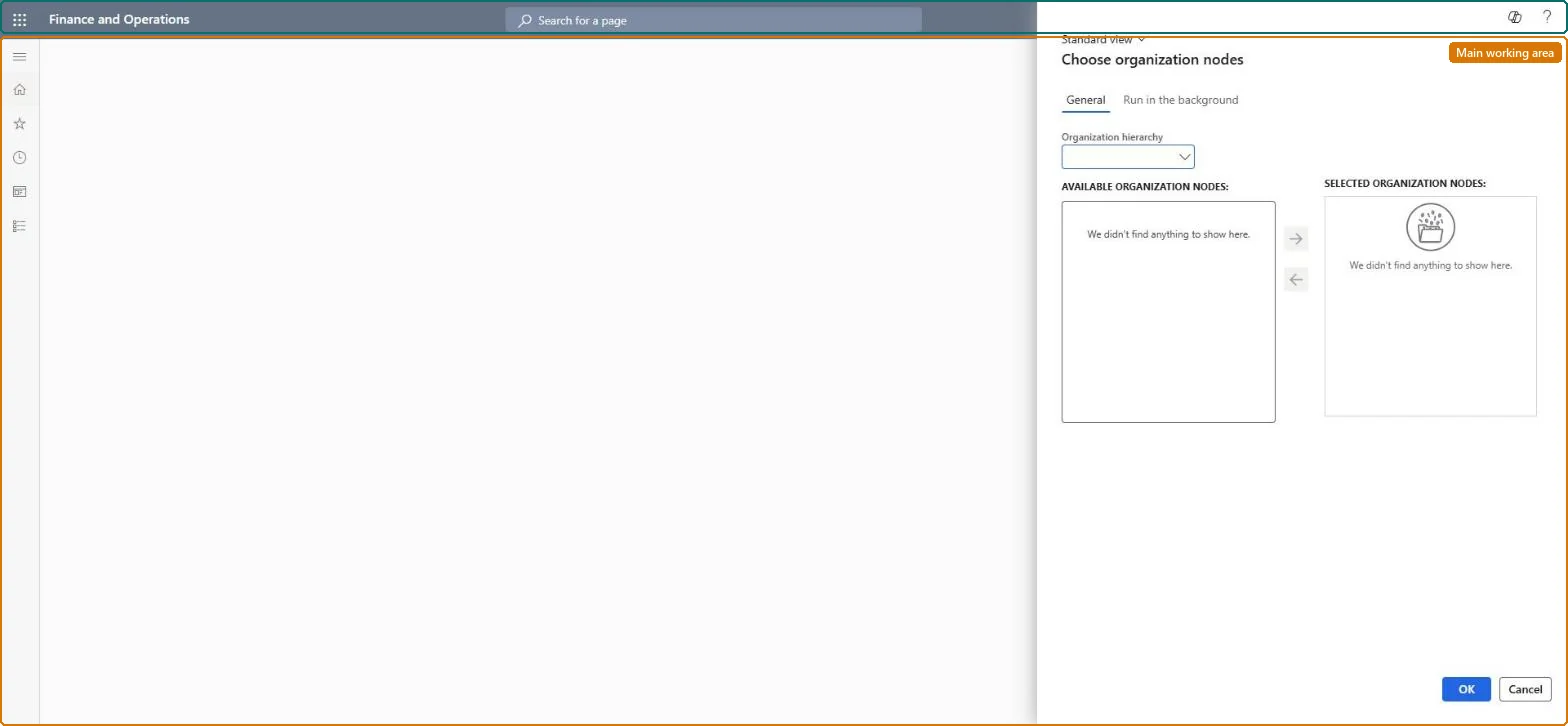
The page in Dynamics 365. page title tab to open what to set or check
About the examples: Examples and screenshots in this guide use BEAT, a demo company in a Dynamics 365 test environment. Use your own company's codes and values instead of copying them.
When to run it
When to run it
At end of day, after Calculate financial statements in batch has created the financial statements for closed shifts.
How often
Once per business day, right after the financial statement calculation.
Batch settings
A daily recurring batch job per store group that starts after the financial statement calculation job.
What the output shows
Posted financial statements with journals for the difference between counted and transaction amounts per tender, and for other cash management transactions. A large difference journal usually points to a wrong tender declaration in POS.
Go to Retail and Commerce > Retail and Commerce IT > POS posting > Post financial statements in batch.
On the General tab, use the Organization hierarchy to move the stores whose calculated financial statements should be posted into Selected organization nodes.
Schedule it after Calculate financial statements in batch, around the end of the business day.
After it runs, open the Posted statements tab in Store financials and check the journals created for tender count differences and other cash management transactions.
No: Posted financial statements and their journals stay in the ledger; correct a wrong difference with a new transaction. Microsoft Learn
If you change it later
Posts financial statements and creates journals for tender count differences and other cash management transactions. Microsoft Learn
Technical architect
5Technical
Menu item
RetailEodFinancialStatementPost_BatchChecked in Dynamics 365
Form
RetailOperatingUnitPickerChecked in Dynamics 365
Roles to set it up and use it
To use itRetail service RetailServiceRetail operations manager RetailOperationsManagerRetail store manager RetailStoreManagerGive people one of these roles. On this system, 3 roles can run this page.Checked in Dynamics 365