About the examples: Examples and screenshots in this guide use BEAT, a demo company in a Dynamics 365 test environment. Use your own company's codes and values instead of copying them.
When to run it
When to run it
At the end of each business day, after the shifts of the stores are closed.
How often
Once per business day, as an end-of-day process.
Batch settings
A recurring daily batch job per store group, scheduled after store closing and before Post financial statements in batch.
What the output shows
New financial statements per closed shift with tender declaration, payment, banked tender and safe tender transactions, and the difference between counted and transaction amounts. A shift that's missing was usually not closed yet.
Go to Retail and Commerce > Retail and Commerce IT > POS posting > Calculate financial statements in batch.
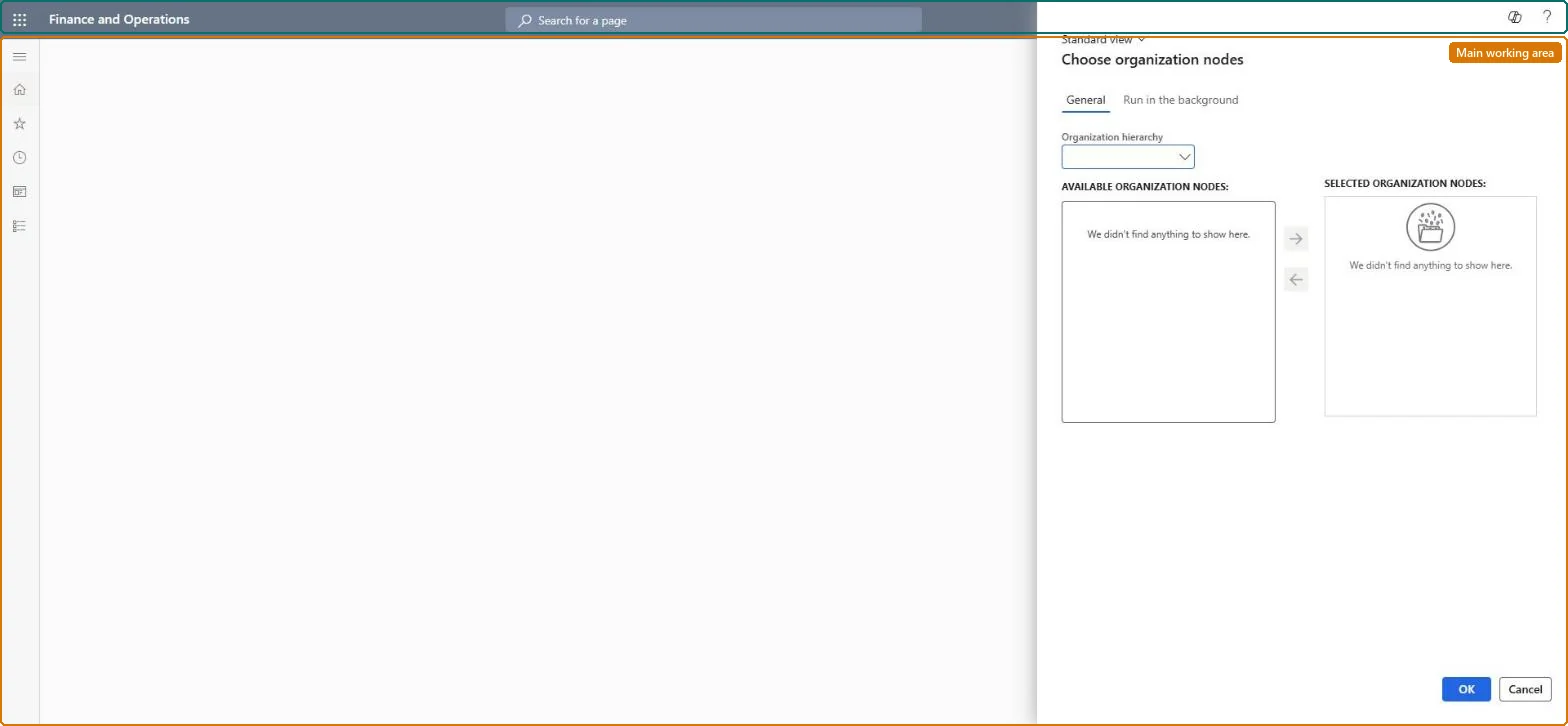
On the General tab, choose the Organization hierarchy and add the stores whose end-of-day financial statements you want, moving them to Selected organization nodes.
Set the start and end times around the expected end of the business day: financial statements only use the Shift closing method and pick up closed shifts only.
Make sure the Retail statements - Trickle feed feature is enabled; this job belongs to trickle feed posting.
After it runs, open the new financial statement in Store financials and review the tender details: counted amounts from tender declarations against transaction amounts.
Yes, before posting: A calculated statement isn't posted yet. Use Clear statement in the Functions group to release its transactions before you post. Microsoft Learn
If you change it later
Creates financial statements and marks the unposted tender and cash management transactions of closed shifts with the statement. Microsoft Learn
Technical architect
5Technical
Menu item
RetailEodFinancialStatementCalculate_BatchChecked in Dynamics 365
Form
RetailOperatingUnitPickerChecked in Dynamics 365
Roles to set it up and use it
To use itRetail service RetailServiceRetail operations manager RetailOperationsManagerRetail store manager RetailStoreManagerGive people one of these roles. On this system, 3 roles can run this page.Checked in Dynamics 365