About the examples: Examples and screenshots in this guide use BEAT, a demo company in a Dynamics 365 test environment. Use your own company's codes and values instead of copying them.
When to run it
When to run it
When sales update history from confirmations, picking lists, packing slips and invoices has piled up and starts to slow down sales posting.
How often
Every three months, and at least every six months, as Microsoft recommends.
Batch settings
Run it as a recurring batch job with Retain records based on age set to Yes. Each run stops after two hours, so the first cleanup of a large backlog may take several runs.
What the output shows
Old update history records are deleted, so the History on update page shows only recent records. If posting stays slow, the backlog may need more runs, or the Clean up choice may be keeping erroneous records.
Go to Retail and Commerce > Retail and Commerce IT > Clean up > Sales update history cleanup.
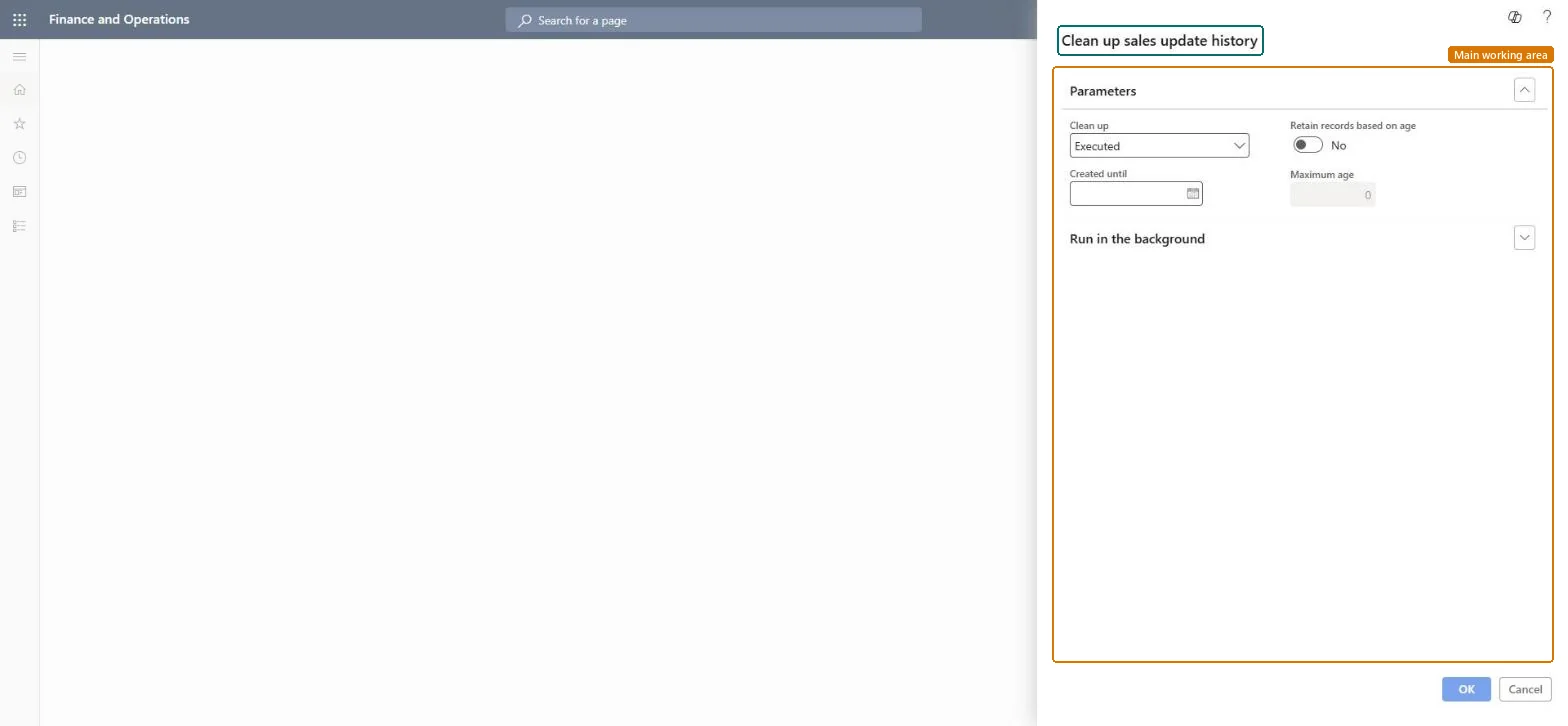
In the Clean up field, select Executed to delete only fully processed records, Executed and erroneous to also delete records with errors, or All to also delete waiting records that aren't fully processed yet.
Set Retain records based on age to Yes for a recurring job, so the age is calculated on the day it runs; set it to No to delete records created before a fixed date.
Enter the Maximum age in days (when the option is Yes) or the Created until date (when it is No).
Schedule it on the Run in the background FastTab, then check the batch job history: one run lasts at most two hours, so a large backlog can need several runs.
Post a sales confirmation or invoice afterwards and check that posting is as fast as expected.
No: Deleted update history can't be restored. Choose All only if you also want waiting records deleted. Microsoft Learn
If you change it later
Choosing All also deletes waiting records, which are valid but not yet fully processed. Microsoft Learn
Technical architect
5Technical
Menu item
SalesParmCleanUpChecked in Dynamics 365
Form
DialogChecked in Dynamics 365
Roles to set it up and use it
To use itRetail service RetailServiceSales manager TradeSalesManagerInformation technology manager SysServerITManagerRental manager RentalManagerRental coordinator agent RentalCoordinatorAgentGive people one of these roles. On this system, 7 roles can run this page.Checked in Dynamics 365