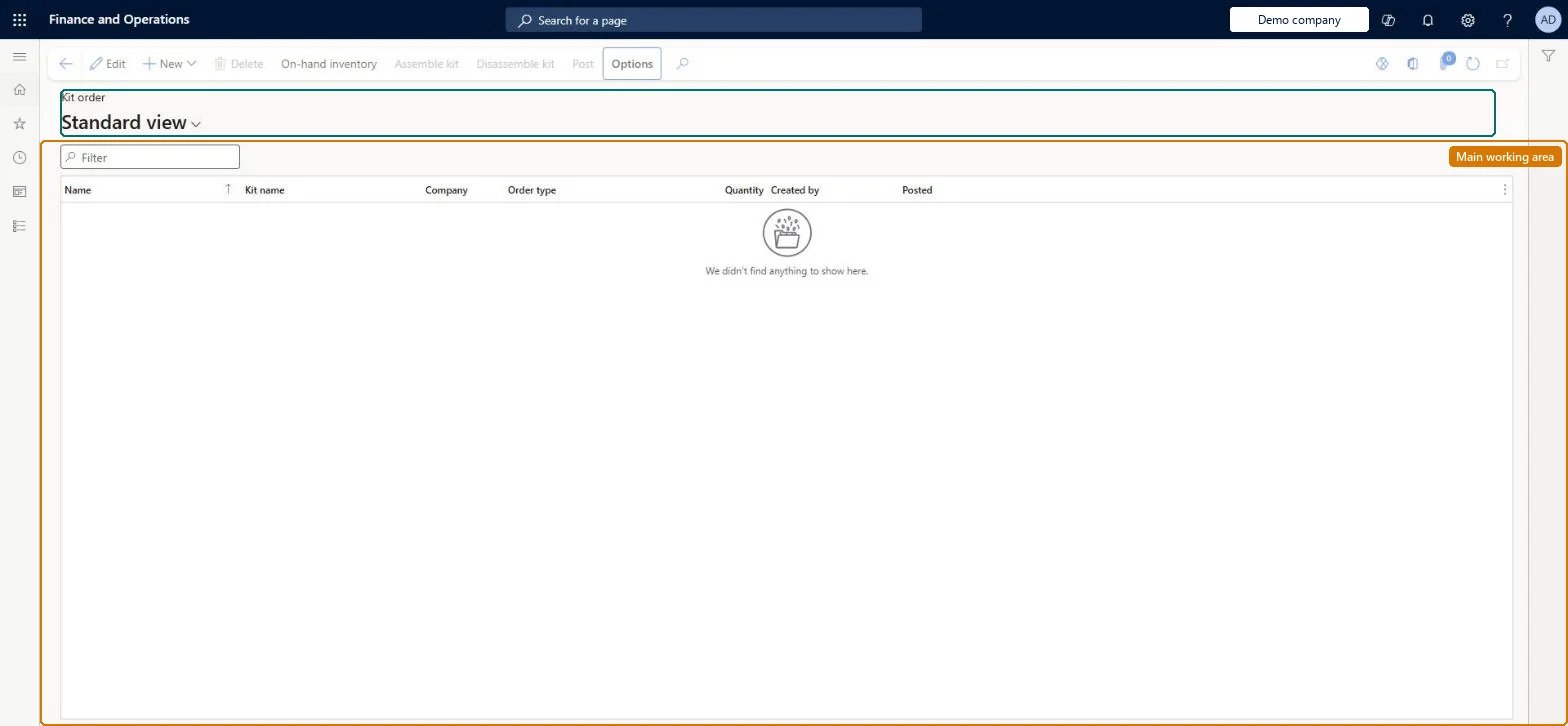
A list page of assembly and disassembly orders for product kits, which tell a warehouse how many kits to assemble or take apart and track the related BOM journals.
Product designer, Retail catalog manager, Retail merchandising manager and 2 more roles
Business process
Combine two or more products to create a bundle in Dynamics 365 Commerce
Menu item
RetailKitAssembleKit
Main table
RetailKitOrder
Data entity
RetailKitOrderEntity
Show what matters for
PAGE GUIDEWhat the page does and how to use it7 sections. Choose a role to highlight what matters to you.
Everyone
1What it is and why
What it is
A list page of assembly and disassembly orders for product kits, which tell a warehouse how many kits to assemble or take apart and track the related BOM journals.
What you do here
Use this page to manually create an assembly or disassembly order for a product kit, enter the quantity per kit configuration, view the BOM journal entries, and later assemble or disassemble and post the order.
Example
For example, create an assembly order when stores need more of a kit, or a disassembly order to return the components of a kit you no longer sell to inventory.
The page in Dynamics 365. page title tab to open what to set or check
About the examples: Examples and screenshots in this guide use BEAT, a demo company in a Dynamics 365 test environment. Use your own company's codes and values instead of copying them.
Steps from Microsoft
Go to Retail and Commerce > Products and categories > Kit orders.
On the Action Pane, select Order.
In the Create a new kit order dialog box, set Order type, Product kit, Company and Warehouse, then select OK.
Double-click the new order in the list.
On the Configurations FastTab, enter the Quantity to assemble or disassemble for each kit configuration.
Close the page to create the order.
To view the BOM journal entries, open the order and select View BOM journal on the Configurations FastTab.
When the kits are built, select Assemble kit (or Disassemble kit), enter the Assembled quantity and select Post.
Hard to reverse: Once an assembly order is posted, it is not changed. To take kits apart again, create a disassembly order, which returns the individual kit products to inventory. If a sales line quantity increases after its assembly order is posted, a separate assembly order is needed. Microsoft Learn
If you change it later
Posting an order moves inventory between the kit and its components and closes the order; a posted order cannot be reused, and discontinuing a kit prevents new assembly orders. Microsoft Learn
Technical architect
5Technical
Menu item
RetailKitAssembleKitChecked in Dynamics 365
Form
RetailKitAssembleKitChecked in Dynamics 365
Table
RetailKitOrderShown as “KIT ORDERS” in Record infoKey field: NameChecked in Dynamics 365
To set it up or change itRetail service RetailServiceRetail merchandising manager RetailMerchandisingManagerProduct designer BOMProductDesignerRetail warehouse clerk RetailWarehouseClerkTo use itRetail catalog manager RetailCatalogManagerGive people one of these roles. On this system, 5 roles can open this page.Checked in Dynamics 365
Actions on the page
(Action Pane without tabs): New, Delete, On-hand inventory, Assemble kit, Disassemble kit, PostChecked in Dynamics 365