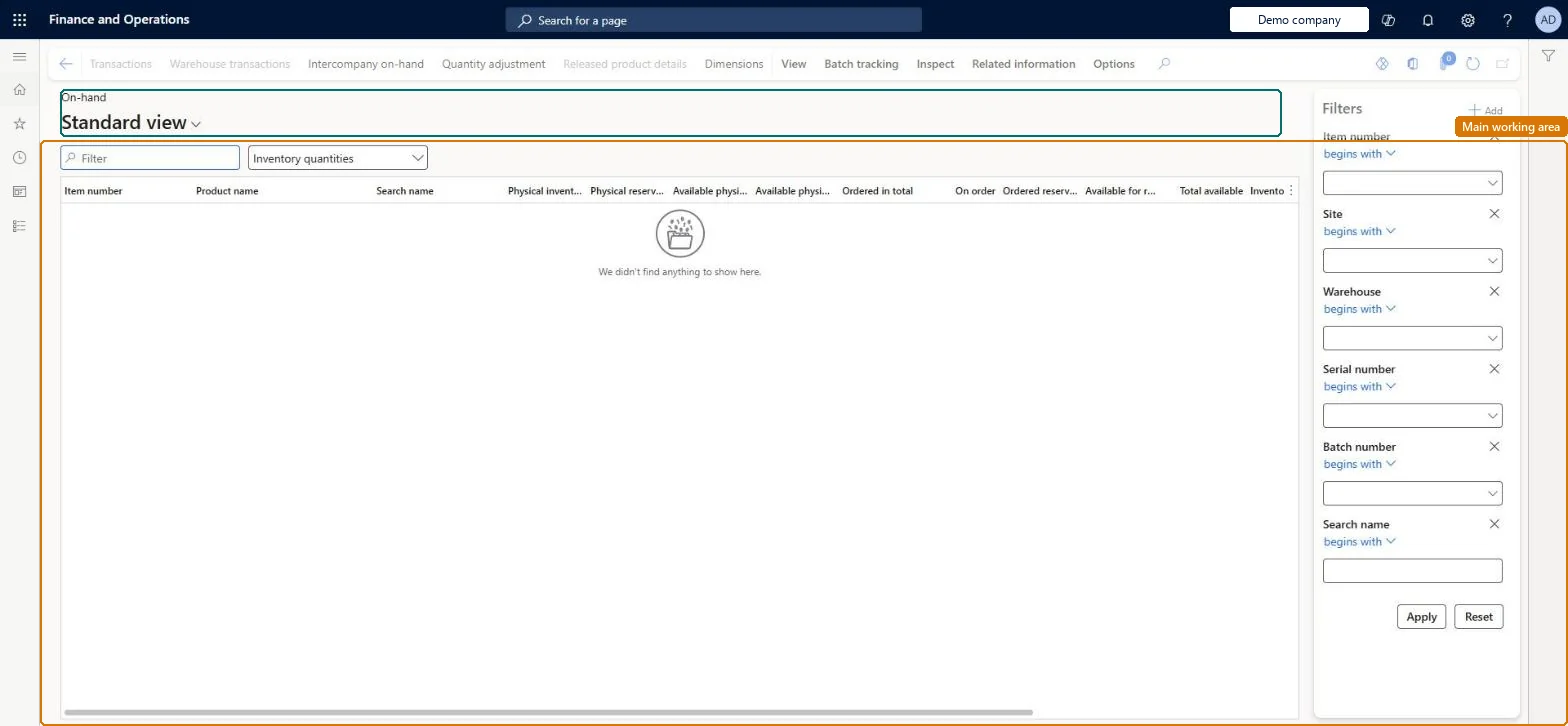
An inquiry page that shows a summarised view of on-hand inventory, filtered and broken down by product, storage and tracking dimensions, with physical, reserved, ordered and available quantities.
Product designer, Product design manager, Maintenance clerk and 28 more roles
Business process
Maintain inventory levels
Menu item
RetailInventOnHandQuantity
Main table
InventSum
Data entity
InventWarehouseOnHandCDSEntity
Show what matters for
PAGE GUIDEWhat the page does and how to use it7 sections. Choose a role to highlight what matters to you.
Everyone
1What it is and why
What it is
An inquiry page that shows a summarised view of on-hand inventory, filtered and broken down by product, storage and tracking dimensions, with physical, reserved, ordered and available quantities.
What you do here
Use this page to see where goods are, what is available, what is expected and what is reserved, and to drill into the inventory and warehouse transactions behind each figure.
Example
For example, add the Location storage dimension to see one row per warehouse location instead of one row per warehouse.
The page in Dynamics 365. page title tab to open what to set or check
About the examples: Examples and screenshots in this guide use BEAT, a demo company in a Dynamics 365 test environment. Use your own company's codes and values instead of copying them.
Steps from Microsoft
Go to Retail and Commerce > Inventory management > Quantity on hand.
In the Filters pane, specify the product and locations to view, then select Apply.
On the Action Pane, select Dimensions and tick the dimensions to show in the grid; select OK.
Review the Physical inventory, Available physical, On order and Total available columns.
Select Transactions or Warehouse transactions to see the transactions behind a value.
Reversible: An inquiry: filters and the dimensions you show change only the view. Filters in the Filters pane apply to the detailed source rows, not to the aggregated rows shown. Microsoft Learn
Technical architect
5Technical
Menu item
RetailInventOnHandQuantityChecked in Dynamics 365
Form
InventOnhandItemChecked in Dynamics 365
Table
InventSumShown as “ON-HAND INVENTORY” in Record infoKey field: ItemId, InventDimIdChecked in Dynamics 365
Data entities
InventWarehouseOnHandCDSEntityCDS inventory on-hand by warehouse Microsoft data model
Who can open it
PrivilegesView on-hand inventory per item InventOnhandItemViewDutiesInquire into related inventory status InventRelatedInventoryStatusInquireInquire into related inventory status InventRelatedInventoryStsInqrWithoutRepInquire into inventory status InventStatusInquireInquire into service orders SMAServiceOrderProgressInquireMaintain service orders SMAServiceOrdersMaintainInquire into warehouse operation progress WMSWarehouseOperationProgressInquire32 security rolesProduct designer BOMProductDesignerProduct design manager BOMProductDesignManagerMaintenance clerk EntAssetMaintenanceClerkMaintenance manager EntAssetMaintenanceManagerField Service Integration User FieldServiceIntegrationUserInventory accountant InventCostAccountantInventory accountant clerk InventCostCostClerkMaterials manager InventMaterialsManagerQuality control clerk InventQualityControlClerkQuality control manager InventQualityControlManagerReceiving clerk InventReceivingClerkShipping clerk InventShippingClerkAccounting manager LedgerAccountingManagerMCRTestUserRoleProduction manager ProdProductionManagerProduction supervisor ProdProductionSupervisorProject assistant ProjProjectClerkProject manager ProjProjectManagerRetail service RetailServiceRetail store manager RetailStoreManagerService dispatcher SMADispatcherField service technician SMAFieldServiceTechnicianService delivery manager SMAServiceDeliveryManagerBuying agent TradeBuyingAgentCustomer service manager TradeCustomerServiceManagerCustomer service representative TradeCustomerServiceRepresentativePurchasing manager TradePurchasingManagerSales clerk TradeSalesClerkSales manager TradeSalesManagerSales representative TradeSalesRepresentativeWarehouse manager WMSWarehouseManagerWarehouse worker WMSWarehouseWorkerChecked in Dynamics 365
Roles to set it up and use it
To use itRetail service RetailServiceRetail store manager RetailStoreManagerSales manager TradeSalesManagerSales clerk TradeSalesClerkSales representative TradeSalesRepresentativeGive people one of these roles. On this system, 31 roles can open this page.Checked in Dynamics 365
Actions on the page
View: ViewBatch tracking: Batch trackingInspect: InspectRelated information: Related information(Action Pane without tabs): Transactions, Warehouse transactions, Intercompany on-hand, Quantity adjustment, Released product details, DimensionsChecked in Dynamics 365