About the examples: Examples and screenshots in this guide use BEAT, a demo company in a Dynamics 365 test environment. Use your own company's codes and values instead of copying them.
How to use it
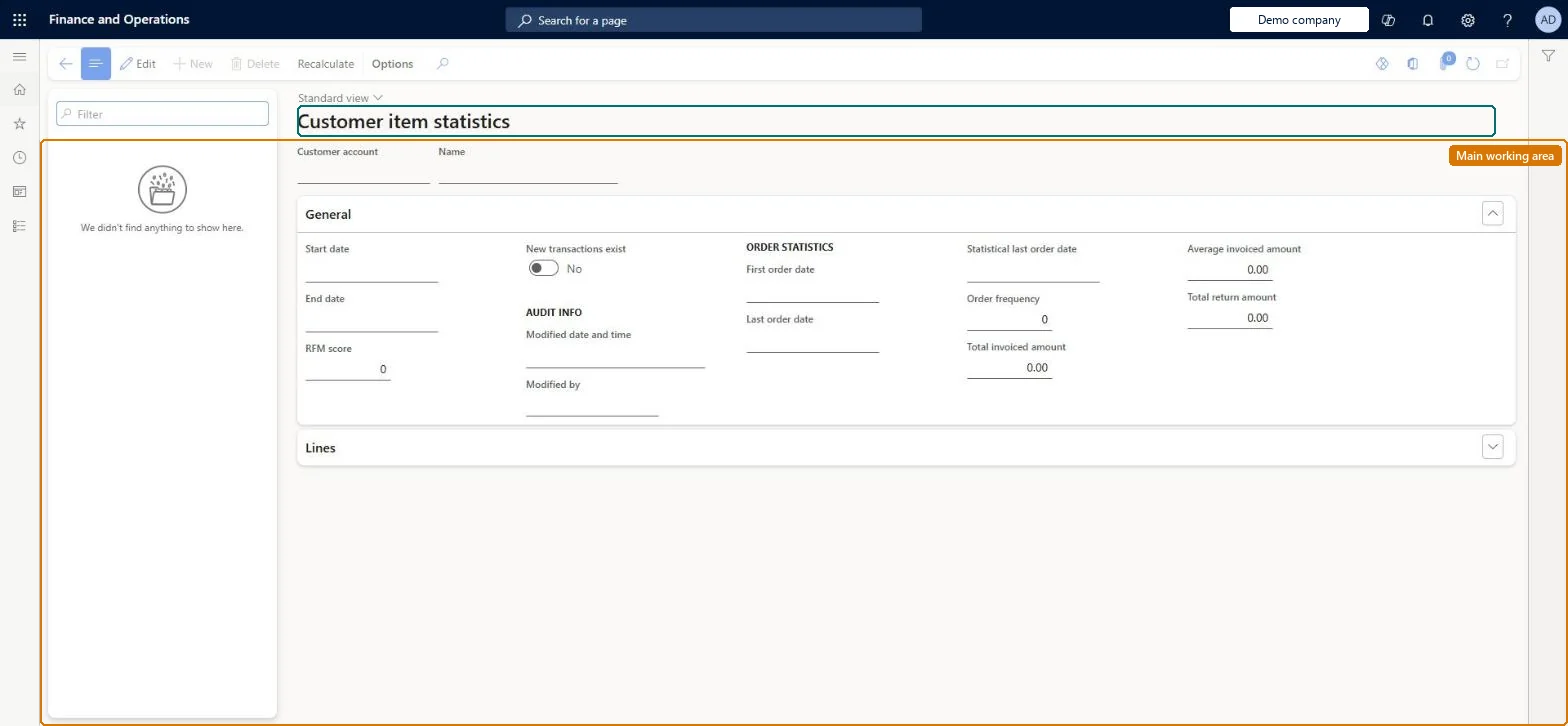
Go to Retail and Commerce > Inquiries and reports > Customer item statistics.
Use the Filter box to find a customer.
Under General, review the Start date, End date, RFM score, order statistics (first and last order date, order frequency) and invoiced and returned amounts.
Expand Lines for the item statistics, and select Recalculate to refresh them.
Source: Checked in Dynamics 365
Technical architect
4Technical
Menu item
MCRSalesStatsCustChecked in Dynamics 365
Form
MCRSalesStatsCustTableChecked in Dynamics 365
Table
MCRSalesStatsCustTableShown as “SALES STATISTICS” in Record infoKey field: CustAccountChecked in Dynamics 365
Who can open it
PrivilegesMaintain customer item statistics MCRSalesStatsCustMaintainDutiesMaintain sales order MCRSalesMaintainMaintain sales order MCRSalesOrderMaintain7 security rolesMCRTestUserRoleRetail service RetailServiceCustomer service manager TradeCustomerServiceManagerCustomer service representative TradeCustomerServiceRepresentativeSales clerk TradeSalesClerkSales manager TradeSalesManagerSales representative TradeSalesRepresentativeChecked in Dynamics 365
Roles to set it up and use it
To set it up or change itRetail service RetailServiceSales manager TradeSalesManagerSales clerk TradeSalesClerkSales representative TradeSalesRepresentativeCustomer service representative TradeCustomerServiceRepresentativeGive people one of these roles. On this system, 6 roles can open this page.Checked in Dynamics 365
Actions on the page
(Action Pane without tabs): RecalculateChecked in Dynamics 365