Retail and CommerceInquiries and reportsCommerce Data Exchange
RetailCDXUploadSession
Used by
Retail operations manager, Retail service, Retail store IT and 2 more roles
Business process
Manage sales channels
Menu item
RetailCDXUploadSession
Main table
RetailCDXUploadSession
Show what matters for
PAGE GUIDEWhat the page does and how to use it6 sections. Choose a role to highlight what matters to you.
Everyone
1What it is and why
What it is
An inquiry page that lists the Commerce Data Exchange sessions that upload transactions from channel and offline databases to headquarters.
What you do here
Use this page to see how many rows each upload holds, when it was made available and synced, and to troubleshoot uploads by viewing errors or cancelling or deleting a problem job.
Example
For example, if store transactions are not reaching headquarters, check Upload sessions to see whether upload sessions are being created at all.
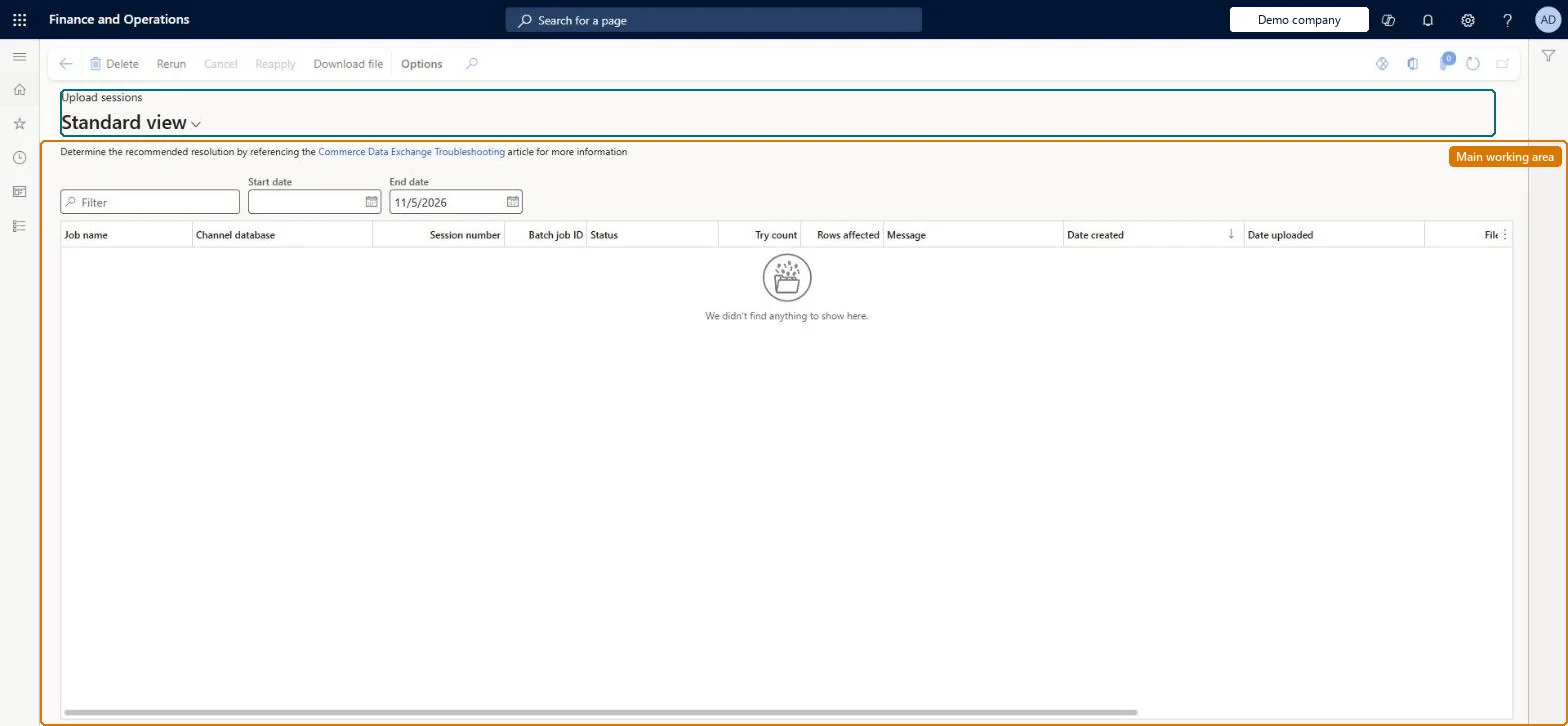
The page in Dynamics 365. page title tab to open what to set or check
About the examples: Examples and screenshots in this guide use BEAT, a demo company in a Dynamics 365 test environment. Use your own company's codes and values instead of copying them.
How to use it
Go to Retail and Commerce > Inquiries and reports > Commerce Data Exchange > Upload sessions.
Use the Filter box to find a row.
Review the Job name, Channel database, Session number, Batch job ID, Status, Try count, Rows affected, Message, Date created and Date uploaded columns.
Enter a Start date and End date above the grid to limit the sessions.
Source: Checked in Dynamics 365
Technical architect
4Technical
Menu item
RetailCDXUploadSessionChecked in Dynamics 365
Form
RetailCDXUploadSessionChecked in Dynamics 365
Table
RetailCDXUploadSessionShown as “UPLOAD SESSIONS” in Record infoKey field: DataStore_NameChecked in Dynamics 365
Who can open it
PrivilegesMaintain Retail Commerce Data Exchange RetailCDXMaintainRetail deployment self service RetailDeploymentSelfServiceMaintain the runtime of scale units. ScaleUnitRuntimeMaintainDutiesManage Commerce Data Exchange: Synch Service RetailCDXMaintainRetail deployment self service RetailDeploymentSelfServiceMaintain the runtime of scale units. ScaleUnitRuntimeMaintain5 security rolesRetail operations manager RetailOperationsManagerRetail service RetailServiceRetail store IT RetailStoreITRetail store manager RetailStoreManagerScale unit administrator ScaleUnitRuntimeAdminChecked in Dynamics 365
Roles to set it up and use it
To set it up or change itRetail service RetailServiceRetail operations manager RetailOperationsManagerRetail store manager RetailStoreManagerRetail store IT RetailStoreITTo use itScale unit administrator ScaleUnitRuntimeAdminGive people one of these roles. On this system, 5 roles can open this page.Checked in Dynamics 365
Actions on the page
(Action Pane without tabs): Rerun, Cancel, Reapply, Download fileChecked in Dynamics 365