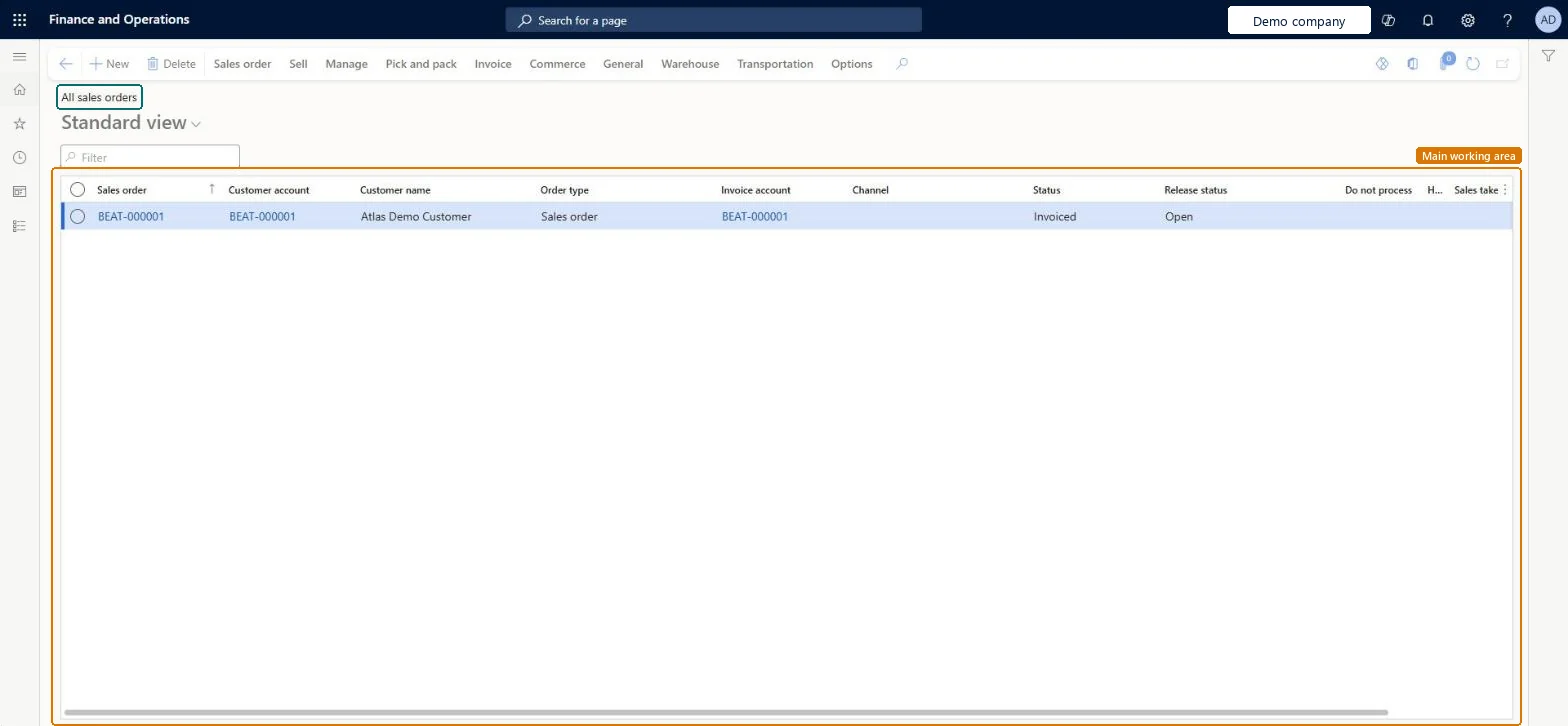
About the examples: Examples and screenshots in this guide use BEAT, a demo company in a Dynamics 365 test environment. Use your own company's codes and values instead of copying them.
Steps from Microsoft
Go to Retail and Commerce > Customers > All sales orders and, on the Action Pane, select New.
In the Customer account field, select the customer, and then select OK.
In the Sales order lines section, select Dimensions to add any dimensions you need to the grid, and then select OK.
In the Item number field, select the product.
In the Quantity field, enter the quantity.
Check the Unit price, Discount and Discount percent values, and enter them if they're empty.
On the Action Pane, select Sales order > Totals to review the order totals, and then select OK.
Reversible: Defaults such as site, unit, unit price and discounts are copied onto the line when it is created and can be changed on the open line at any time. Microsoft Learn
If you change it later
Posting an invoice updates the invoice remainder on each line; when nothing is left to deliver or invoice, the order status changes to Invoiced. Microsoft Learn
Technical architect
5Technical
Menu item
SalesTableListPageChecked in Dynamics 365
Form
SalesTableListPageChecked in Dynamics 365
Roles to set it up and use it
To set it up or change itRetail service RetailServiceSales clerk TradeSalesClerkSales representative TradeSalesRepresentativeCustomer service representative TradeCustomerServiceRepresentativeRental manager RentalManagerTo use itRetail store manager RetailStoreManagerSales manager TradeSalesManagerAccounts receivable manager CustInvoiceAccountsReceivableManagerRental representative RentalRepresentativeAccounts receivable clerk CustInvoiceAccountsReceivableClerkGive people one of these roles. On this system, 28 roles can open this page.Checked in Dynamics 365