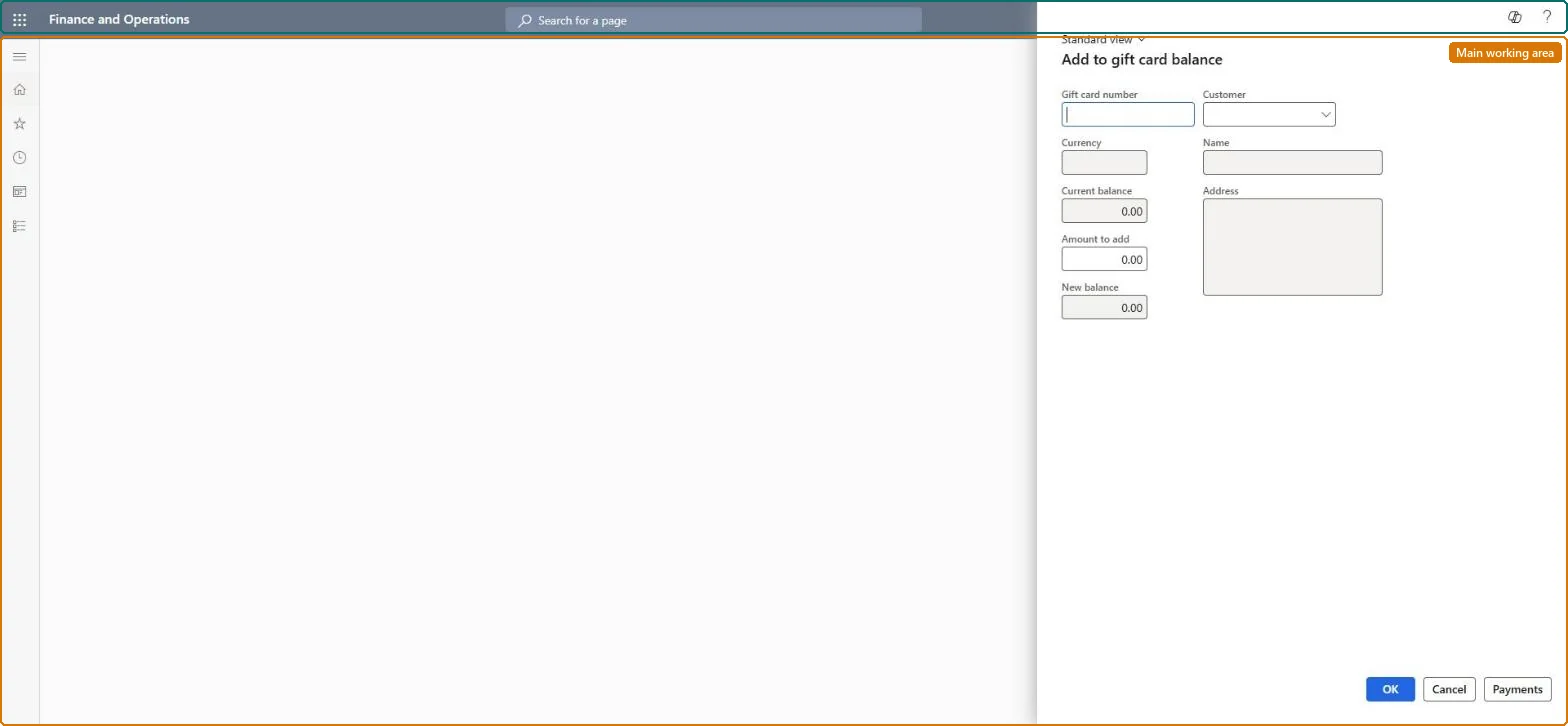
A transaction page in headquarters where you add funds to an existing internal gift card by entering the card number, the amount and the paying customer, and then recording the payment.
Sell and manage gift cards at the Point of Sale (POS) in Dynamics 365 Commerce
Menu item
MCRGiftCardAddAmount
Show what matters for
PAGE GUIDEWhat the page does and how to use it7 sections. Choose a role to highlight what matters to you.
Everyone
1What it is and why
What it is
A transaction page in headquarters where you add funds to an existing internal gift card by entering the card number, the amount and the paying customer, and then recording the payment.
What you do here
Use this page to top up a gift card from headquarters (the call center channel) rather than at a POS register, and record how the customer paid for the added value.
Example
For example, a call center agent uses this page when a customer phones to add 50 to a gift card they already hold and pays by credit card.
The page in Dynamics 365. page title tab to open what to set or check
About the examples: Examples and screenshots in this guide use BEAT, a demo company in a Dynamics 365 test environment. Use your own company's codes and values instead of copying them.
Steps from Microsoft
Go to Retail and Commerce > Channels > Stores > Gift cards > Add amount.
Enter the gift card number.
Enter the amount to add and the customer number.
Select Payments and add a payment for the transaction.
Open All gift cards and check that the Balance field includes the added funds.
The customer account that pays for the added value.Microsoft Learn
Solution architect
4Design impact
If you change it later
The added amount immediately raises the card's balance in headquarters, so a wrong amount or card number must be corrected before the customer spends it. Microsoft Learn
Technical architect
5Technical
Menu item
MCRGiftCardAddAmountChecked in Dynamics 365
Form
MCRGiftCardPromptDialogChecked in Dynamics 365
Roles to set it up and use it
To set it up or change itSales manager TradeSalesManagerSales clerk TradeSalesClerkGive people one of these roles. On this system, 2 roles can open this page.Checked in Dynamics 365