About the examples: Examples and screenshots in this guide use BEAT, a demo company in a Dynamics 365 test environment. Use your own company's codes and values instead of copying them.
Setup steps on this page
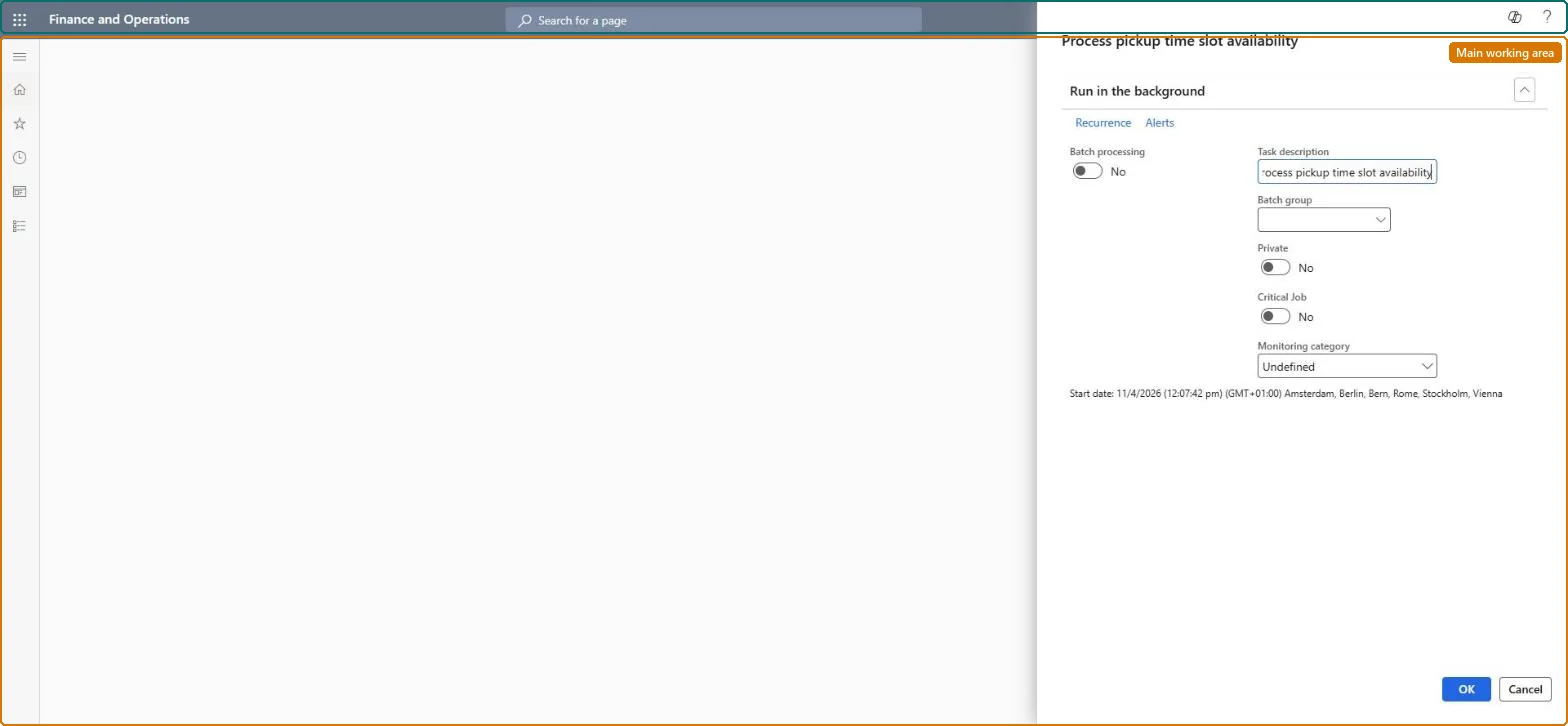
Set up Process pickup time slot availability
How to use it
Go to Retail and Commerce > Channel setup > Process pickup time slot availability.
Under Run in the background, set Batch processing to Yes to run the calculation as a batch job, and set the Task description, Batch group, Private, Critical Job and Monitoring category.
Select Recurrence to repeat the job, or Alerts to be told when it ends.
Select OK to run, or Cancel to close without running.
Source: Checked in Dynamics 365
Technical architect
4Technical
Menu item
RetailPickupTimeslotAllocationCalculationSchedulerChecked in Dynamics 365
Form
SysOperationTemplateFormChecked in Dynamics 365
Roles to set it up and use it
To use itRetail service RetailServiceRetail operations manager RetailOperationsManagerInformation technology manager SysServerITManagerBusiness Performance Planning app role BPPBudgetPlanningAppRoleData management migration user DataManagementMigrationUserGive people one of these roles. On this system, 7 roles can run this page.Checked in Dynamics 365