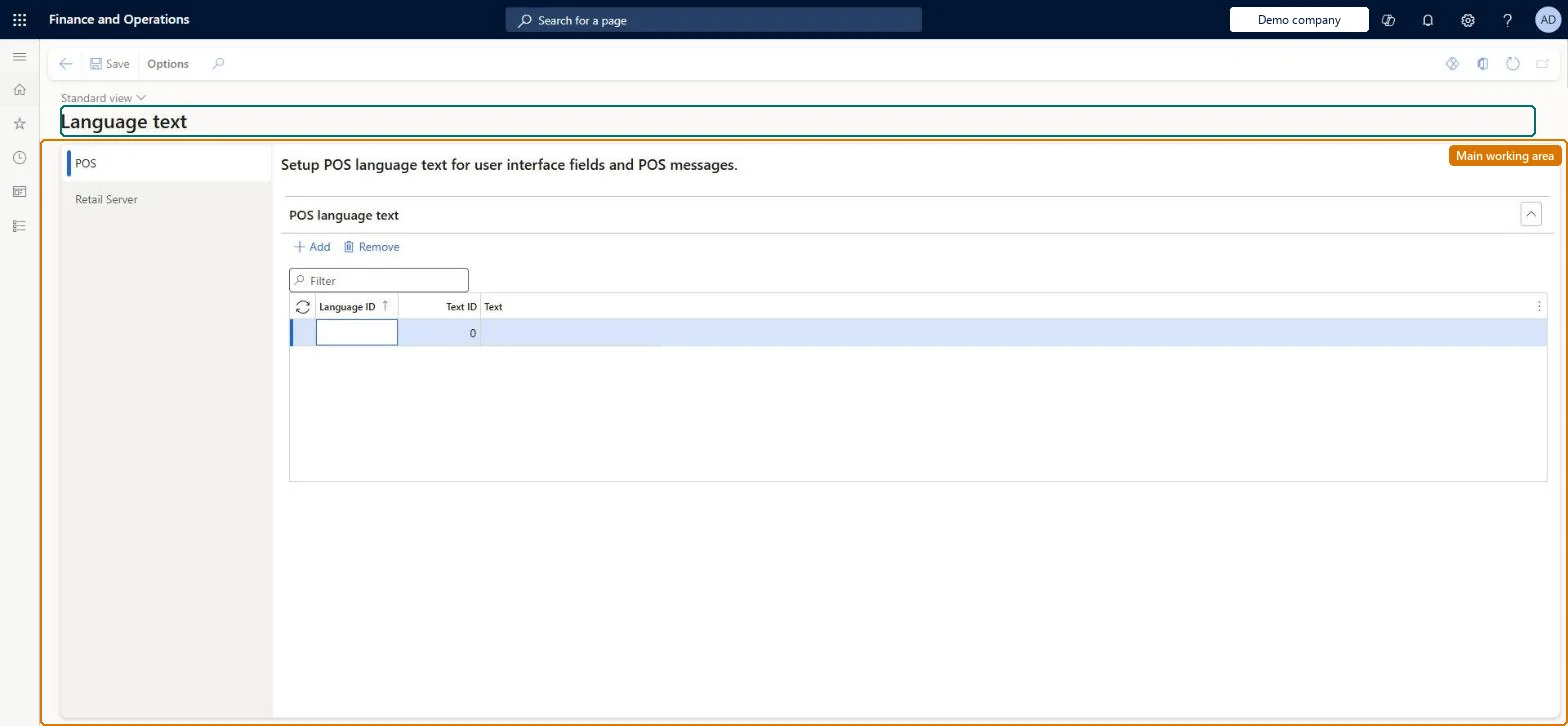
A setup page where you add language text entries (a language ID, a text ID and the replacement text) that override the default labels, messages, error messages and receipt strings shown by the POS.
Retail and CommerceChannel setupPOS setupPOS profiles
RetailLanguageText
Used by
Retail operations manager, Retail service, Information technology manager
Business process
Manage sales channels
Menu item
RetailLanguageText
Main table
RetailLanguageText
Data entity
RetailLanguageTextEntity
Setup steps
1 on this page
Show what matters for
PAGE GUIDEWhat the page does and how to use it8 sections. Choose a role to highlight what matters to you.
Everyone
1What it is and why
What it is
A setup page where you add language text entries (a language ID, a text ID and the replacement text) that override the default labels, messages, error messages and receipt strings shown by the POS.
What you do here
Use this page to change POS user interface labels and POS messages, or Commerce runtime error messages and receipt strings, for a given language without changing code. You can also add new custom messages for extensions here.
Example
For example, you can change the label of the Operator ID field on the POS sign-in page to Employee ID for US English by adding an entry with language ID en-us, text ID 502 and text Employee ID.
The page in Dynamics 365. page title tab to open what to set or check
About the examples: Examples and screenshots in this guide use BEAT, a demo company in a Dynamics 365 test environment. Use your own company's codes and values instead of copying them.
Setup steps on this page
Set up Language text
Use this page to change POS user interface labels and POS messages, or Commerce runtime error messages and receipt strings, for a given language without changing code. You can also add new custom messages for extensions here.
Steps from Microsoft
Go to Retail and Commerce > Channel setup > POS setup > POS profiles > Language text.
On the POS tab, in the POS language text grid, select Add.
Enter the language ID, the text ID of the string to override, and the new text.
On the Action Pane, select Save.
Go to Retail and Commerce > Retail and Commerce IT > Distribution schedule.
Select the Registers (1090) job and select Run now.
Wait for the string cache to refresh (up to one hour, or restart Retail Server), then sign out of and back in to Store Commerce.
The language and culture code (for example en-us) that the override applies to.Microsoft Learn
Text ID
The identifier of the POS string (a number such as 502) or of the runtime message or receipt string (a resource name); new custom message IDs must start with Microsoft_Dynamics_Commerce_.Microsoft Learn
Text
The replacement text that the POS or receipt shows for that text ID in that language.Microsoft Learn
Test checklist
Add en-us, Text ID 502, Text Employee ID on the POS tab.
Run the Registers (1090) job and wait for the string cache to refresh.
Override standard POS strings by language ID and text ID; give new custom messages a text ID starting with Microsoft_Dynamics_Commerce_Learn requires the Microsoft_Dynamics_Commerce_ prefix for new messages, and overrides need the exact text ID of the string.
Running job 1090 and checking at once. The localized string cache can take up to an hour; users then need to sign out and in, or Retail Server must be restarted.
Solution architect
5Design impact
Can it be undone
Reversible: Delete or change the entry and run job 1090; the default string returns after the cache refreshes and users sign in again. Microsoft Learn
If you change it later
Changes only reach the POS after the Registers (1090) job runs and the localized string cache refreshes; users must then sign out and back in to see the new labels. Microsoft Learn
Technical architect
6Technical
Menu item
RetailLanguageTextChecked in Dynamics 365
Form
RetailLanguageTextChecked in Dynamics 365
Table
RetailLanguageTextShown as “TRANSLATIONS” in Record infoChecked in Dynamics 365
PrivilegesMaintain Retail language text RetailLanguageTextMaintainDutiesMaintain retail register reference data RetailTerminalReferenceDataMaintain3 security rolesRetail operations manager RetailOperationsManagerRetail service RetailServiceInformation technology manager SysServerITManagerChecked in Dynamics 365
Roles to set it up and use it
To set it up or change itRetail service RetailServiceRetail operations manager RetailOperationsManagerInformation technology manager SysServerITManagerGive people one of these roles. On this system, 3 roles can open this page.Checked in Dynamics 365