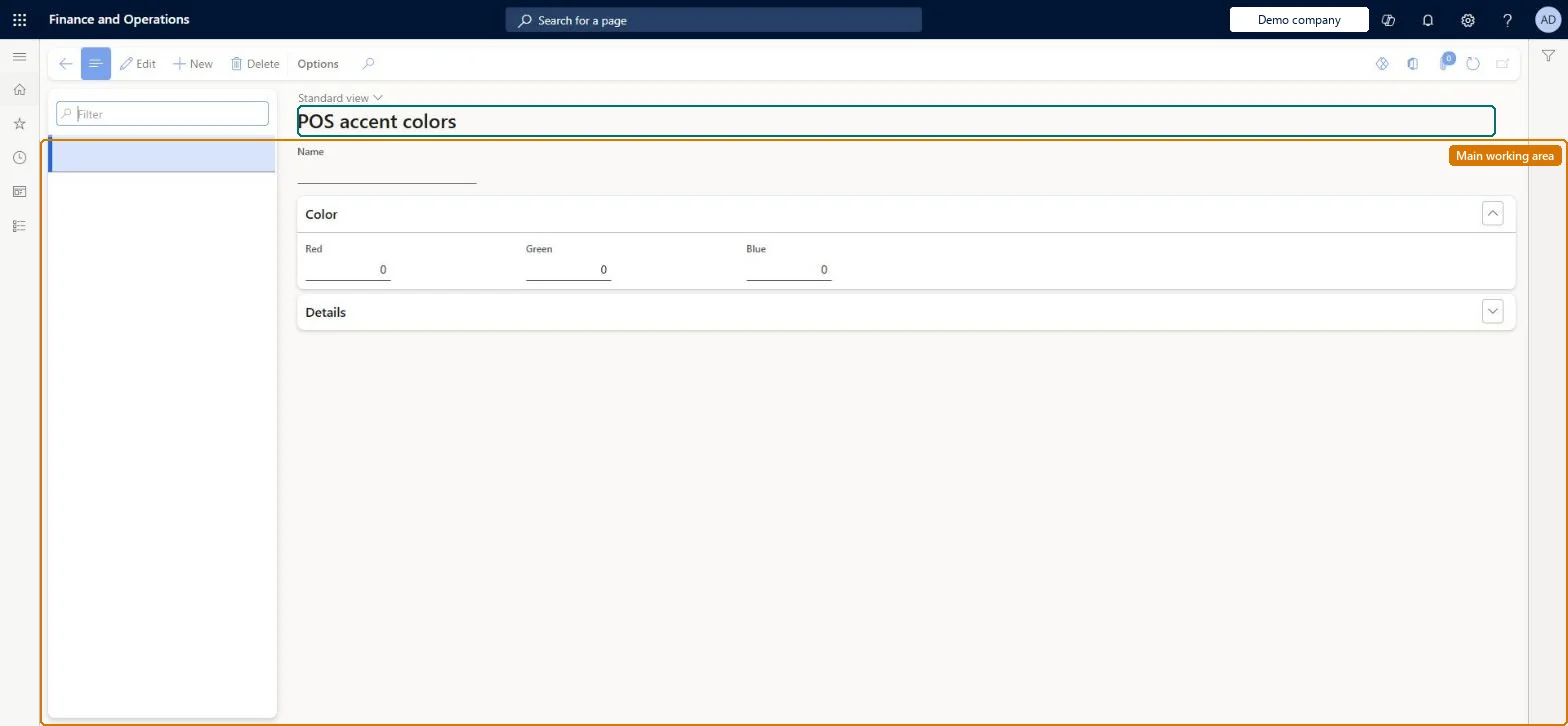
A setup page that holds the accent colour values offered in the Accent color lookup of a POS visual profile; the POS uses the accent colour to highlight actionable elements such as tiles, command buttons and hyperlinks.
Retail operations manager, Retail service, Information technology manager
Business process
Manage sales channels
Menu item
RetailThemePallet
Main table
RetailThemePallet
Setup steps
1 on this page
Show what matters for
PAGE GUIDEWhat the page does and how to use it7 sections. Choose a role to highlight what matters to you.
Everyone
1What it is and why
What it is
A setup page that holds the accent colour values offered in the Accent color lookup of a POS visual profile; the POS uses the accent colour to highlight actionable elements such as tiles, command buttons and hyperlinks.
What you do here
Use this page to maintain the list of accent colours that visual profiles can select and that POS buttons use by default.
Example
For example, the demo brands use a blue, green or red accent so that Adventure Works, Fabrikam and Contoso registers match their branding.
The page in Dynamics 365. page title tab to open what to set or check
About the examples: Examples and screenshots in this guide use BEAT, a demo company in a Dynamics 365 test environment. Use your own company's codes and values instead of copying them.
Setup steps on this page
Set up POS accent colors
Use this page to maintain the list of accent colours that visual profiles can select and that POS buttons use by default.
How to use it
Go to Retail and Commerce > Channel setup > POS setup > POS > POS accent colors.
Use the Filter box to find a color.
Select New and enter the Name.
Under Color, enter the Red, Green and Blue values of the accent color.
Expand Details for the derived shades, then select Save.
Source: Checked in Dynamics 365
Solution architect
4Design impact
If you change it later
A changed accent colour reaches the POS only after the Registers (1090) job runs for the visual profile that uses it. Microsoft Learn
Technical architect
5Technical
Menu item
RetailThemePalletChecked in Dynamics 365
Form
RetailThemePalletChecked in Dynamics 365
Table
RetailThemePalletShown as “COLOR PALLET” in Record infoChecked in Dynamics 365
Who can open it
PrivilegesMaintain retail POS visual profile RetailPOSVisualProfileMaintainMaintain POS visual profiles for retail trial. RetailTrialPOSVisualProfileMaintainDutiesMaintain retail register profiles RetailTerminalProfilesMaintainMaintain retail register reference data RetailTerminalReferenceDataMaintainMaintain terminals for retail trial. RetailTrialTerminalReferenceDataMaintain3 security rolesRetail operations manager RetailOperationsManagerRetail service RetailServiceInformation technology manager SysServerITManagerChecked in Dynamics 365
Roles to set it up and use it
To set it up or change itRetail service RetailServiceRetail operations manager RetailOperationsManagerInformation technology manager SysServerITManagerGive people one of these roles. On this system, 3 roles can open this page.Checked in Dynamics 365