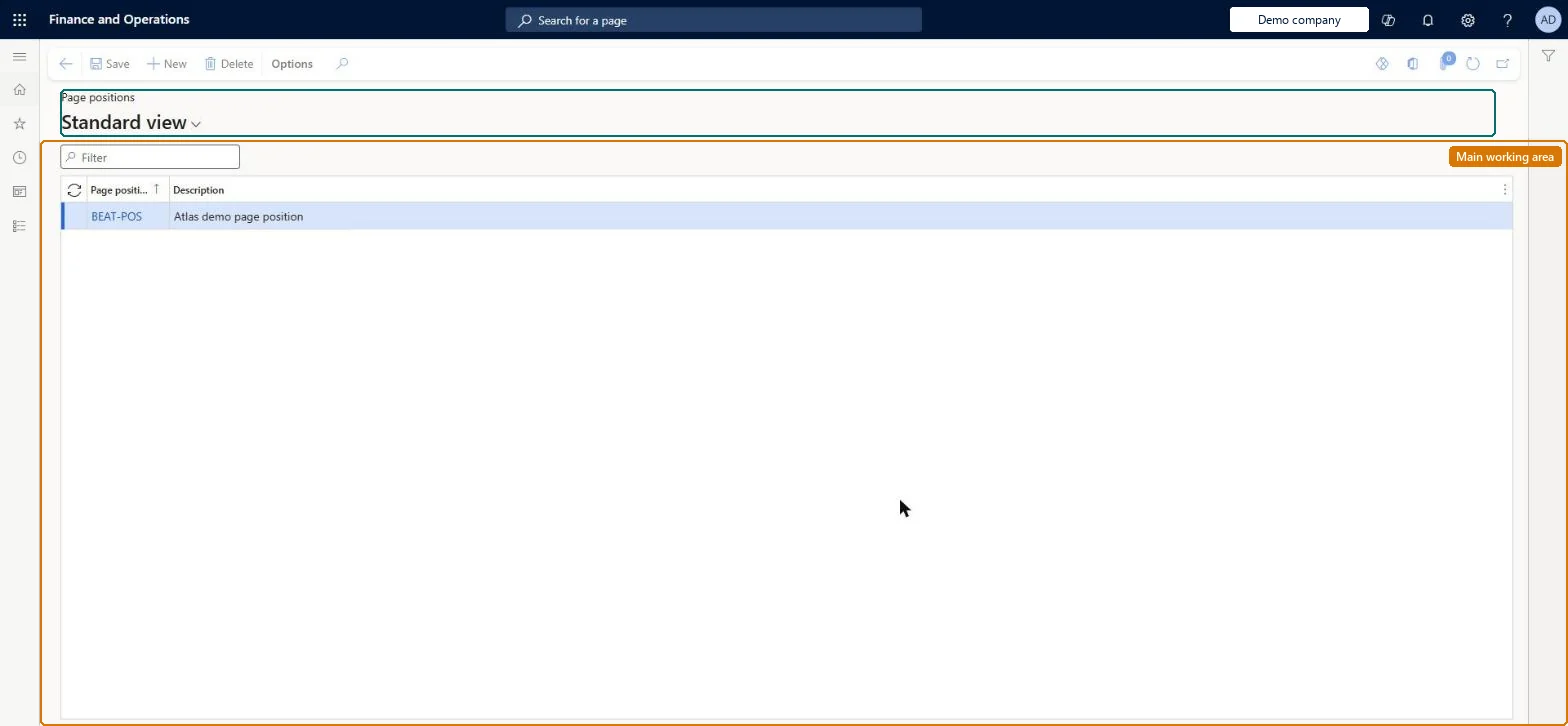
A setup page where you define the positions on a printed catalog page (the areas where a product can be placed) that are used when recording product page layouts for catalog area analysis.
Retail and CommerceChannel setupCall center setupPages
MCRPagePositionTable
Used by
Marketing manager
Business process
Manage sales channels
Menu item
MCRPagePositionTable
Main table
MCRPagePositionTable
Setup steps
1 on this page
Show what matters for
PAGE GUIDEWhat the page does and how to use it7 sections. Choose a role to highlight what matters to you.
Everyone
1What it is and why
What it is
A setup page where you define the positions on a printed catalog page (the areas where a product can be placed) that are used when recording product page layouts for catalog area analysis.
What you do here
Use this page to name each page area, such as top left or bottom right, so that a product's location on a catalog page can be recorded and the sales generated by that area compared with its cost.
The page in Dynamics 365. page title tab to open what to set or check
About the examples: Examples and screenshots in this guide use BEAT, a demo company in a Dynamics 365 test environment. Use your own company's codes and values instead of copying them.
Setup steps on this page
Set up Page positions
Use this page to name each page area, such as top left or bottom right, so that a product's location on a catalog page can be recorded and the sales generated by that area compared with its cost.
Steps from Microsoft
Go to Retail and Commerce > Channel setup > Call center setup > Pages > Page positions.
Select New.
Enter a unique name and a brief description for the page position.
Repeat for each page position you need, then close the page.
Reversible: Page positions are reference data for catalog product page layouts and the Catalog area analysis report. They don't post anything, so you can change them; the report reflects the layout data at the time you run it. Microsoft Learn
Technical architect
5Technical
Menu item
MCRPagePositionTableChecked in Dynamics 365
Form
MCRPagePositionTableChecked in Dynamics 365
Table
MCRPagePositionTableShown as “PAGE POSITIONS” in Record infoChecked in Dynamics 365
Who can open it
PrivilegesMaintain page positions for call center catalogs MCRPagePositionTableMaintainDutiesMaintain source code and catalog offers MCRSourceOfferMaintain1 security roleMarketing manager CRMMarketingManagerChecked in Dynamics 365
Roles to set it up and use it
To set it up or change itMarketing manager CRMMarketingManagerGive people one of these roles. On this system, 1 role can open this page.Checked in Dynamics 365