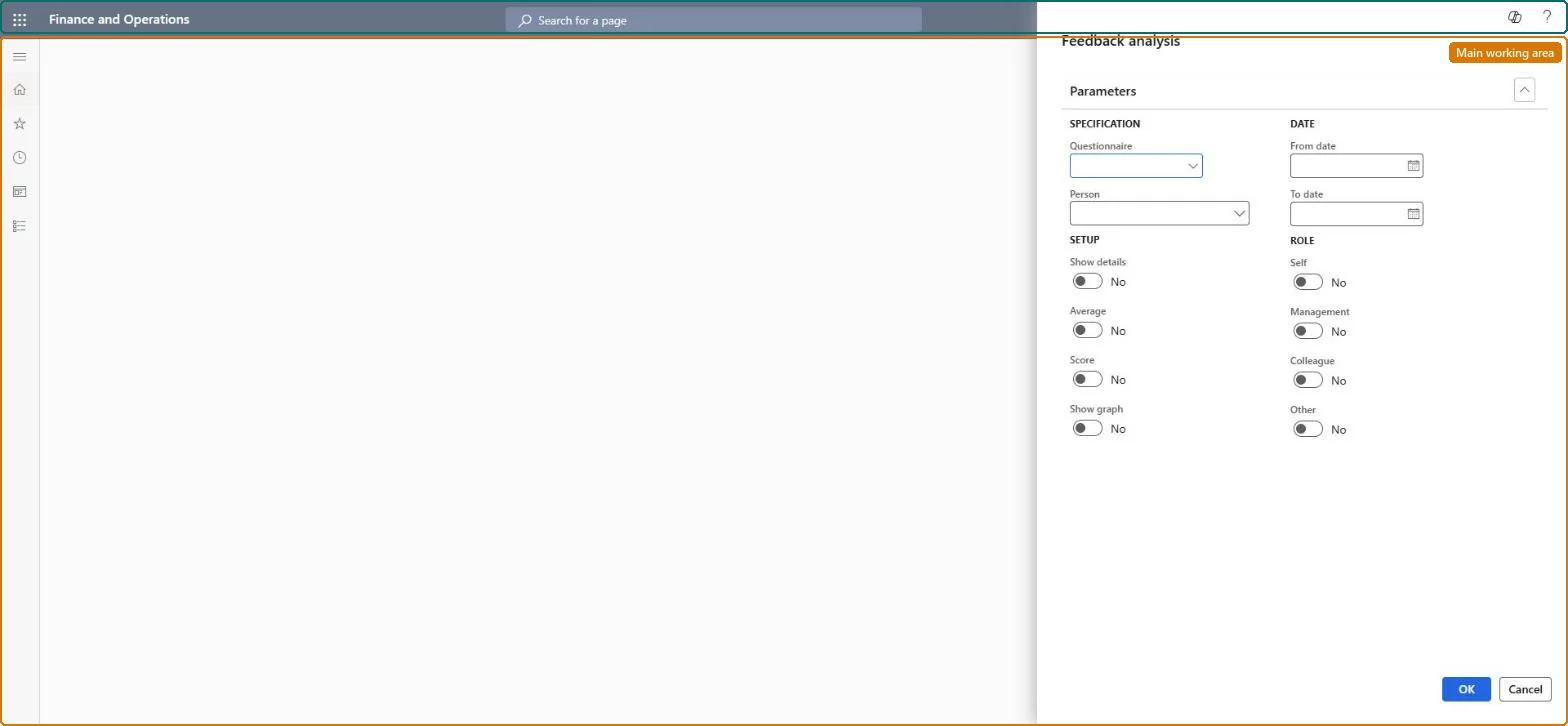
A report dialog that analyses the feedback on one person from one questionnaire over a date range, split by the role of the people who answered: Self, Management, Colleague and Other.
PAGE GUIDEWhat the page does and how to use it8 sections. Choose a role to highlight what matters to you.
Everyone
1What it is and why
What it is
A report dialog that analyses the feedback on one person from one questionnaire over a date range, split by the role of the people who answered: Self, Management, Colleague and Other.
What you do here
Use this page to compare how a person rated themselves with how managers, colleagues and others rated them, with averages, scores and a graph if you choose.
Example
For example, BEAT's HR manager runs it for questionnaire MGR-REVIEW and employee 000123 for 2026, with Self, Management and Colleague selected and Average on, to set the self-rating beside 4 colleague ratings.
The page in Dynamics 365. page title tab to open what to set or check
About the examples: Examples and screenshots in this guide use BEAT, a demo company in a Dynamics 365 test environment. Use your own company's codes and values instead of copying them.
When to run it
When to run it
After all feedback sessions about a person are answered, for example at review time.
How often
On demand, once per review.
What the output shows
Feedback on the person for each selected role, with details, averages, scores or a graph as chosen in Setup.
Source: Checked in Dynamics 365
Setup steps on this page
Analyse feedback on a person by role
Use this page to compare how a person rated themselves with how managers, colleagues and others rated them, with averages, scores and a graph if you choose.
How to use it
Go to Questionnaire > View and analyze results > Feedback analysis report.
Under Specification, select the Questionnaire and the Person.
Under Date, enter the From date and To date.
Under Setup, set Show details, Average, Score and Show graph as needed.
Under Role, set Self, Management, Colleague and Other to choose which feedback roles to include.
Select OK to run the analysis.
Source: Checked in Dynamics 365
Fields on the page
Field
What it means
Example
Questionnaire
The questionnaire whose answers are analysed.Checked in Dynamics 365
MGR-REVIEW
Person
The person the feedback is about.Checked in Dynamics 365
000123
From date / To date
The period of the answer sessions to include.Checked in Dynamics 365
1/1/2026 to 12/31/2026
Show details / Average / Score / Show graph
What the report shows for each role.Checked in Dynamics 365
Average
Self / Management / Colleague / Other
The respondent roles to include; the role is set on the planned answer session.Microsoft Learn
Self, Colleague
Common errors and fixes
Message
What to do
Colleague feedback appears under Self
The role comes from the Role on each planned answer session; plan colleague sessions with Role Colleague and the person in Evaluation of. Microsoft Learn
Test checklist
Plan two sessions of the same questionnaire about one person: one with Role Self, one with Role Colleague.
Answer both.
Run Feedback analysis report for that questionnaire and person with Self and Colleague selected.
Plan each feedback session with Evaluation of set to the person and the right Role, then run the report with the roles you compare.The report splits answers by the Role on each session, so wrong roles put feedback in the wrong column.
No Feature management feature is needed for questionnaires; Microsoft Learn describes them without one. Questionnaires belong to the Human resources area, and in this system the same pages are also granted through procurement (vendor and RFQ questionnaires), sales and marketing (campaigns, telemarketing) and case management duties, as the Security section shows. HR managers use it in performance reviews.
One person and one questionnaire, split by the role recorded on each answer session (Self, Management, Colleague, Other). Microsoft Learn
Can it be undone
Reversible: This is a report on completed questionnaires; running it doesn't change data. Microsoft Learn
If you change it later
None on data. The roles match the Role on each answer session, which is set when the session is planned together with Evaluation of. Microsoft Learn
Technical architect
6Technical
Menu item
KMQuestionFeedbackChecked in Dynamics 365
Form
DialogChecked in Dynamics 365
Roles to set it up and use it
To use itHuman resource assistant HcmHumanResourceAssistantMarketing manager CRMMarketingManagerPurchasing manager TradePurchasingManagerSales manager TradeSalesManagerHuman resource manager HcmHumanResourceManagerGive people one of these roles. On this system, 7 roles can run this page.Checked in Dynamics 365
Developer
7Developer
Open it by URL
https://<your-environment>/?mi=KMQuestionFeedback
Data migration
Load order: The Feedback analysis report has no data entity in Data management, so it can't be loaded from a file or a configuration template. It is a report: it reads the answer sessions about the person and holds no data of its own, so there is nothing to migrate.Checked in Dynamics 365