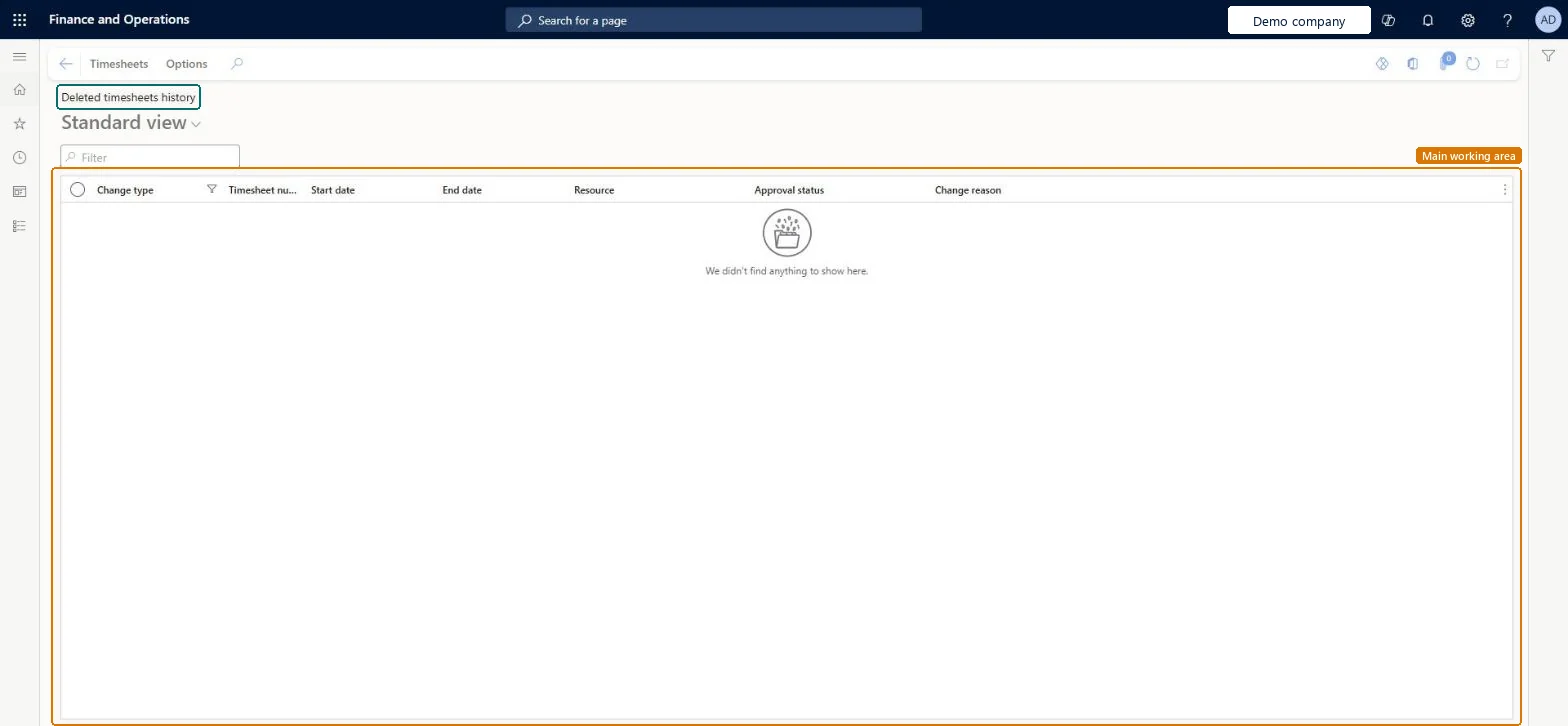
The audit list of deleted project timesheets: one row per deleted timesheet version, with change type, resource, period, approval status at deletion and the reason entered.
PAGE GUIDEWhat the page does and how to use it8 sections. Choose a role to highlight what matters to you.
Everyone
1What it is and why
What it is
The audit list of deleted project timesheets: one row per deleted timesheet version, with change type, resource, period, approval status at deletion and the reason entered.
What you do here
Use it to answer who lost hours and why, when a timesheet disappears from the timesheet lists.
Example
For example, when Emma asks where her 37.50 hours for week 49 went, the BEAT project accountant finds her timesheet here with change type Deleted and the reason Duplicate entry.
The page in Dynamics 365. page title tab to open what to set or check
About the examples: Examples and screenshots in this guide use BEAT, a demo company in a Dynamics 365 test environment. Use your own company's codes and values instead of copying them.
Setup steps on this page
Audit deleted timesheets by resource and period
Explain missing hours.
Steps from Microsoft
Go to Project management and accounting > Timesheets > Deleted timesheets history.
Filter the Resource column on the worker.
Check the Change type, Start date, End date and Change reason columns.
Compare the period with the worker's current timesheets on All timesheets.
If the hours are still needed, create a new timesheet for that period on All timesheets.
Filter on the resource and the period first, then read the change reason.The history holds every deleted version; without filters you mix workers and periods.
Load order: Deleted timesheets history has no data entity in Data management. It is an audit history built when timesheets are deleted. Keep the old system's history as a report; it isn't loaded.Checked in Dynamics 365