Field Service Integration User, Project accountant, Project manager and 2 more roles
Business process
Manage project financials
Menu item
ProjTransferPrice
Main table
ProjTransferPrice
Data entity
ProjProjectTransferPriceEntity
Setup steps
1 on this page
Show what matters for
PAGE GUIDEWhat the page does and how to use it8 sections. Choose a role to highlight what matters to you.
Everyone
1What it is and why
What it is
A setup page where you set transfer prices, the prices one legal entity charges a related legal entity for project work, expenses and purchased goods.
What you do here
Use this page to set one transfer price for all project work and expenses in a borrowing legal entity, or more specific prices.
Example
For example, BEAT lends consultants to BEUS at a transfer price of 85.00 per hour from 01/01/2026, so 16.00 hours a BEAT consultant spends on a BEUS project are charged to BEUS at 1,360.00.
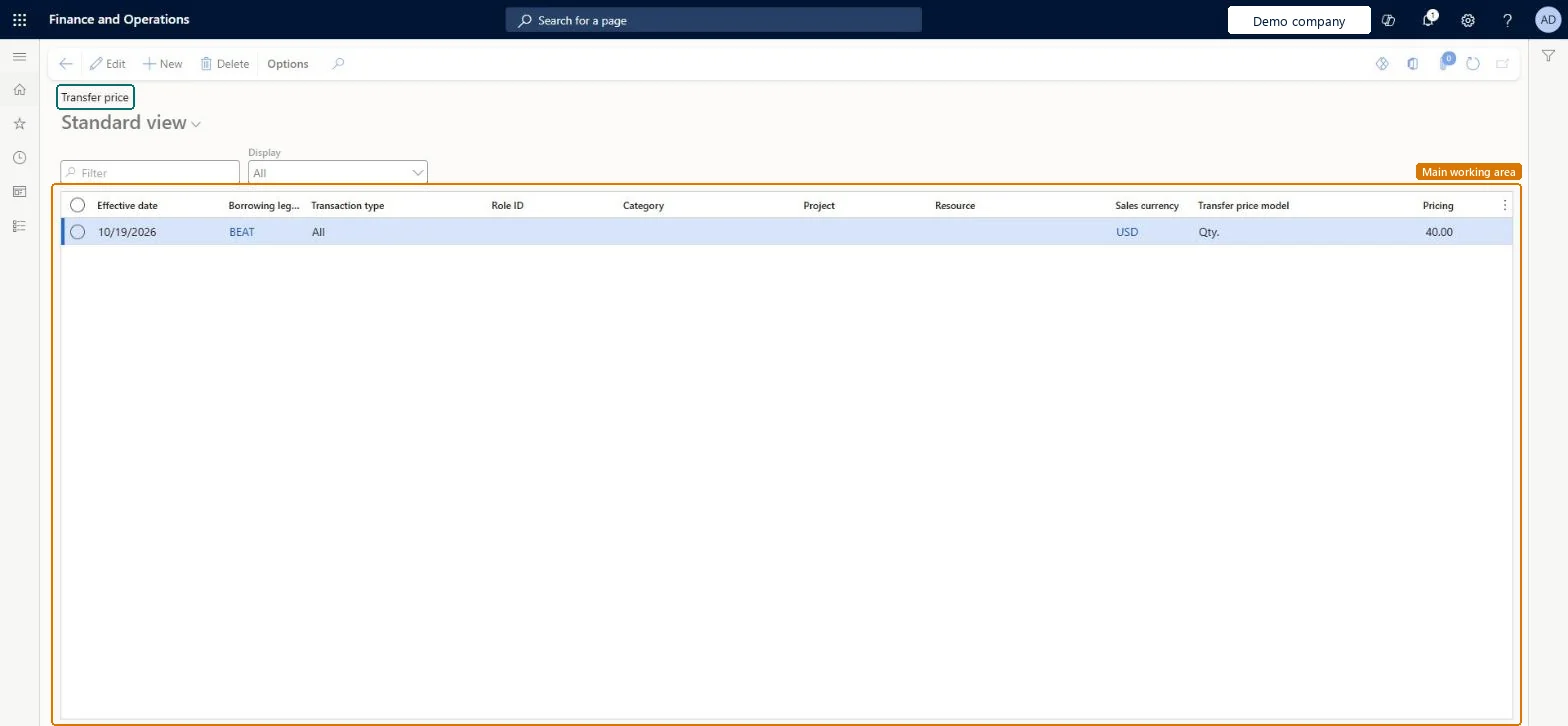
The page in Dynamics 365. page title tab to open what to set or check
About the examples: Examples and screenshots in this guide use BEAT, a demo company in a Dynamics 365 test environment. Use your own company's codes and values instead of copying them.
Step by step, with screenshots
Set up Transfer price1 screen
Use this page to set one transfer price for all project work and expenses in a borrowing legal entity, or more specific prices.
Screen 1
Set a transfer price
Go to Project management and accounting > Setup > Prices > Transfer price
Select New
Enter the effective date
Select the borrowing legal entity, the company whose workers or expenses are charged
Leave the transaction type as All, or choose Hour or Expense, and leave the role, category, project and resource blank for one price for all work
Check the sales currency and the transfer price model, then enter the price under Pricing
Select Save
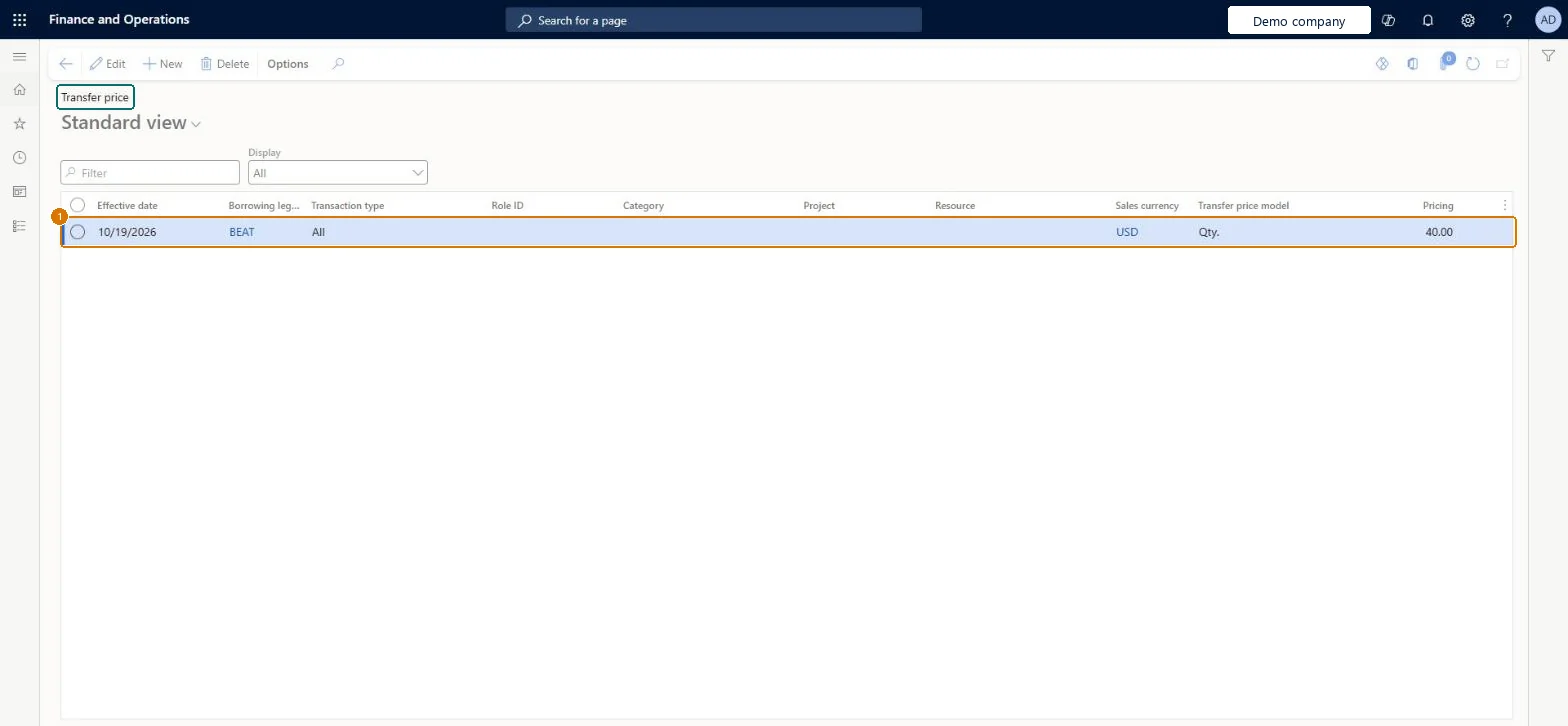
1Effective date
10/19/2026
Borrowing legal entity
BEAT
Transaction type
All
Pricing
40.00
Show the full screen page title tab to open what to set or check
Steps from Microsoft
Go to Project management and accounting > Setup > Prices > Transfer price.
Select New and select the Borrowing legal entity that is charged.
Leave Resource blank to lend all resources of this company, or select one resource for a specific price.
Enter the Effective date, the Transaction type and the Pricing, then save.
Turn on Enable intercompany resource scheduling and timesheets in the parameters of both companies.
One row per borrowing legal entity with Resource left blank, plus specific rows only where a worker, project or category is priced differentlyLeaving Resource blank makes all lending-company resources available to the borrowing company; specific rows narrow the price where needed.
On the live system, Project manager, Project accountant, Field Service Integration User and Sales manager maintain this page and Resource manager can open it.
PrivilegesMaintain transfer hours for projects ProjTransferPriceHourSetupView transfer hours for projects ProjTransferPriceHourSetupViewDutiesMaintain project master ProjProjectMasterMaintainResource manager ProjResourceManager5 security rolesField Service Integration User FieldServiceIntegrationUserProject accountant ProjProjectAccountantProject manager ProjProjectManagerResource manager ProjResourceManagerSales manager TradeSalesManagerChecked in Dynamics 365
Roles to set it up and use it
To set it up or change itProject manager ProjProjectManagerProject accountant ProjProjectAccountantField Service Integration User FieldServiceIntegrationUserSales manager TradeSalesManagerTo use itResource manager ProjResourceManagerGive people one of these roles. On this system, 5 roles can open this page.Checked in Dynamics 365
Actions on the page
Options: Personalize, Page options, ShareChecked in Dynamics 365
ProjProjectTransferPriceV2Entity Project transfer price V2, loaded for each company.ProjProjectTransferPriceEntity Earlier version of the same data.Load order: Load transfer prices after the borrowing legal entities, resources, resource roles and currencies, because a price row refers to them. Use the V2 entity.Load first: Legal entities, Resources, Resource roles, CurrenciesMicrosoft Learn
Checked in a working Dynamics 365 system, version 10.0.49: the menu item, form, table and security, the page, the demo records and the values in the screenshots.