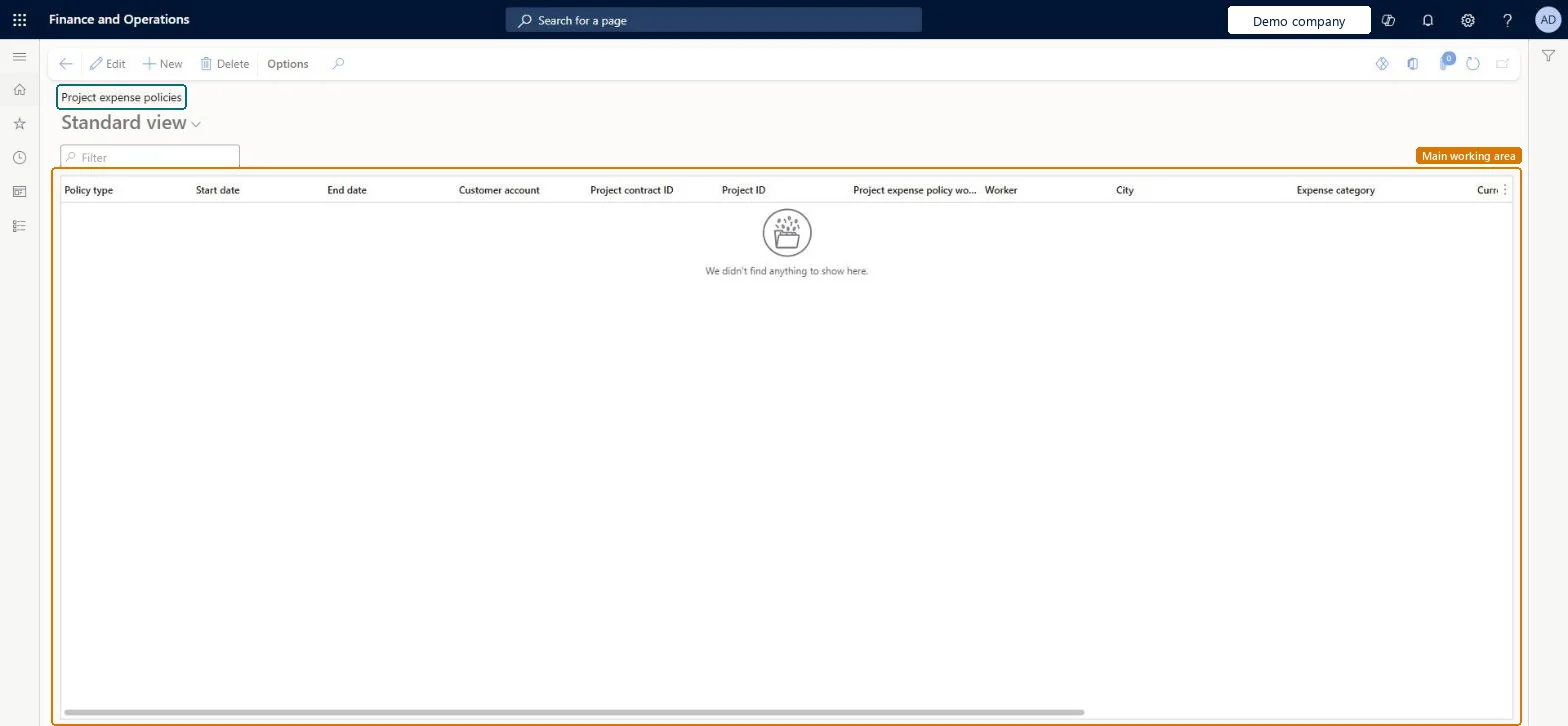
A setup page where you create expense policies that apply only to project work: each policy has a type, a validity period and the customer, contract, project, worker group, worker, city, expense category and currency it covers.
PAGE GUIDEWhat the page does and how to use it8 sections. Choose a role to highlight what matters to you.
Everyone
1What it is and why
What it is
A setup page where you create expense policies that apply only to project work: each policy has a type, a validity period and the customer, contract, project, worker group, worker, city, expense category and currency it covers.
What you do here
Use this page to give project expenses their own limits or rules, for example a lower hotel rate for one customer's projects, on top of the general expense policies.
Example
For example, BEAT creates a project expense policy for contract CON-0018 and the expense category HOTEL in the city of Lisbon, valid from 01/01/2026 to 12/31/2026, so that hotel expenses on PRJ-0042 are checked against that contract's rule.
The page in Dynamics 365. page title tab to open what to set or check
About the examples: Examples and screenshots in this guide use BEAT, a demo company in a Dynamics 365 test environment. Use your own company's codes and values instead of copying them.
Setup steps on this page
Set up Project expense policies
Steps from Microsoft
Go to Project management and accounting > Setup > Policies > Project expense policies.
Select New, choose the Policy type and enter the Start date and End date.
Fill the Customer account, Project contract ID or Project ID the policy covers, and the worker group or Worker.
Set the City, Expense category and Currency, and save.
Enter a test expense report line for that project and category and check the policy message.
The kind of rule the policy sets for matching project expenses.Checked in Dynamics 365
Start date
The first day the policy applies.Checked in Dynamics 365
01/01/2026
End date
The last day the policy applies.Checked in Dynamics 365
12/31/2026
Customer account
The customer whose projects the policy covers.Checked in Dynamics 365
C-0451
Project contract ID
The project contract the policy covers.Checked in Dynamics 365
CON-0018
Project ID
The project the policy covers.Checked in Dynamics 365
PRJ-0042
Project expense policy worker group
The group of workers, from Project expense policy worker groups, the policy covers.Checked in Dynamics 365
FIELD
Worker
The single worker the policy covers.Checked in Dynamics 365
000245
City
The city where the expense is incurred.Checked in Dynamics 365
Lisbon
Expense category
The expense category the policy covers.Checked in Dynamics 365
HOTEL
Currency
The currency of the amounts in the policy.Checked in Dynamics 365
EUR
Common errors and fixes
Message
What to do
A project expense isn't checked against the policy.
The line falls outside the policy dates or doesn't match its contract, project, city or category. Check each filter on the policy. Microsoft data model
Test checklist
Create a policy for CON-0018, HOTEL, Lisbon, valid for 2026.
Enter a hotel expense in Lisbon on PRJ-0042 dated 03/02/2026.
Check that the policy is applied to the line.
Enter the same expense on another contract and check the policy doesn't apply.
Keep project policies only for the contracts or customers whose terms differ from the general expense policies, each with a start and end dateA project policy narrows a rule to the customer, contract or project it names, so only contract-specific terms belong here; general limits stay in the expense policies of Expense management.
Reversible: Policies can be edited, ended with an end date or deleted; expenses already approved stay as they are. Microsoft data model
If you change it later
A policy applies to project expenses dated inside its start and end date that match its customer, contract, project, worker, city and category. Expenses entered earlier are not rechecked. Microsoft data model
Technical architect
6Technical
Menu item
ProjExpPoliciesChecked in Dynamics 365
Form
ProjExpPoliciesChecked in Dynamics 365
Table
ProjExpPoliciesShown as “Project expense policies” in Record infoChecked in Dynamics 365
PrivilegesMaintain expense policies ProjExpPoliciesMaintainView expense policies ProjExpPoliciesViewDutiesInquire into expense management policies TrvTravelAndExpensePoliciesInquireEnable expense management process TrvTravelAndExpenseProcessEnable2 security rolesAuditor AuditPolicyManagerExpense administrator ExpenseAdministratorChecked in Dynamics 365
Roles to set it up and use it
To set it up or change itExpense administrator ExpenseAdministratorTo use itAuditor AuditPolicyManagerGive people one of these roles. On this system, 2 roles can open this page.Checked in Dynamics 365
Actions on the page
Options: Personalize, Page options, ShareChecked in Dynamics 365