Project management and accountingInquiries and reportsValidation reports
output:ProjListValProject
Business process
Manage project delivery
Menu item
output:ProjListValProject
Setup steps
1 on this page
Show what matters for
PAGE GUIDEWhat the page does and how to use it8 sections. Choose a role to highlight what matters to you.
Everyone
1What it is and why
What it is
A report that lists, per project, the workers and categories that validation allows on it, for the project and transaction types you choose.
What you do here
Use it to answer 'who and what may post to this project?' when a journal or timesheet line is rejected, or before you hand a project over to a new team.
Example
A BEAT consultant's timesheet line on PRJ-0042 is rejected; the project accountant runs the report for Time and material with Hour on and sees PRJ-0042 allows only workers R-0105 and R-0118 and categories CONSULT and TRAVEL.
The page in Dynamics 365. page title tab to open what to set or check
About the examples: Examples and screenshots in this guide use BEAT, a demo company in a Dynamics 365 test environment. Use your own company's codes and values instead of copying them.
When to run it
When to run it
When journal or timesheet lines are rejected by validation, and before you change a project's team.
How often
On demand.
What the output shows
Per project, the workers and categories that may post to it.
See which workers and categories a project allows.
Steps from Microsoft
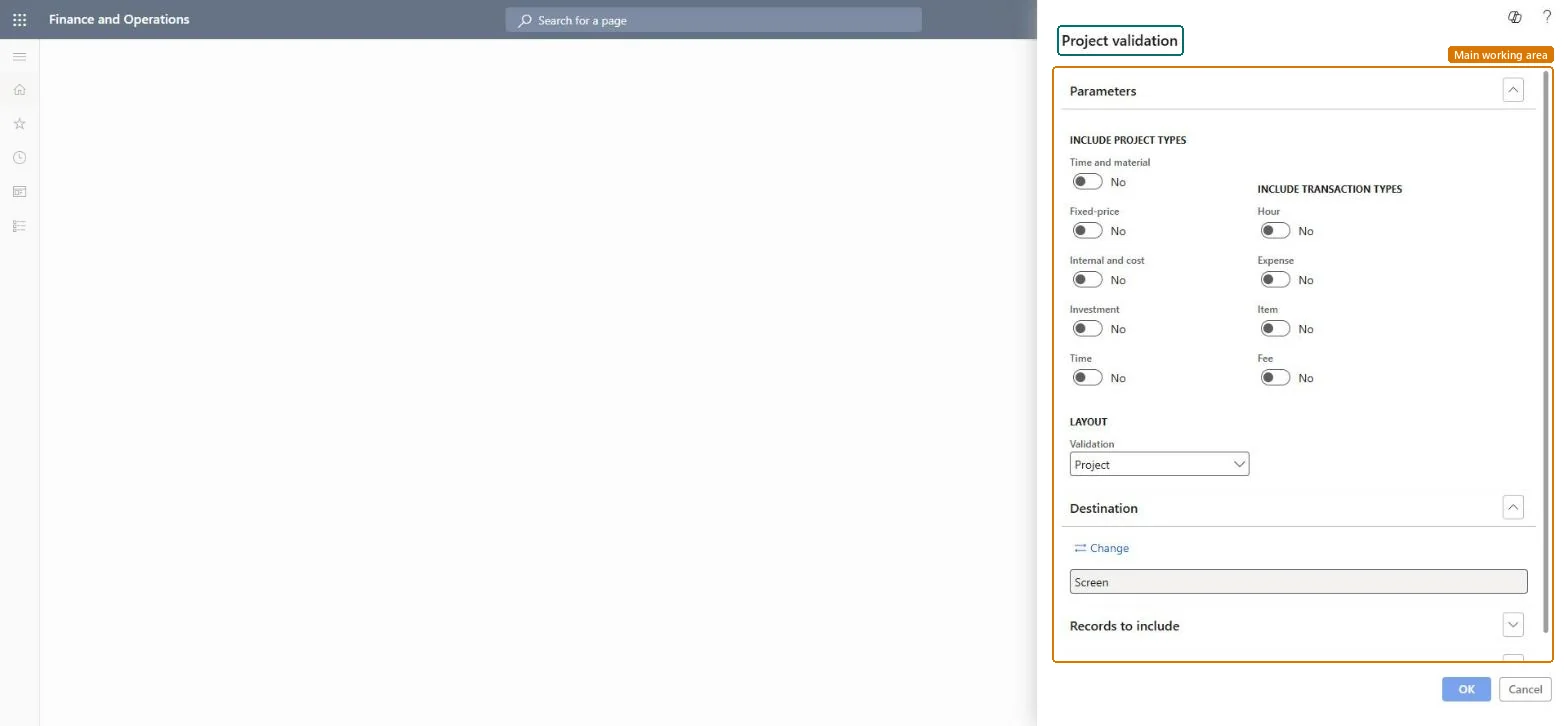
Go to Project management and accounting > Inquiries and reports > Validation reports > Project validation.
Turn on the project type of the project in question and the transaction type of the rejected line, for example Hour for a timesheet.
Keep Validation set to Project and filter Records to include on the project.
Look up the rejected worker or category in the project's allowed list; add the worker on Resource validation project assignments or the category to the project's validation group.
Which project types to report on; the dialog toggles Time and material, Fixed-price, Investment, Internal and cost (Internal and Cost project types) and Time.Checked in Dynamics 365
Time and material and Fixed-price on
Include transaction types
Which transaction types to report on: Hour, Expense, Item and Fee.Checked in Dynamics 365
Hour and Expense on
Validation
Under Layout: how the setup is grouped on the report; the dialog suggests Project.Checked in Dynamics 365
Project
Common errors and fixes
Message
What to do
The report shows no projects.
Turn on at least one project type and one transaction type; all toggles start at No. Checked in Dynamics 365
Test checklist
Assign worker R-0105 to PRJ-0042 on Resource validation project assignments.
Run the report for the project's type with Hour on, filtered on PRJ-0042.
Check that R-0105 is in the list and an unassigned worker is not.
Turn on the project type and the transaction type of the rejected line, and filter on the project.Validation can limit workers and categories per project; the allowed list explains the rejection.
Validation is checked when lines are entered, so a worker added to a project can post from then on; lines rejected earlier must be entered again. Microsoft Learn
Technical architect
6Technical
Menu item
output:ProjListValProjectChecked in Dynamics 365
Form
SysOperationTemplateFormChecked in Dynamics 365
Roles to set it up and use it
To use itProject accountant ProjProjectAccountantGive people one of these roles. On this system, 1 role can run this page.Checked in Dynamics 365
Load order: The Project validation report has no data entity in Data management: it prints validation setup. Load the validation groups with ProjValEmplProjEntity after workers, projects and categories, then run the report to compare.Load first: ProjValEmplProjEntityMicrosoft data model