A periodic cleanup routine that removes old, processed time and attendance registrations from the raw registrations table by moving them to an archive table, exporting them to a file, or deleting them.
PAGE GUIDEWhat the page does and how to use it7 sections. Choose a role to highlight what matters to you.
Everyone
1What it is and why
What it is
A periodic cleanup routine that removes old, processed time and attendance registrations from the raw registrations table by moving them to an archive table, exporting them to a file, or deleting them.
What you do here
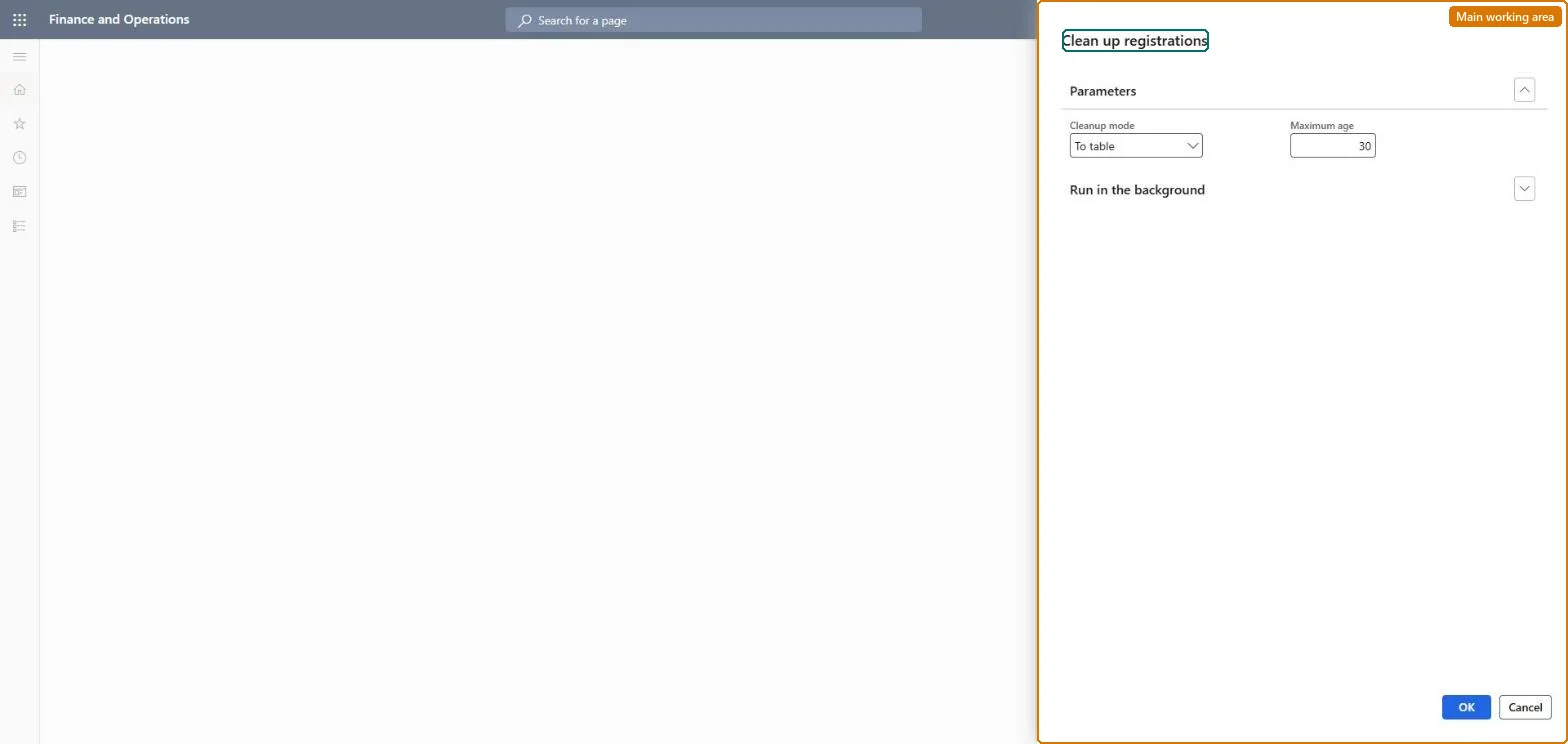
Use this page to keep the raw registrations table small so that time and attendance performance does not degrade, choosing a cleanup mode and the maximum age in days of registrations to keep.
Example
For example, with a maximum age of 20, every registration older than 20 days is archived in the way selected in the Cleanup mode field.
The page in Dynamics 365. page title tab to open what to set or check
About the examples: Examples and screenshots in this guide use BEAT, a demo company in a Dynamics 365 test environment. Use your own company's codes and values instead of copying them.
When to run it
When to run it
When old, processed time and attendance registrations make the raw registrations table large enough to slow the system down.
How often
Periodically, as Microsoft recommends; set the interval to match the Maximum age you keep.
Batch settings
Run it as a batch job at a regular interval so the raw registrations table stays small.
What the output shows
Processed registrations older than the maximum age are moved to the archive, exported to the file, or deleted. Registrations that remain are newer than the maximum age or not processed yet.
Go to Production control > Periodic tasks > Clean up > Clean up registrations.
In the Cleanup mode field, select To table to move old registrations to the raw registrations archive, To file to export them, or Delete to remove them permanently.
In the Maximum age field, enter the number of days of registrations to keep in the raw registrations table, for example 20.
If you selected To file, enter or select the export file in the File name field.
Open Raw registrations archive afterwards to find registrations moved with To table; only processed registrations are cleaned up.
No, with Delete: Registrations removed with Delete are gone permanently. With To table they can still be viewed in the raw registrations archive. Keep registrations needed for documentation. Microsoft Learn
If you change it later
Registrations removed with the Delete mode are gone permanently, so keep any registrations that may later be needed as documentation. Microsoft Learn
Technical architect
5Technical
Menu item
action:JmgCleanupTermRegPCChecked in Dynamics 365
Form
DialogChecked in Dynamics 365
Roles to set it up and use it
To use itProduction supervisor ProdProductionSupervisorGive people one of these roles. On this system, 1 role can run this page.Checked in Dynamics 365